Plan, Deploy, and Coordinate an Operation
A complete run of one operation in LynxDock V5 — from an empty Operations page to a closed debrief — as a commander and as a member. Every screenshot is the real application captured on an isolated demo server; the organisation, its 32 members, and every position and number are staged demonstration data, not game telemetry.
How to read this guide. Each step names who performs it, the exact label you click, what to enter, and what should happen. Two accounts are followed throughout: the commander ANVIL (owner of the demo workspace) and the hauler pilot CARAVAN-3; the logistics operator ANCHOR-2 joins for the refuel incident. Click any screenshot to open the original capture at full size.
The scenario: escort three haulers carrying 1,200 SCU of laranite from Everus Harbor to Port Tressler through the Yela lane, with a six-fighter screen, scouts ahead, medical and recovery on standby, and a refuel point at the Starfarer. A debris strike at WP2 forces a hold and a recovery; a Freelancer MAX runs low on fuel and is topped up. Everything shown was executed in order on the demo server.
01Prerequisites
Before the commander creates anything, make sure these are in place.
- A V5 server and the V5 desktop client. Operations, the Tactical board, Requests, Logistics and the in-game overlay all live on the V5 build. As a tester you connect the client to the server address you were given from the Connect form (server address, username, password; Register the first time, Connect afterwards) — the demo used
http://127.0.0.1:8797. Whoever hosts that server needs a server build of the same protocol generation: the closed-beta package ships it (lynxdock-server.exe, protocol 1, with the network catalog provider compiled in) together withSERVER-SETUP-AND-CATALOG.md, which walks through starting it, making the first account the owner, and the exact catalog import below. The same steps are executable from the Host application once it is on the V5 build. - Permissions. Creating an operation, publishing it, issuing orders and editing the board require a leadership role; the Tactical toolbar shows your effective role as a chip (
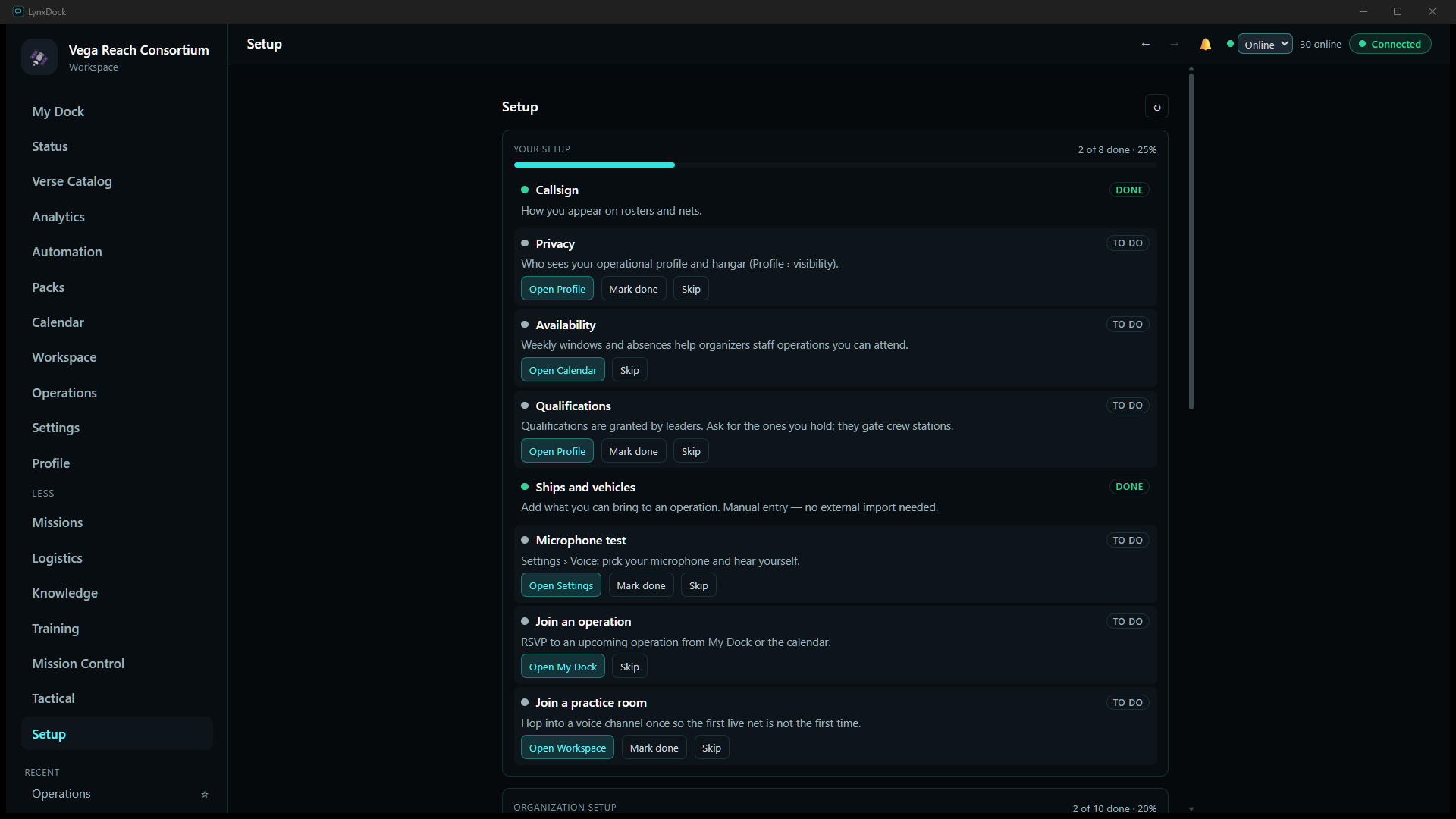
owner · commanderin the captures). Members without those permissions still see the operation, check in, acknowledge orders and raise requests. Roles are managed under Workspace by the server owner. - Each member’s own setup. The Setup page tracks it per account: callsign, privacy, availability, qualifications, ships and vehicles, a microphone test, joining an operation and a practice room. Ships entered here are what members can commit to an operation.
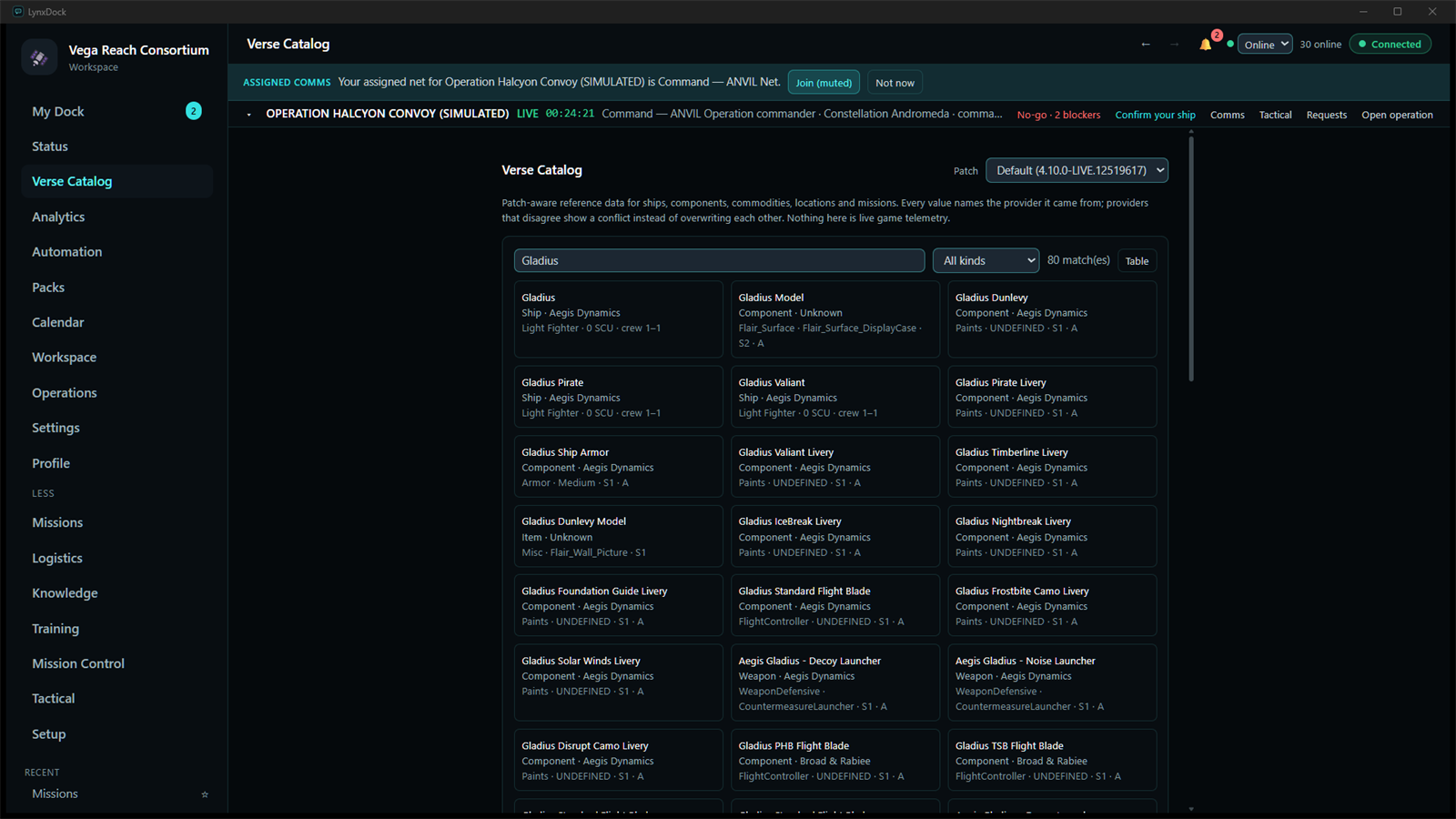
- Verse Catalog (optional but useful). With a catalog import in place, objectives can take a Location from catalog and members can pick real ship definitions. The demo server carried a 17,029-entity import from the Star Citizen Wiki API (CC BY-SA 4.0).
02Create the operation
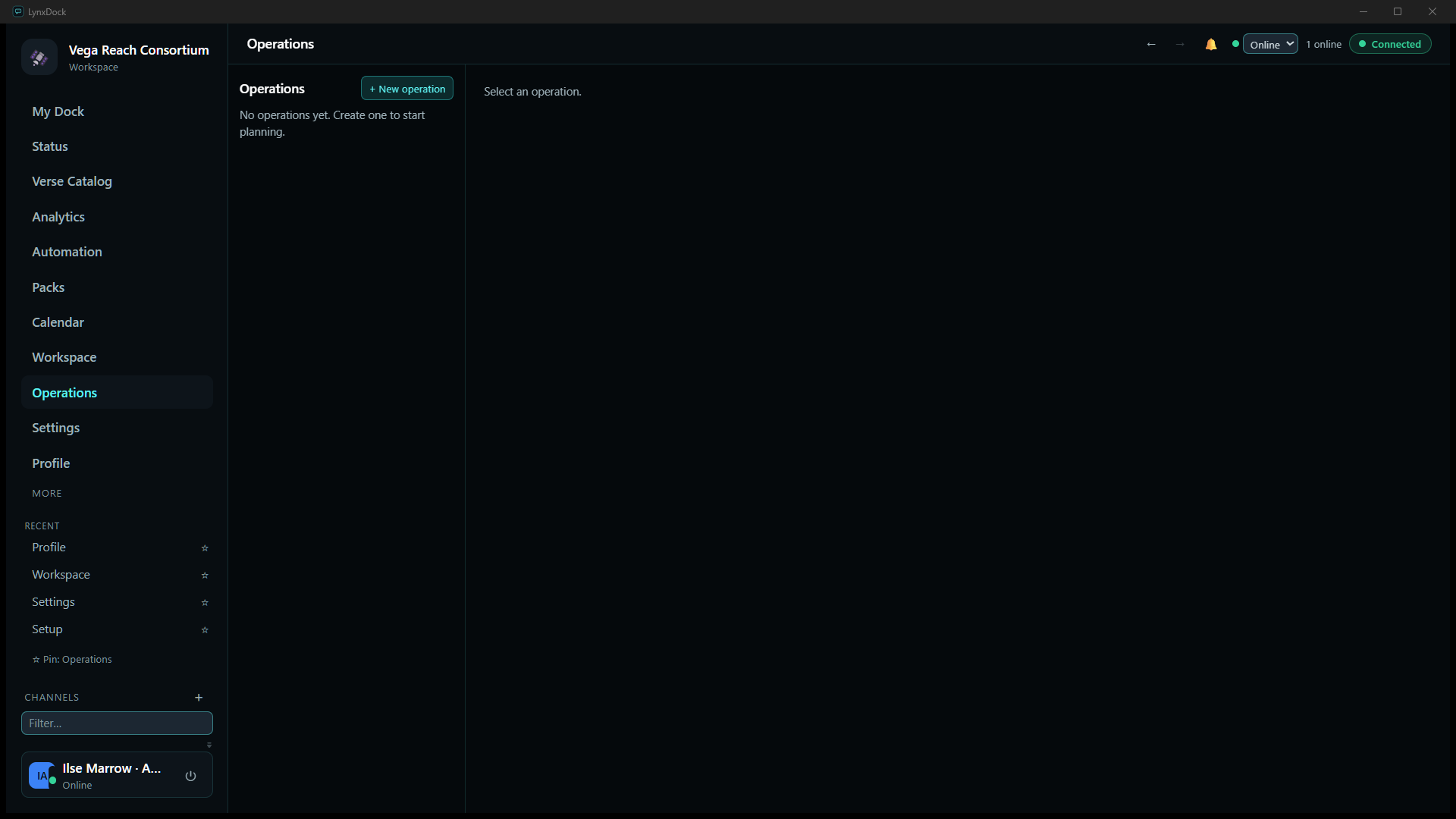
Operations are created from the Operations page in the sidebar. A new operation starts as a Draft that only leadership works on; nobody is notified until it is published.
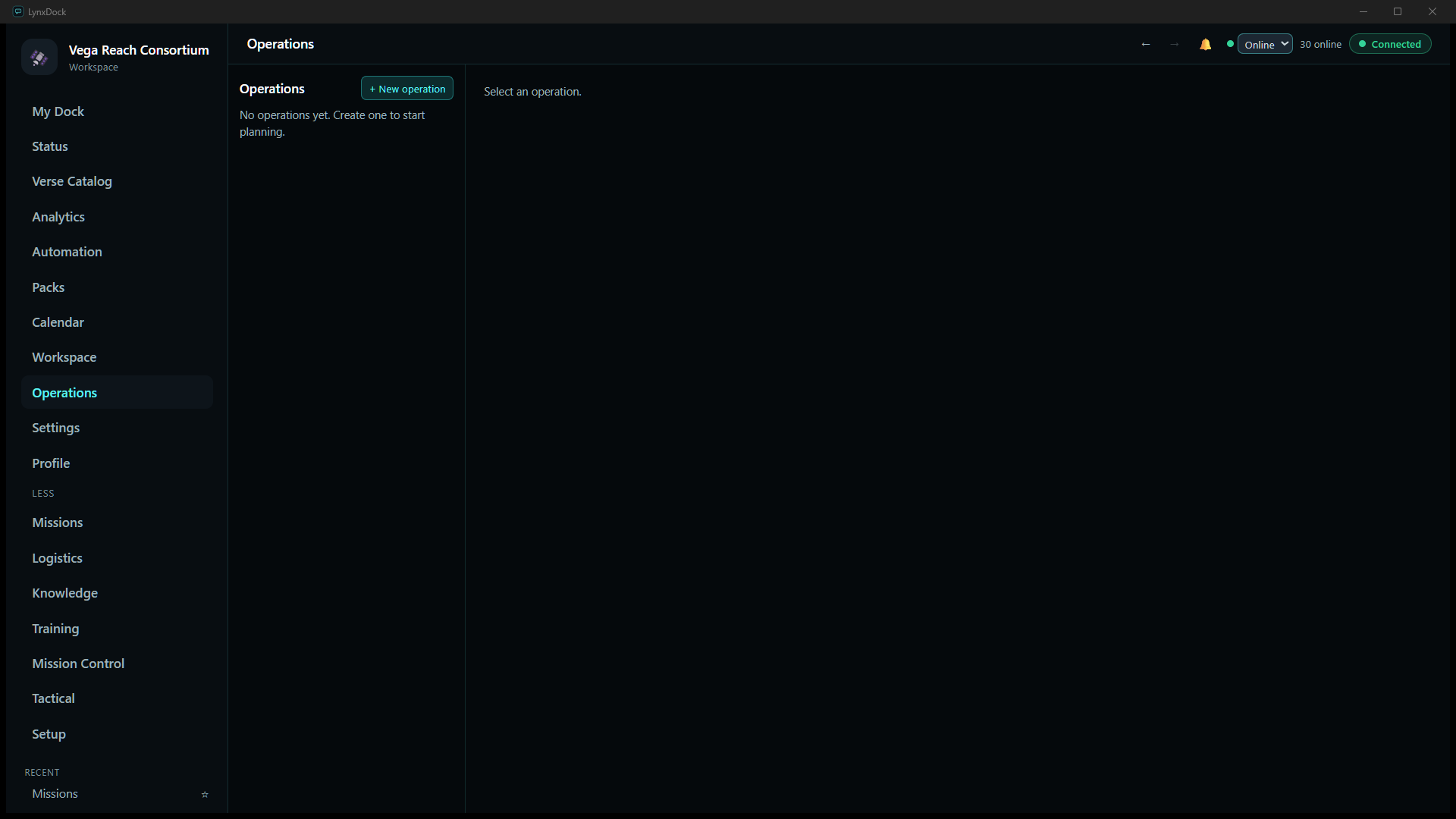
- CommanderOpen Operations and click + New operation. An empty workspace shows No operations yet. Create one to start planning.
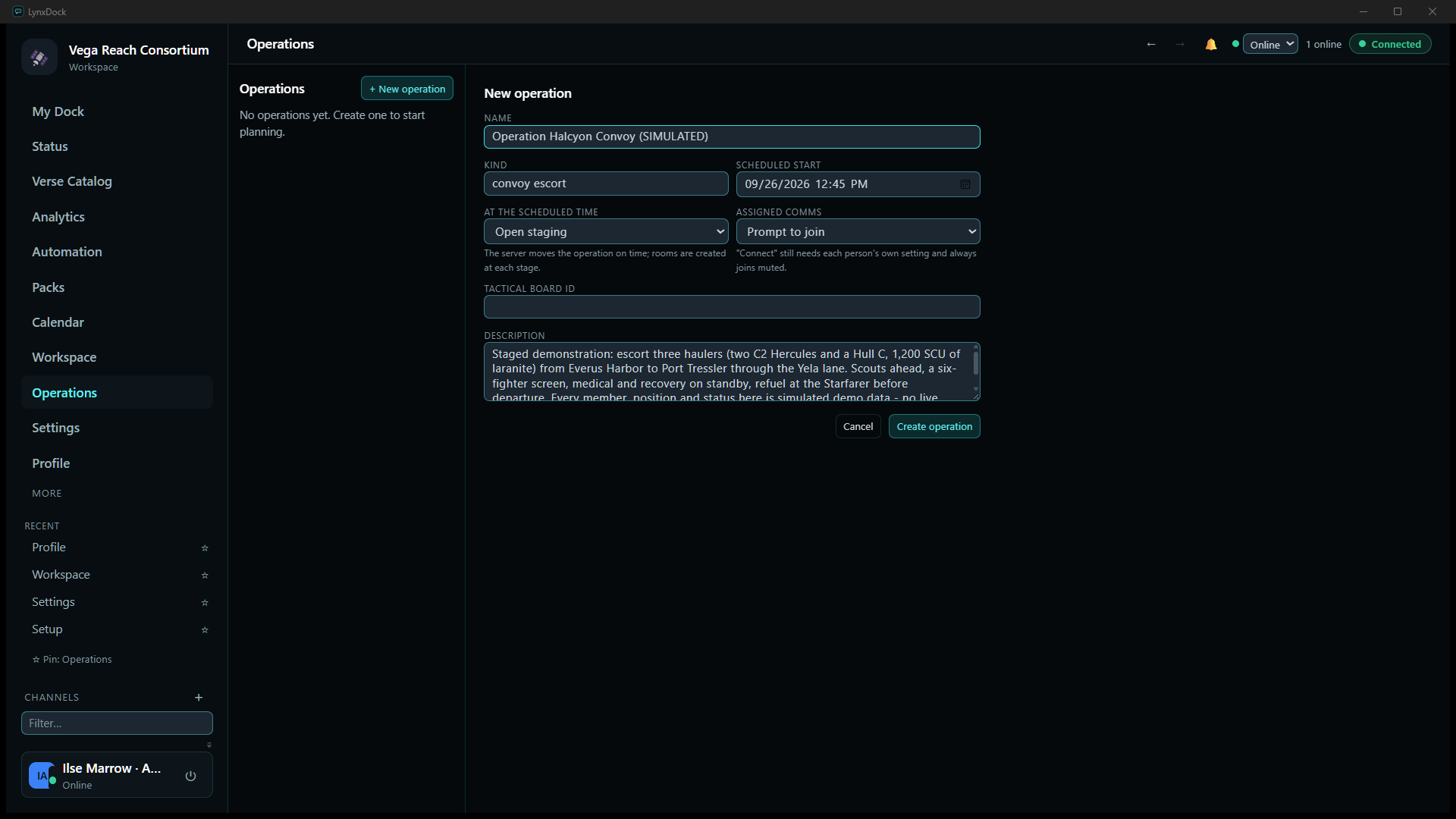
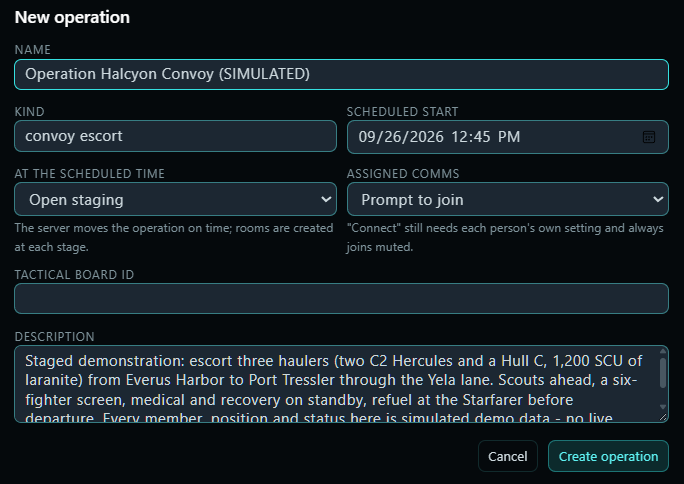
- CommanderFill the form: Name (
Operation Halcyon Convoy (SIMULATED)), Kind (convoy escort), Scheduled start, At the scheduled time (Open staging— the server moves the operation on time and creates rooms at each stage), Assigned comms (Prompt to join), and a Description. Leave Tactical board ID empty — the board is linked in step 5. - CommanderClick Create operation.
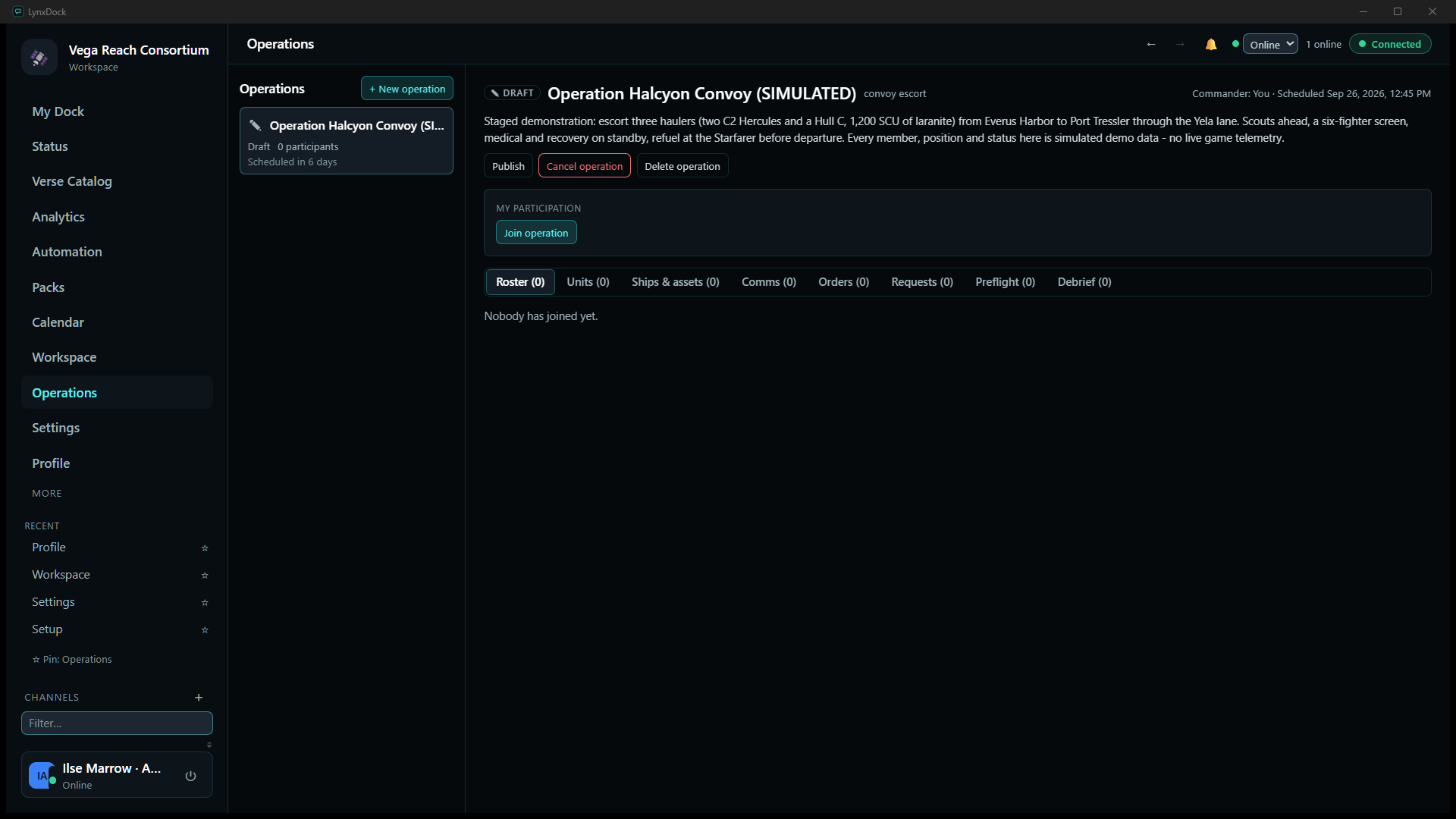
What you should seeThe operation appears in the list with a DRAFT badge, 0 participants, and the header buttons Publish, Cancel operation and Delete operation. The tabs Roster, Units, Ships & assets, Comms, Orders, Requests, Preflight and Debrief are all at zero.
- CommanderClick Join operation under My participation so the commander is a participant too — an operation cannot go live with nobody in it.
03Organize the team
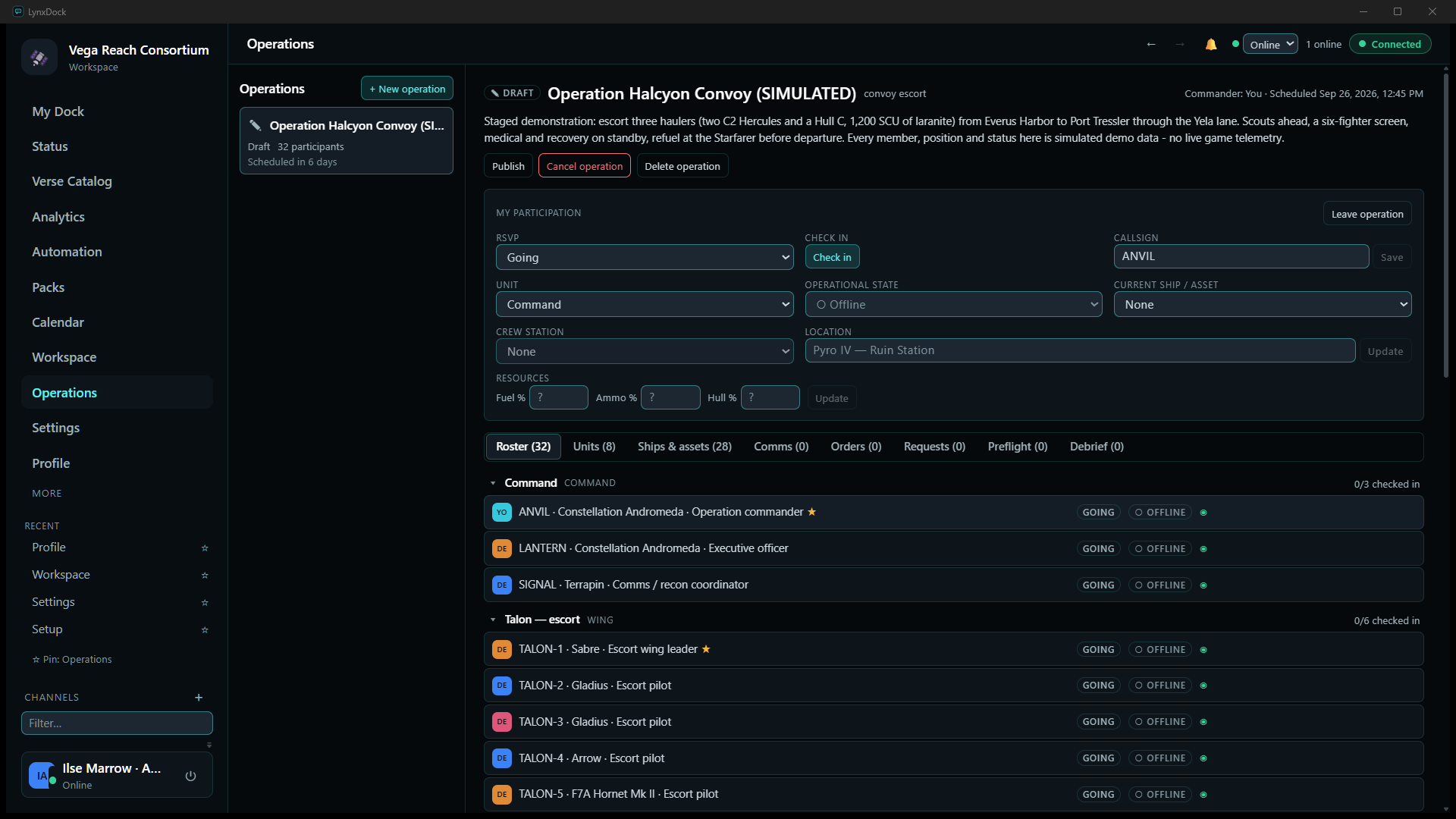
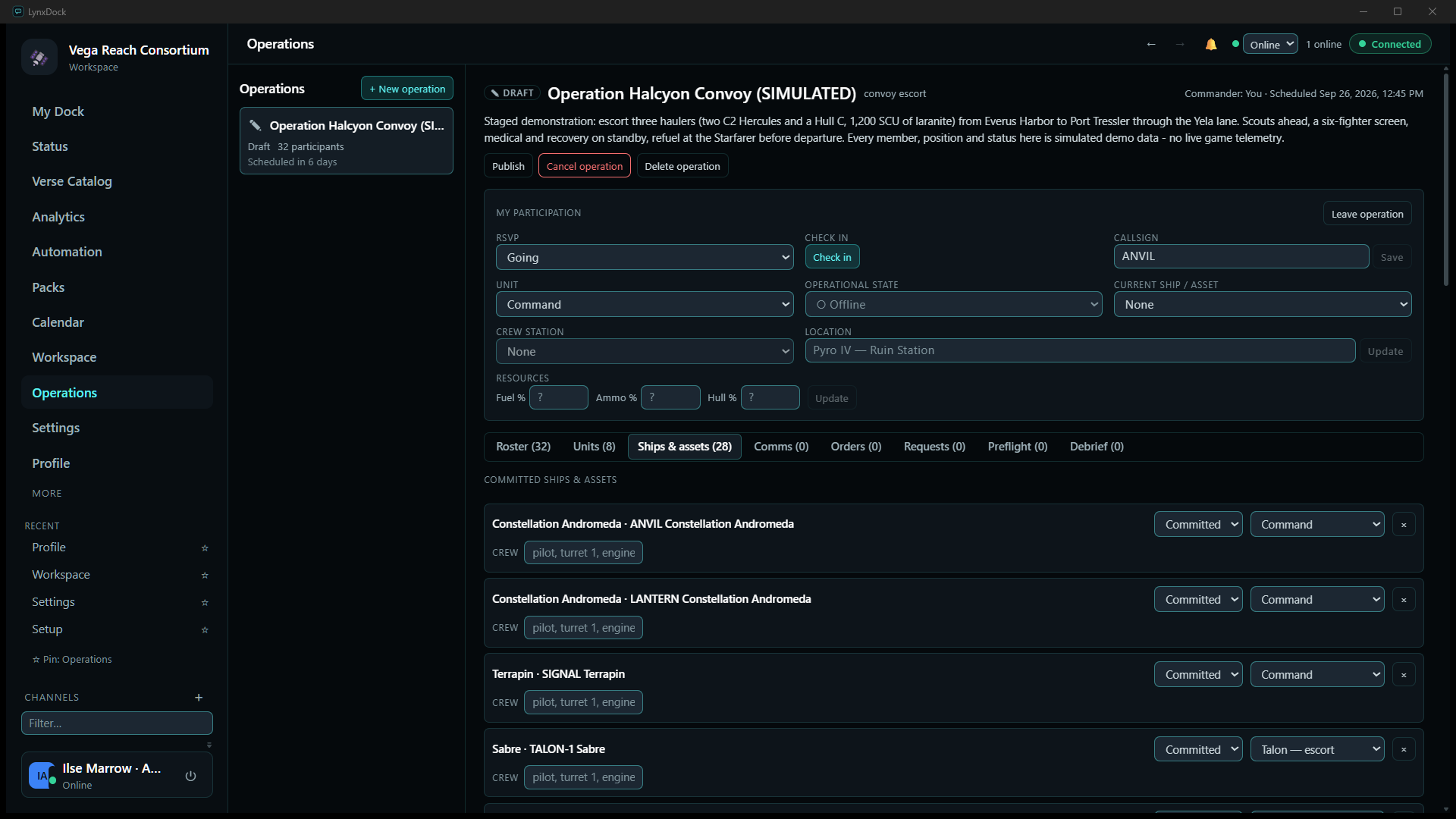
The operation’s structure lives in three tabs. Units holds the wings and who leads them, Roster shows every participant grouped by unit with their RSVP and state, and Ships & assets lists what each member has committed. In the demo the 32 members joined and picked their units from their own clients; the commander then set the leaders.
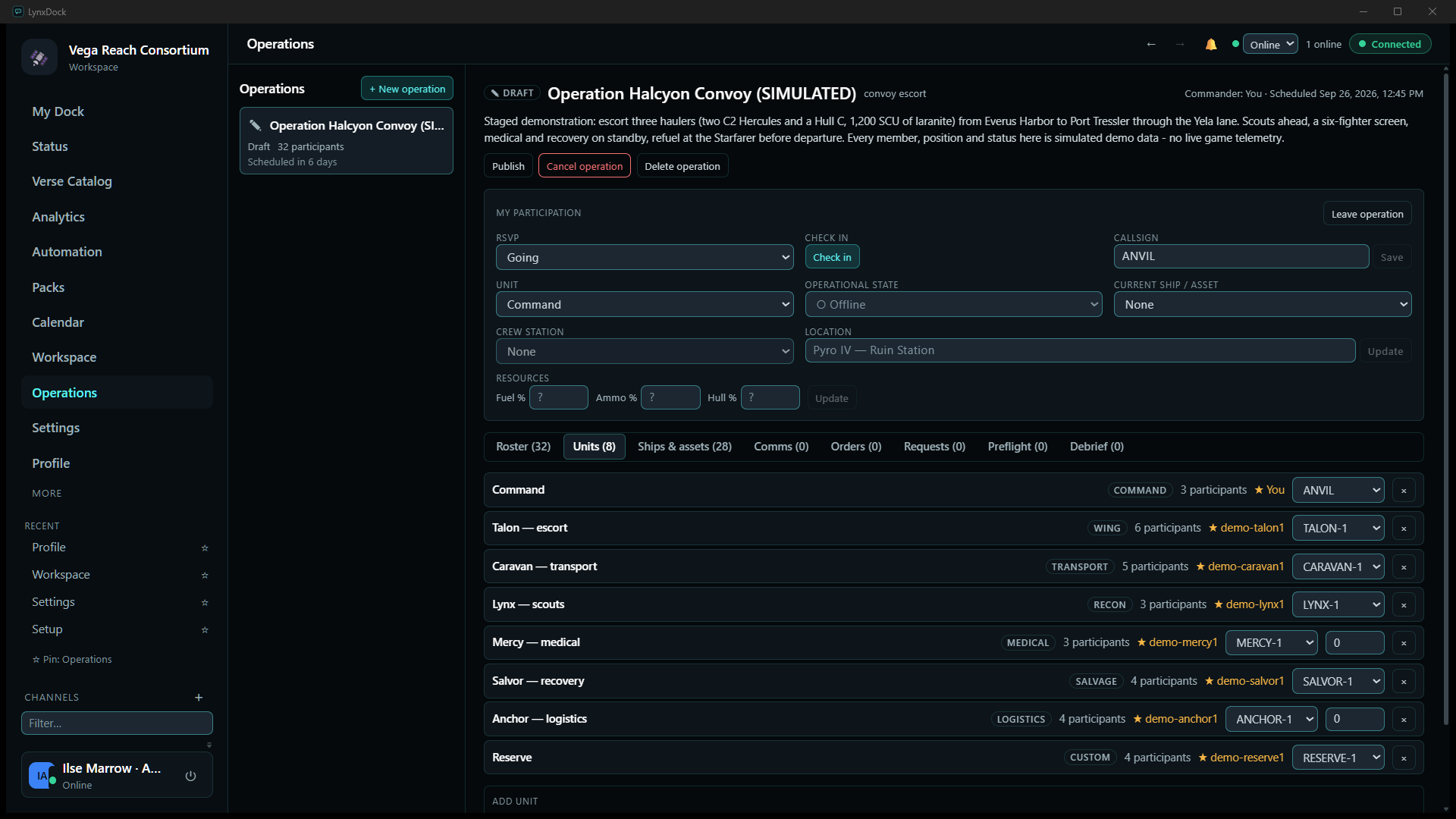
- CommanderOn Units, use Add unit at the bottom to create each wing with a name and kind (command, wing, transport, recon, medical, salvage, logistics, custom). The convoy used eight: Command, Talon — escort, Caravan — transport, Lynx — scouts, Mercy — medical, Salvor — recovery, Anchor — logistics and Reserve.
- MemberOpen the operation, click Join operation, set RSVP to
Going, choose your Unit and enter your Callsign, then Save. Unit choice is free while the operation is a draft; once staging begins the page notes that unit assignments are managed by leadership. - CommanderBack on Units, pick the leader for each unit from the callsign selector on its row (the star marks the current leader). Remove a unit with ×.
What you should seeEach row shows its kind badge, participant count and leader — Talon — escort · WING · 6 participants · ★ demo-talon1 · TALON-1.
- CommanderCheck Roster (32): participants are grouped under their unit with GOING and their operational state, and each group shows 0/6 checked in until staging.
- MemberOn Ships & assets, commit the ship you will fly (from the ships entered on Setup). The commander can change a row’s Committed state or move it to another unit.
04Prepare communications
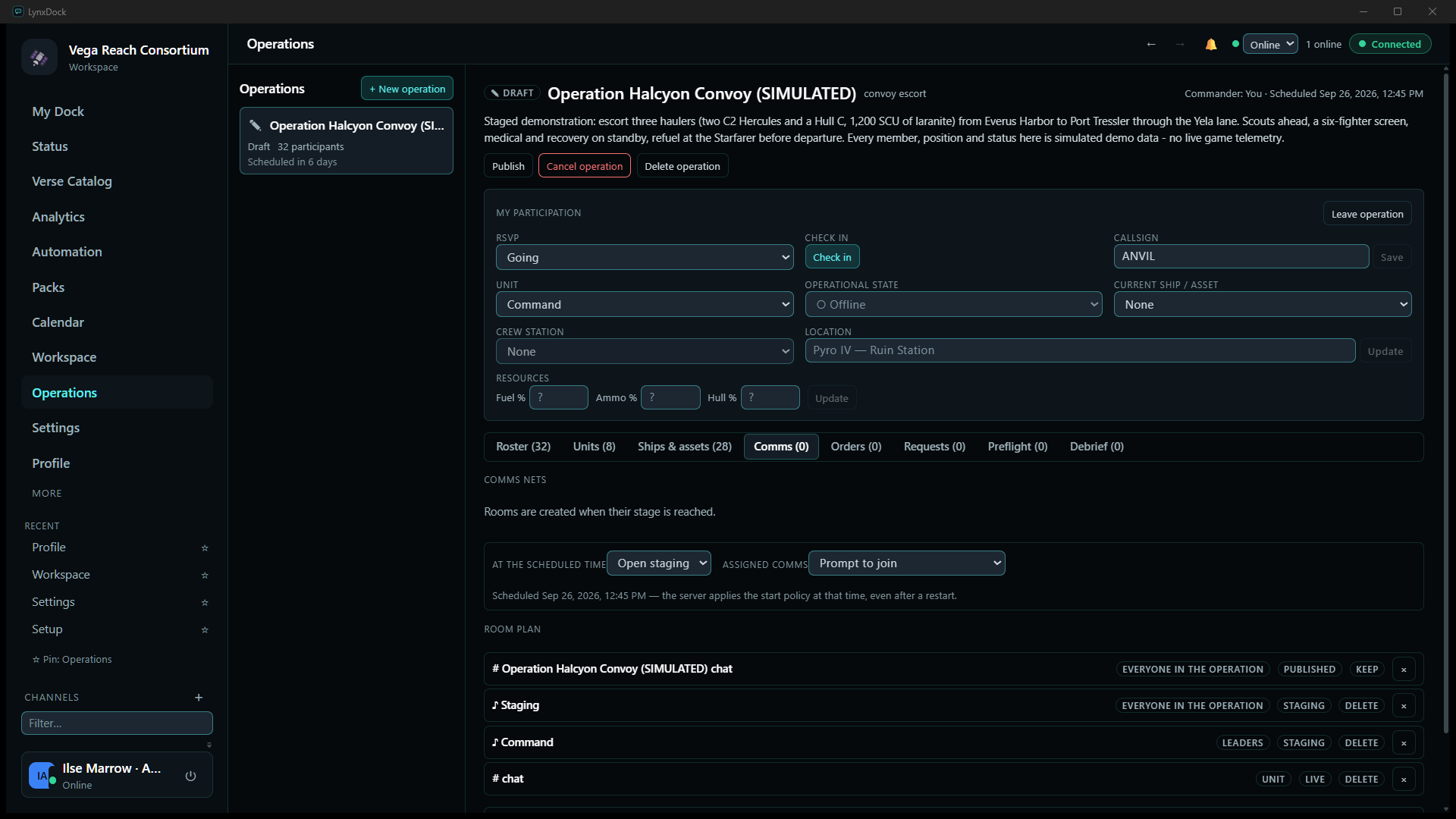
Comms are planned before anything is created. The Comms tab holds a room plan: which rooms exist, who they are for, at which stage they appear and whether they are kept afterwards. The server creates the rooms when the operation reaches each stage, so nothing clutters the sidebar during planning.
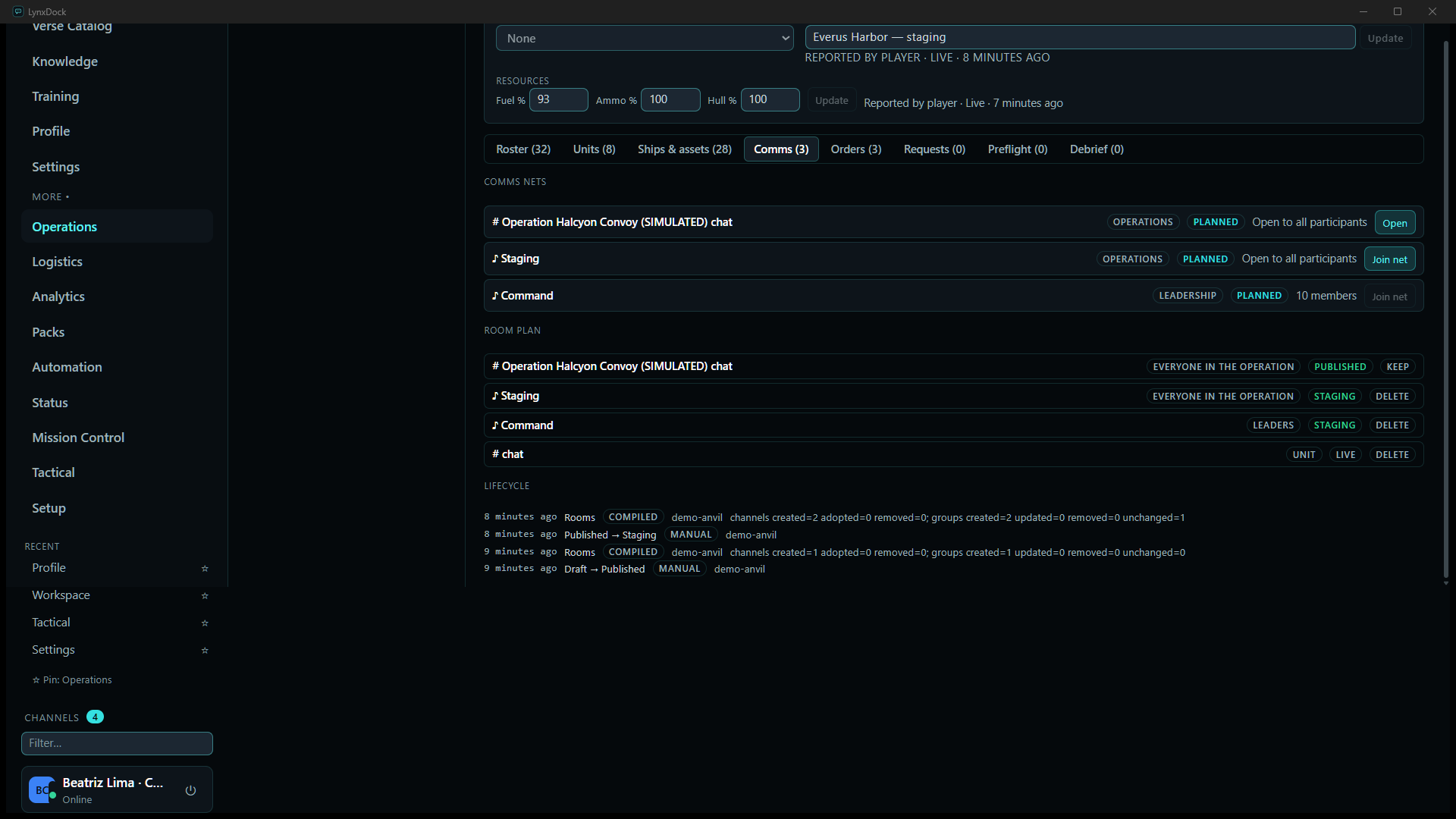
- CommanderOpen Comms. While the operation is a draft it says Rooms are created when their stage is reached. Check the two policies carried over from the form — At the scheduled time and Assigned comms — and the scheduled date under them.
- CommanderReview the Room plan. The default plan for this operation was a text room for everyone (PUBLISHED · KEEP), a Staging net for everyone and a Command net for leaders (STAGING · DELETE), and a per-unit chat at LIVE. Rows are removed with ×; the Add starter rooms control adds a default set.
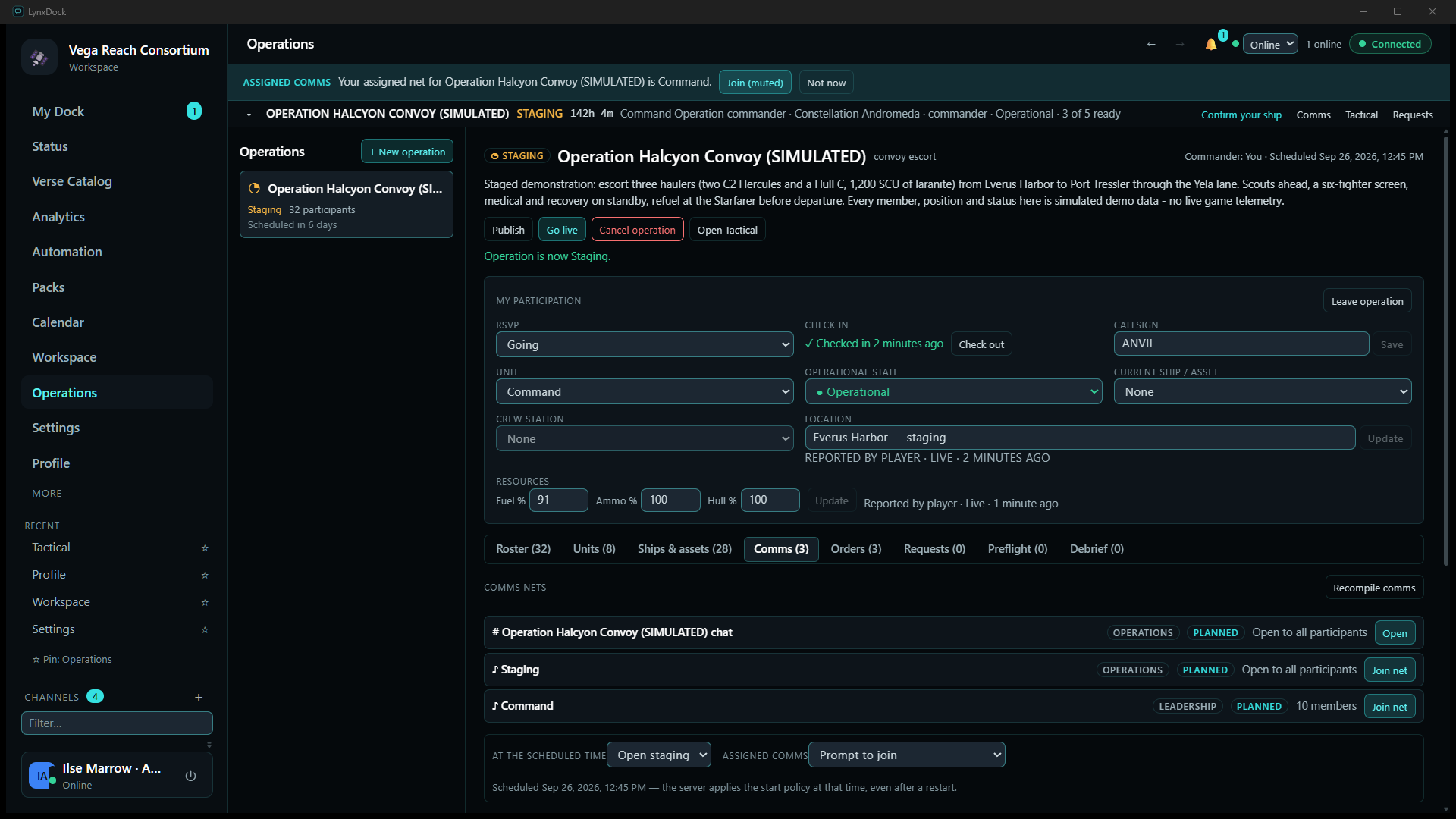
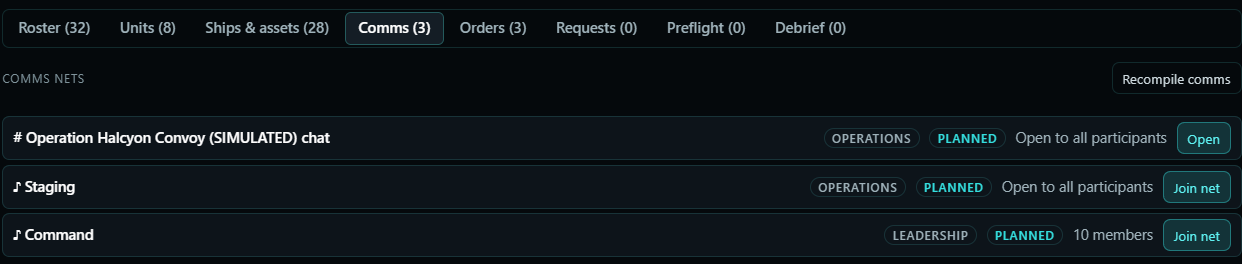
- CommanderAfter the operation is staging (step 6), the same tab lists the nets that now exist with Open / Join net buttons, and Recompile comms re-derives them if the plan or the roster changed.
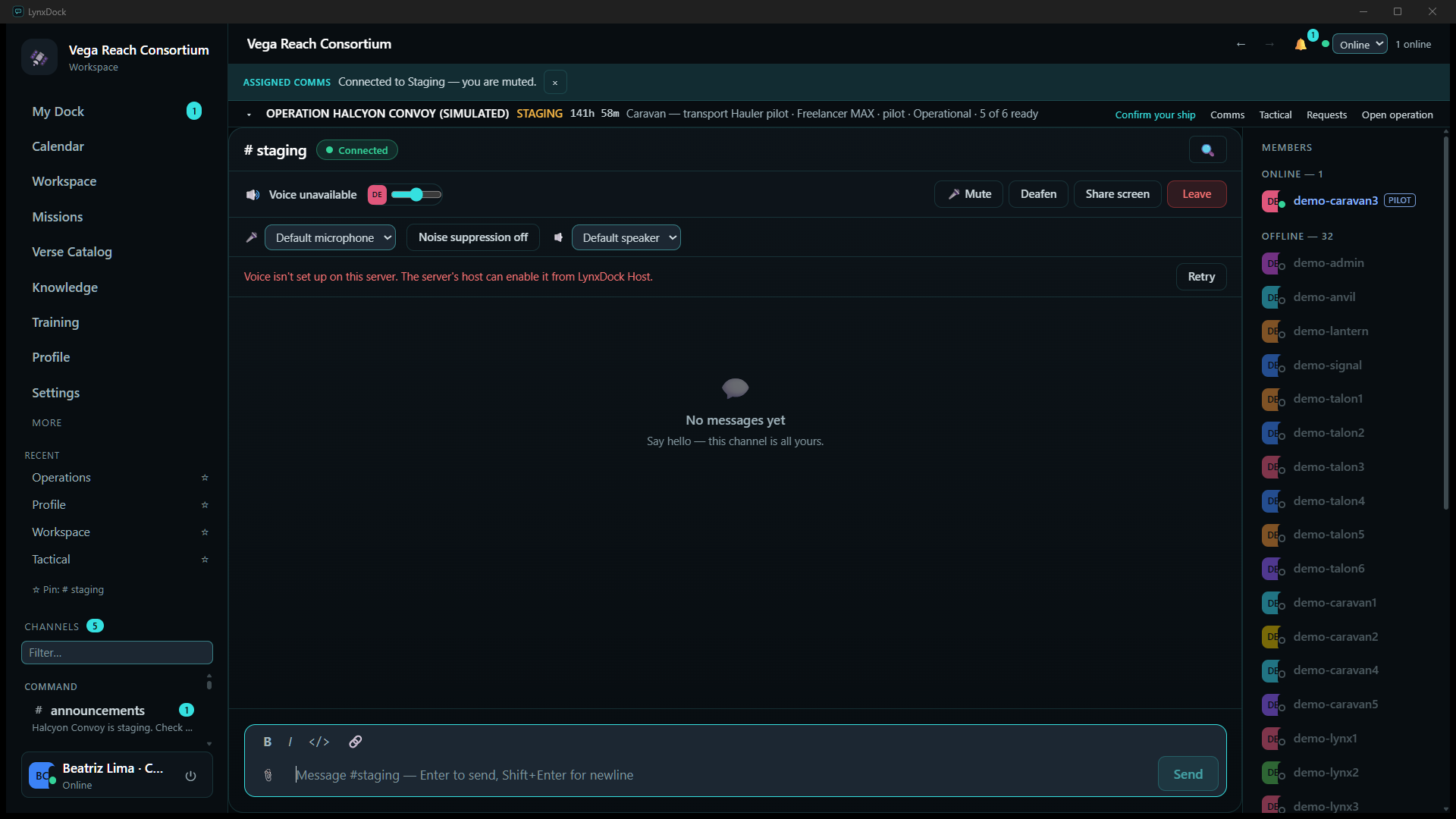
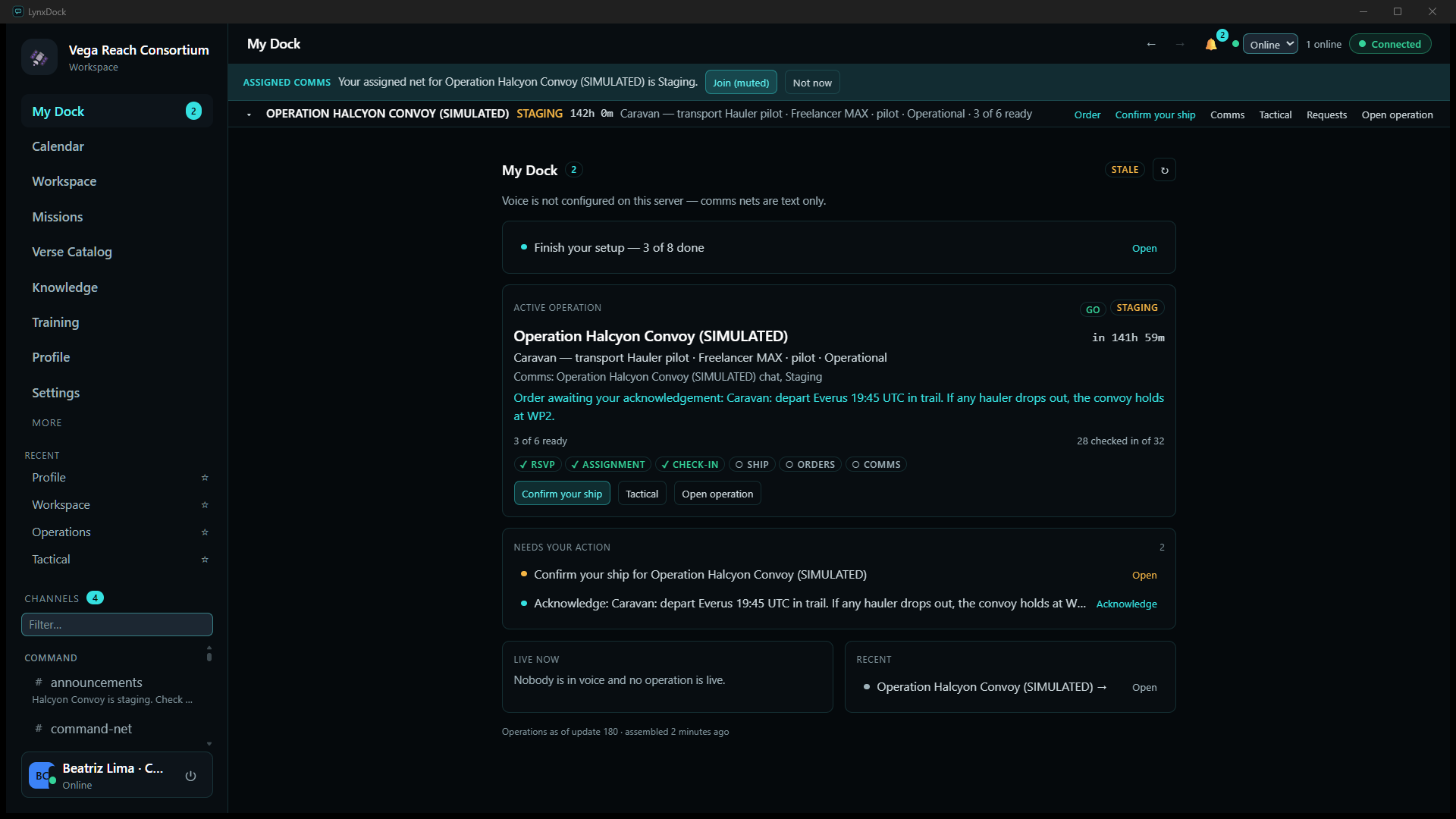
- MemberWhen your net is ready, an ASSIGNED COMMS banner appears at the top of every page — Your assigned net for Operation Halcyon Convoy (SIMULATED) is Staging. — with Join (muted) and Not now. Joining lands you in the room, muted, with a Connected chip. The Comms tab keeps a Lifecycle log of when rooms were compiled and by whom.
05Build the tactical plan
The plan is drawn on the Tactical board: units placed by hand, wings for colour and grouping, zones for the areas that matter, routes with waypoints, objectives per wing, and a written briefing. The board is then linked to the operation — a pointer, not a synchronisation. Read What the link does, and does not do below before relying on it.
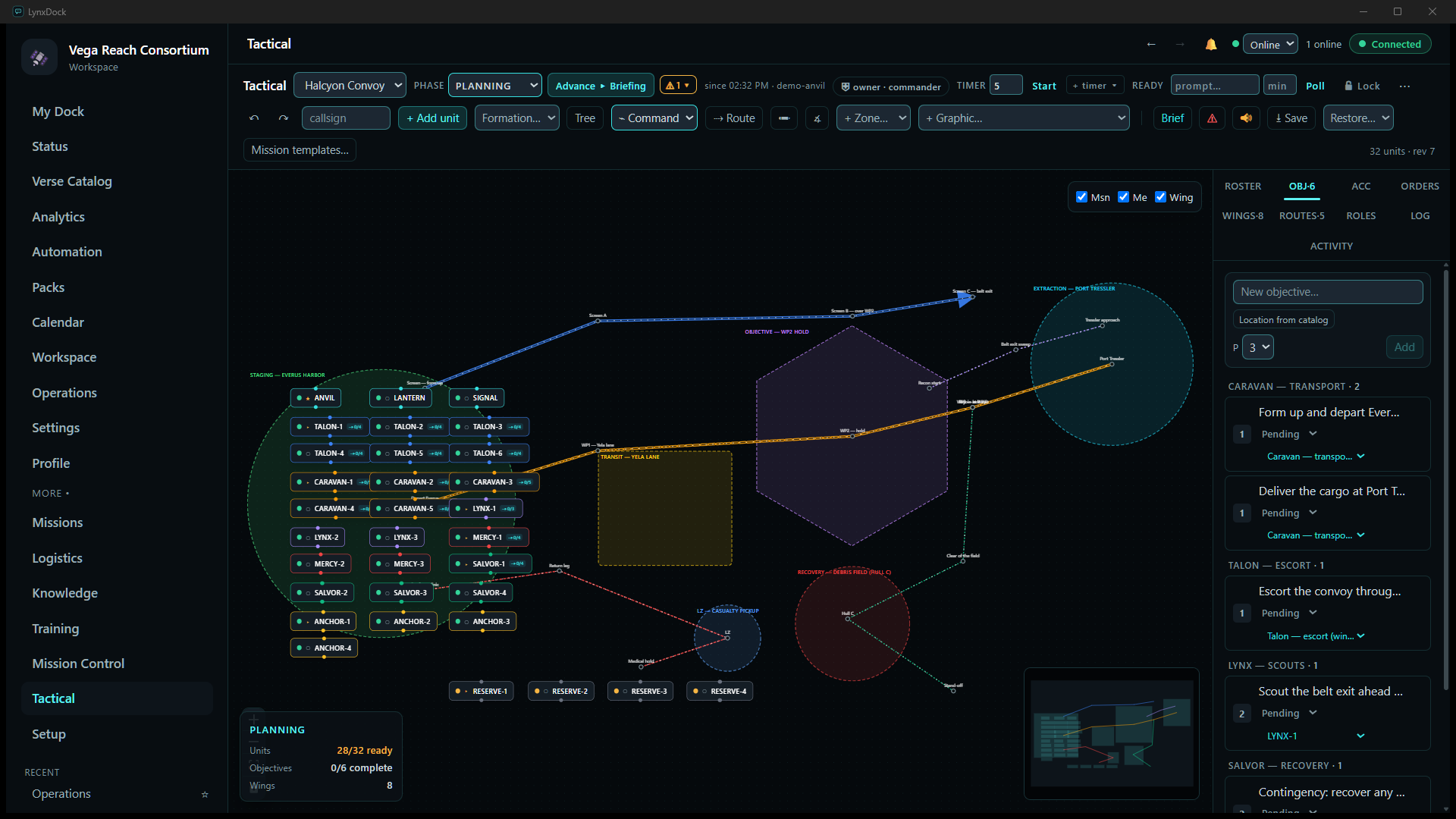
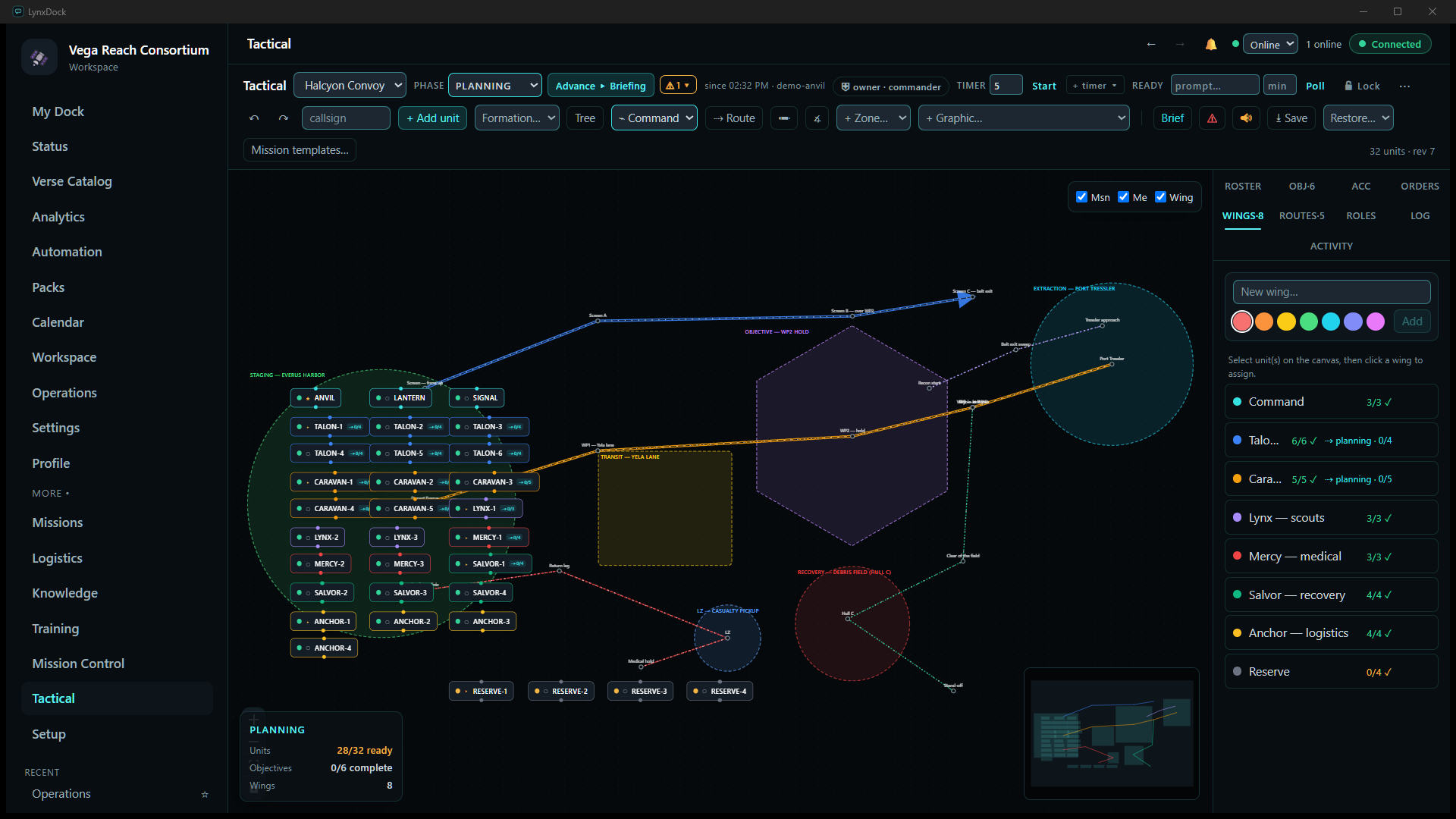
- CommanderOpen Tactical, choose or create the board in the selector (Halcyon Convoy). Add each member with + Add unit and drag the cards into place. Positions are placed by you — LynxDock does not read the game.
- CommanderOpen the WINGS panel on the right, type a name in New wing…, pick a colour and click Add. Then, as the panel says, select unit(s) on the canvas, then click a wing to assign. The colours carry through every later view: blue Talon, amber Caravan, violet Lynx, red Mercy, green Salvor, yellow Anchor.
- CommanderDraw the areas with + Zone…: a rally circle for Staging — Everus Harbor, a staging rectangle for Transit — Yela lane, a hexagonal area of operations for Objective — WP2 hold, a danger circle for the Recovery — debris field, an LZ for casualty pickup and an extraction circle at Port Tressler.
- CommanderAdd routes with → Route: the convoy’s supply route and Talon’s escort screen from the staging circle to Port Tressler, a recon leg for LYNX-1 ahead of them, and two contingency routes — Salvor’s search leg into the debris field and Mercy’s medical leg to the LZ. Name the waypoints as you go (WP1 — Yela lane, WP2 — hold, Screen A/B/C…).
- CommanderIn the OBJ panel, type each objective in New objective…, set its priority and click Add; Location from catalog pins it to a Verse Catalog place. Objectives are listed under the wing that owns them.
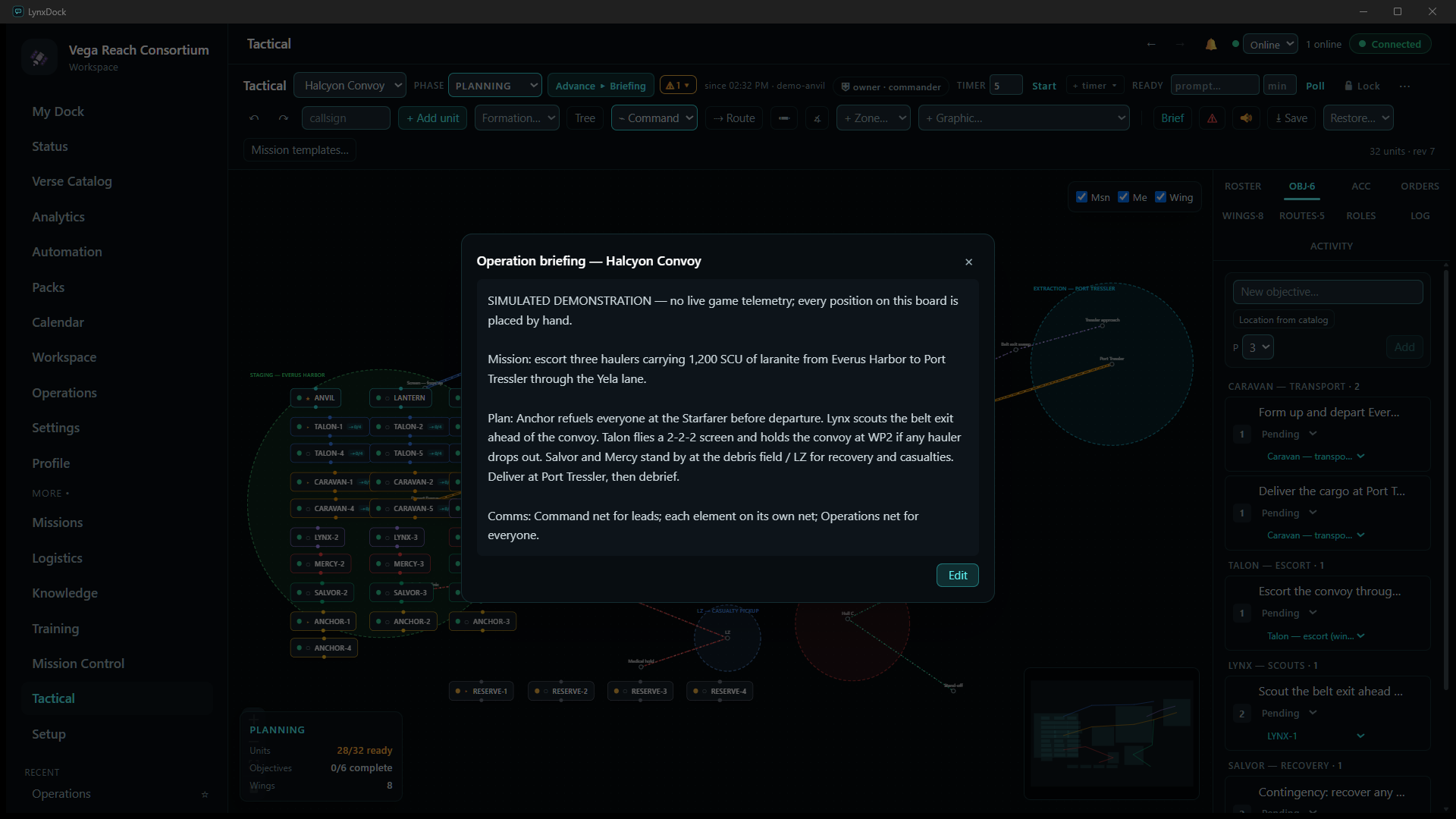
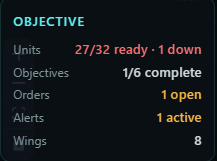
- CommanderClick Brief in the toolbar to write the operation briefing; it opens for everyone who opens the board, with Edit for leaders. Set PHASE to Planning; the summary card in the lower-left shows units ready, objectives complete and wing count.
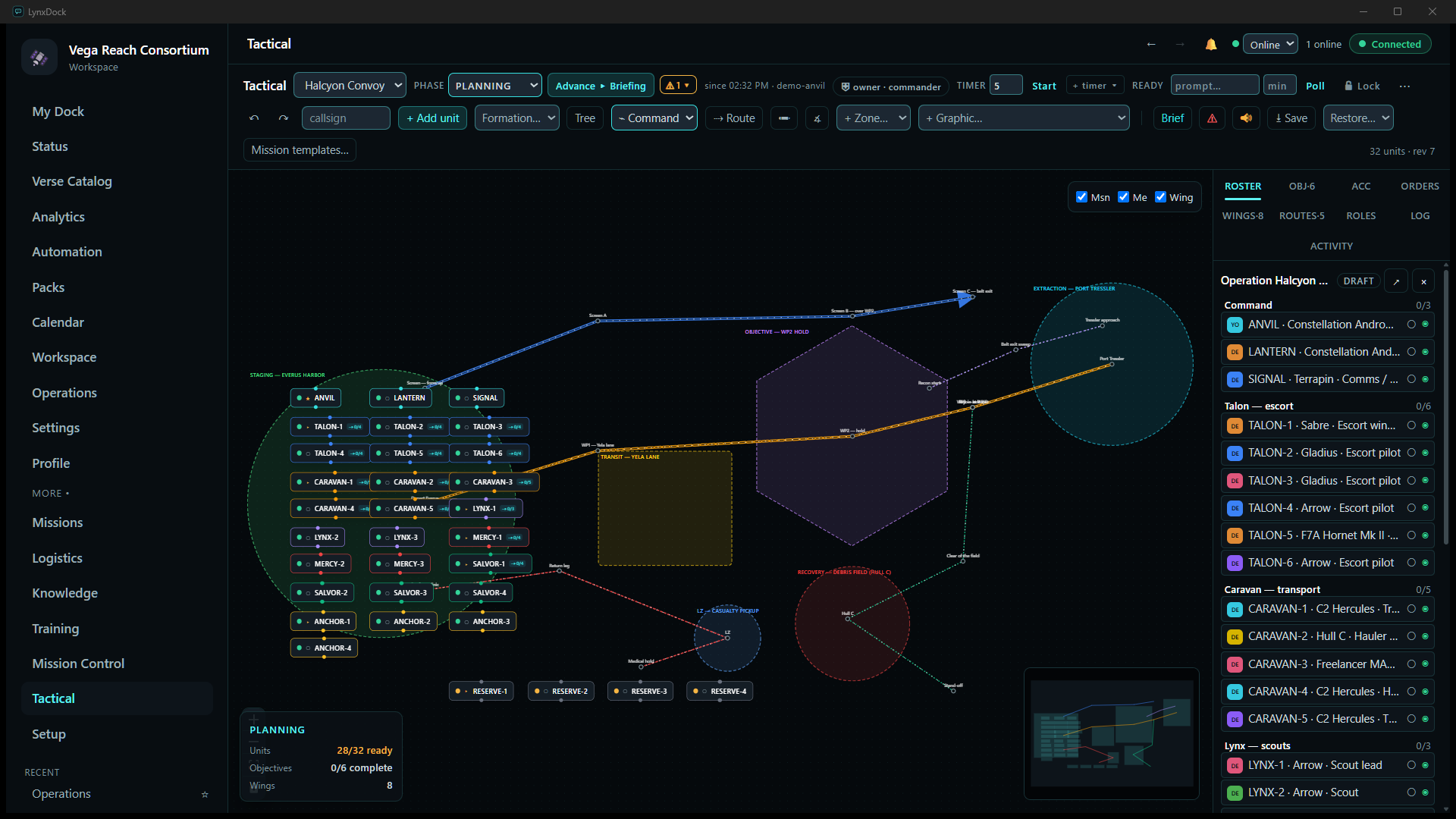
- CommanderOpen the ROSTER panel: it says No operation is linked to this board. Link an operation to see its roster, ships, comms and requests here. Pick the operation in Choose an operation. and click Link (this sets the operation’s Tactical board ID; Unlink clears it). The panel then shows the operation name with its status chip (DRAFT) and every participant grouped by unit, read live from the operation. Click Save in the toolbar when the board reads the way you want it; Restore… lists earlier revisions and 32 units · rev 7 in the corner is the board revision.
What the link does, and does not do
Checked against the server and client source for this build and against the run above. The link is the operation’s Tactical board ID field, nothing more. Automatic through the link: the board’s ROSTER panel reads the linked operation live — its status chip, participants grouped by unit with their check-in and operational state, committed ships, comms nets, open support requests and active missions; the operation page, My Dock and the Debrief tab get an Open Tactical / Open Mission Log (Tactical) button; My Dock’s primary action opens the board instead of the roster when a board is linked. Everything else is separate and updated by hand: unit cards, their wing assignment and their ready / standby / down status, positions, zones, routes and waypoint progress, objectives, the board PHASE, board orders and alerts live on the board and are changed only by leaders on the board — a member checking in, changing Operational state or acknowledging an order on the operation page does not move or recolour a card, and going Live orCompleting the operation does not advance the board phase. The other way round, board orders and alerts never appear on the operation’s Orders tab, and completing every objective does not complete the operation. The two records share nothing but the pointer; each is authoritative for its own kind of fact.
06Brief and deploy
The operation moves through Draft → Published → Staging → Live. Publishing tells the members; staging opens the nets and starts check-ins; going live starts the clock. Orders are issued from the Orders tab and acknowledged by the people they are for, and Preflight tells you what would stop you before you click Go live.
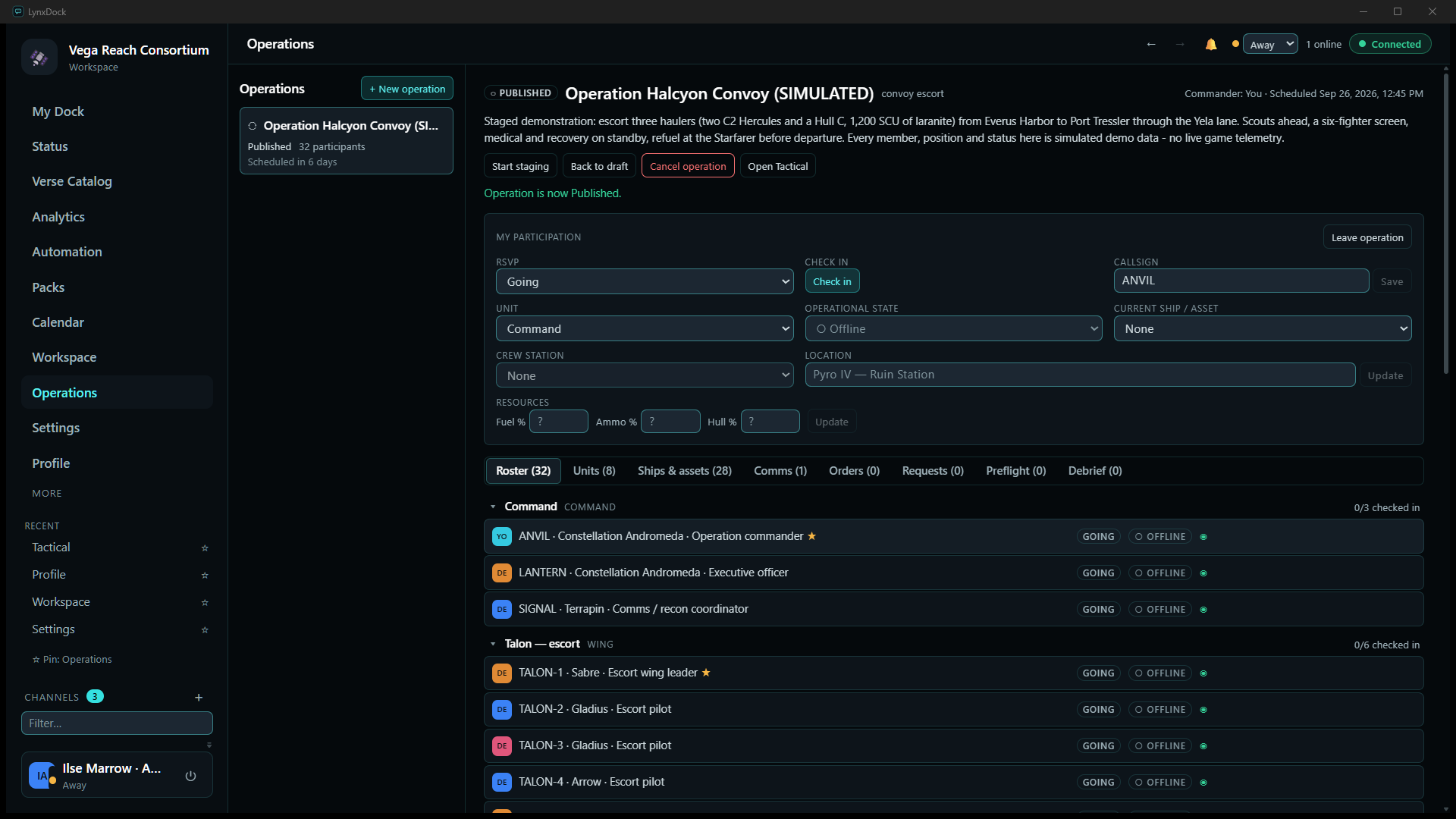
- CommanderClick Publish.
What you should seeThe badge changes to PUBLISHED, the message Operation is now Published. appears, and the buttons become Start staging, Back to draft, Cancel operation and Open Tactical. The operation chat now exists (Comms (1)).
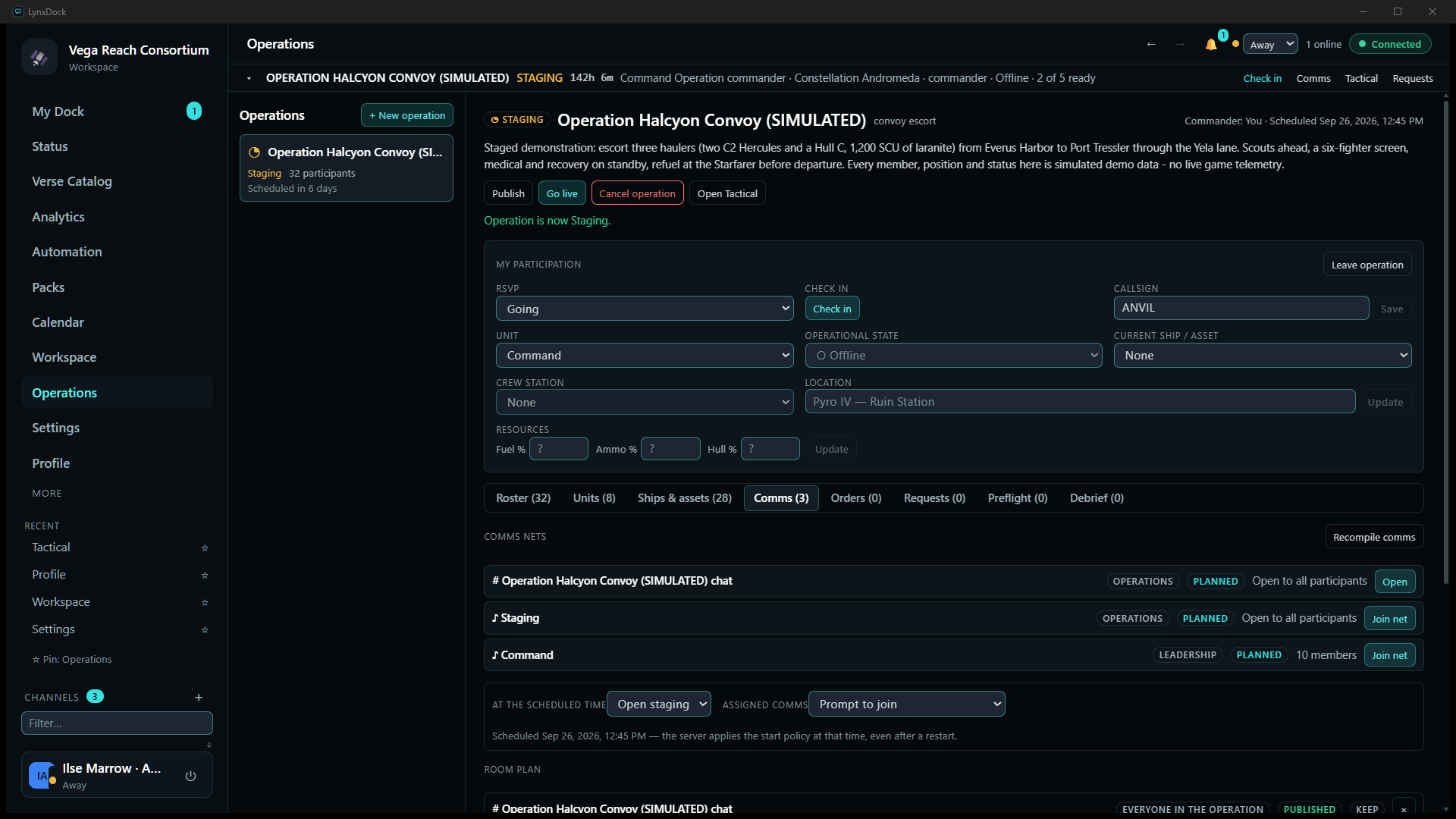
- CommanderClick Start staging.
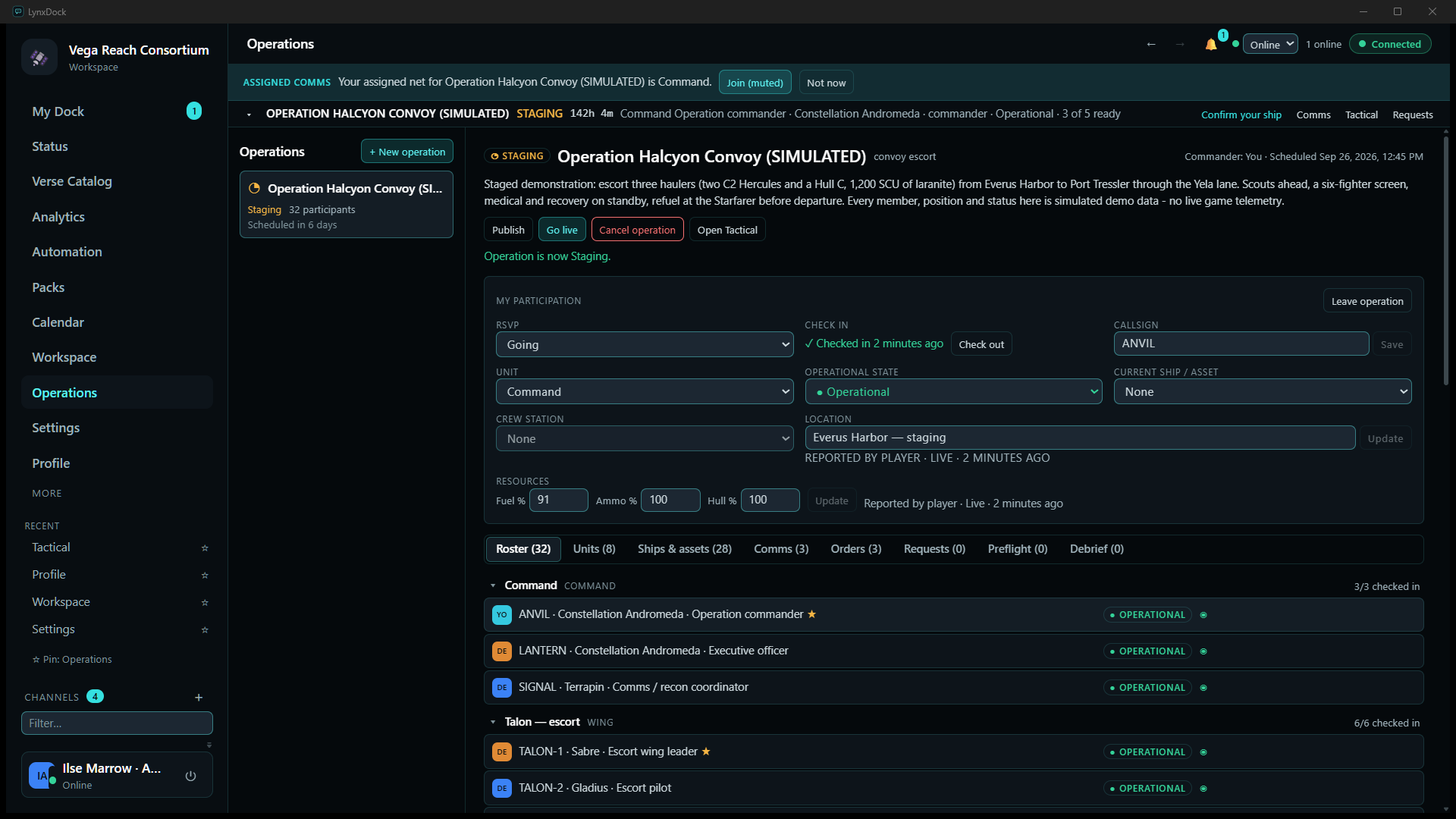
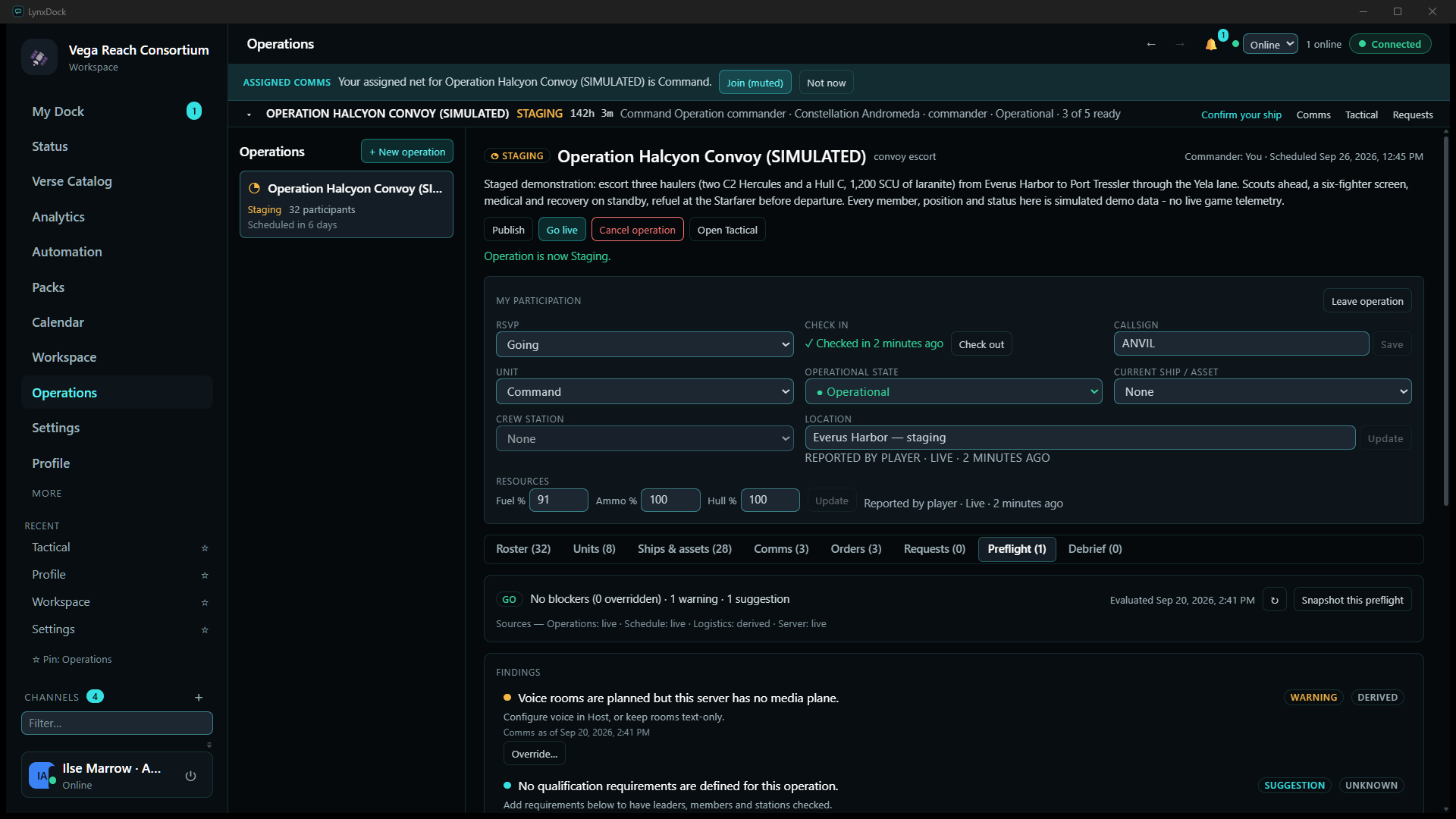
What you should seeSTAGING, buttons Publish, Go live, Cancel operation, Open Tactical. A banner above the page now follows you everywhere — OPERATION HALCYON CONVOY (SIMULATED) · STAGING · 142h 6m · Command · … · 2 of 5 ready — with Check in, Comms, Tactical and Requests links.
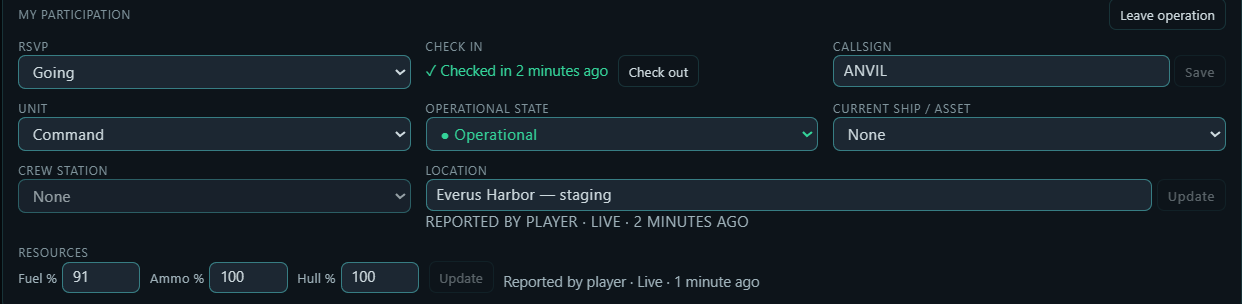
- EveryoneClick Check in under My participation, set Operational state to
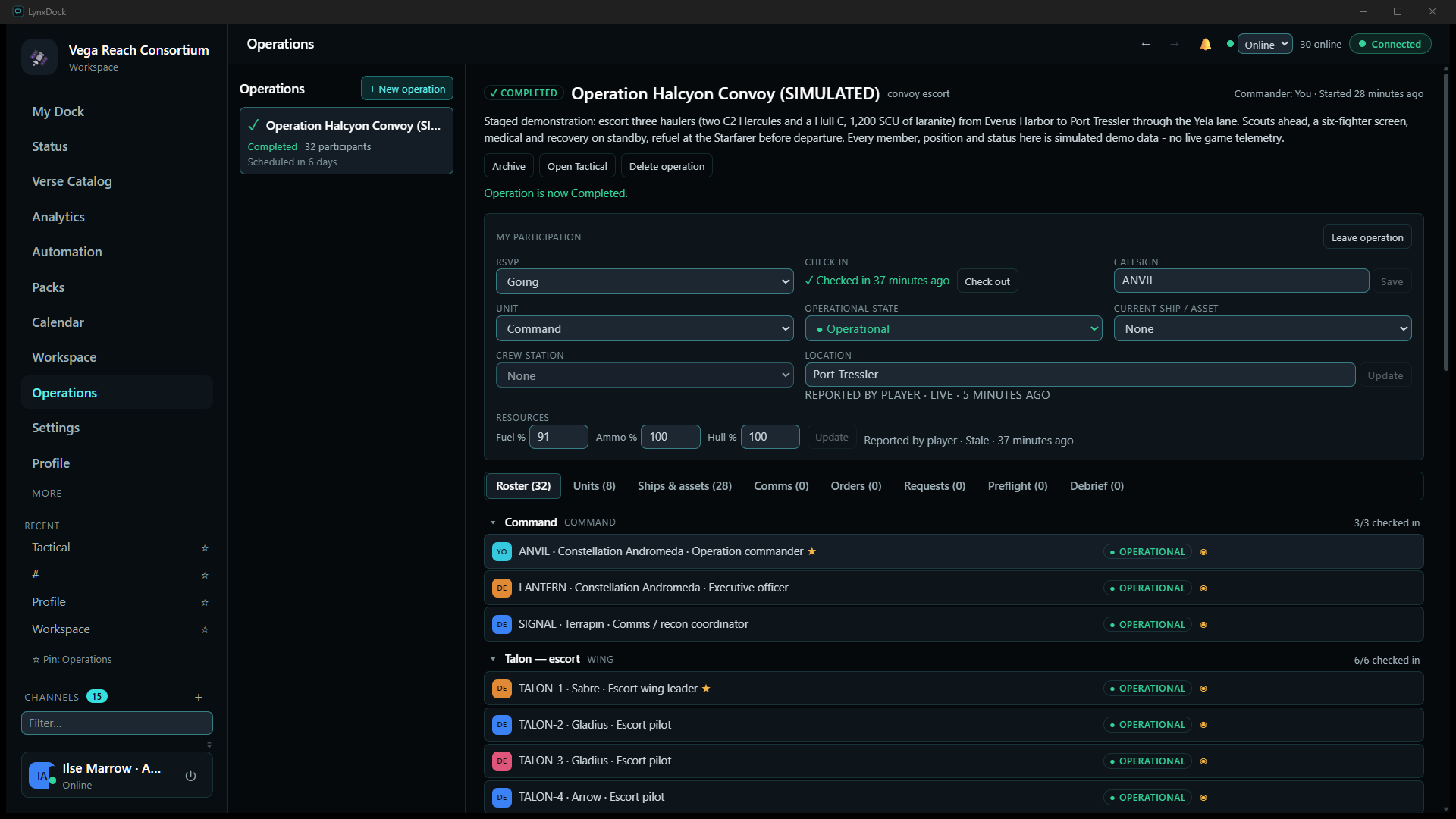
Operational, type your Location and click Update, and enter Fuel % / Ammo % / Hull % then Update.What you should see✓ Checked in 2 minutes ago · Check out; the location and resources read REPORTED BY PLAYER · LIVE. On the Roster the group counters climb — 3/3 checked in, 6/6 checked in — and states turn OPERATIONAL.
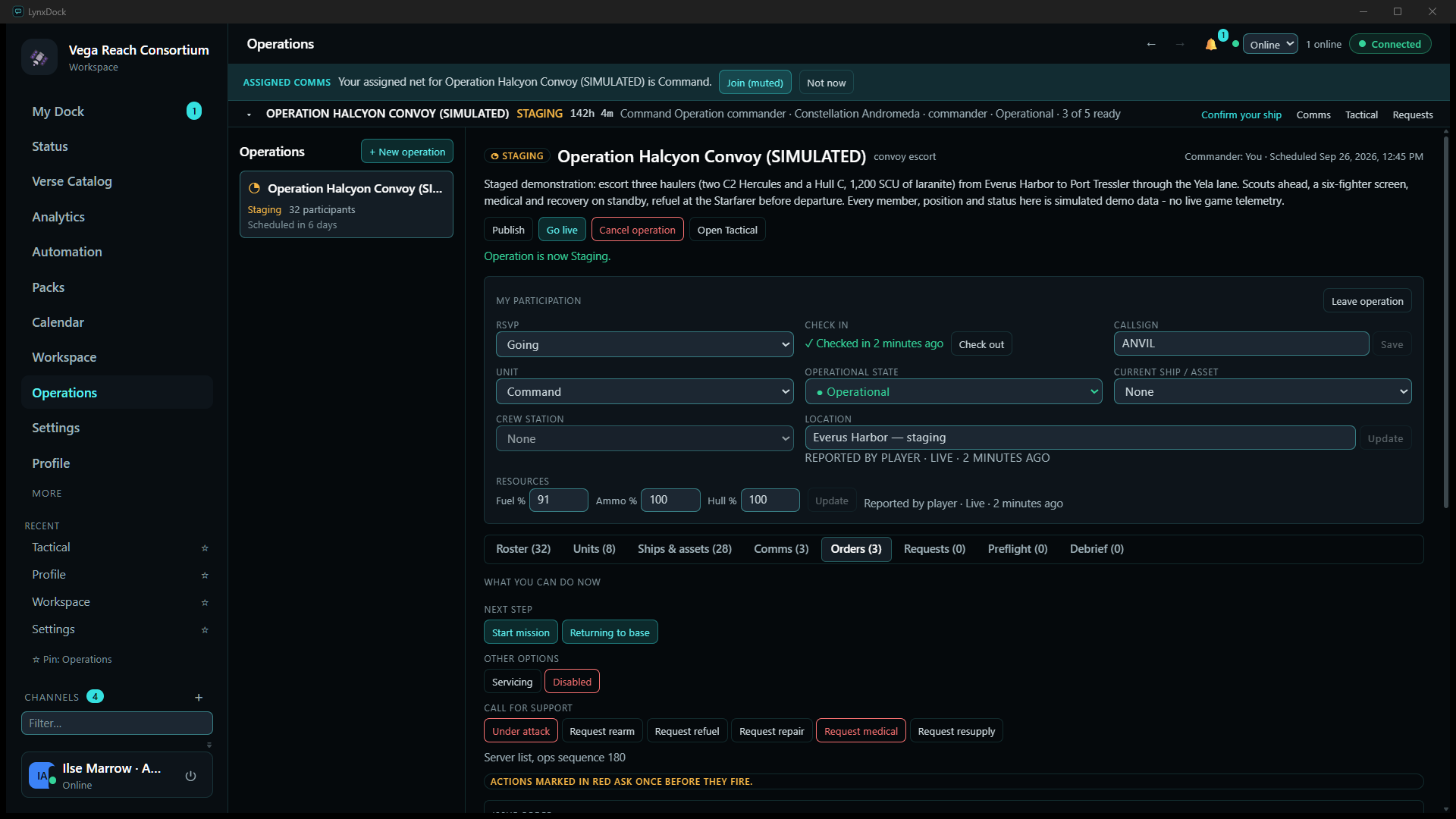
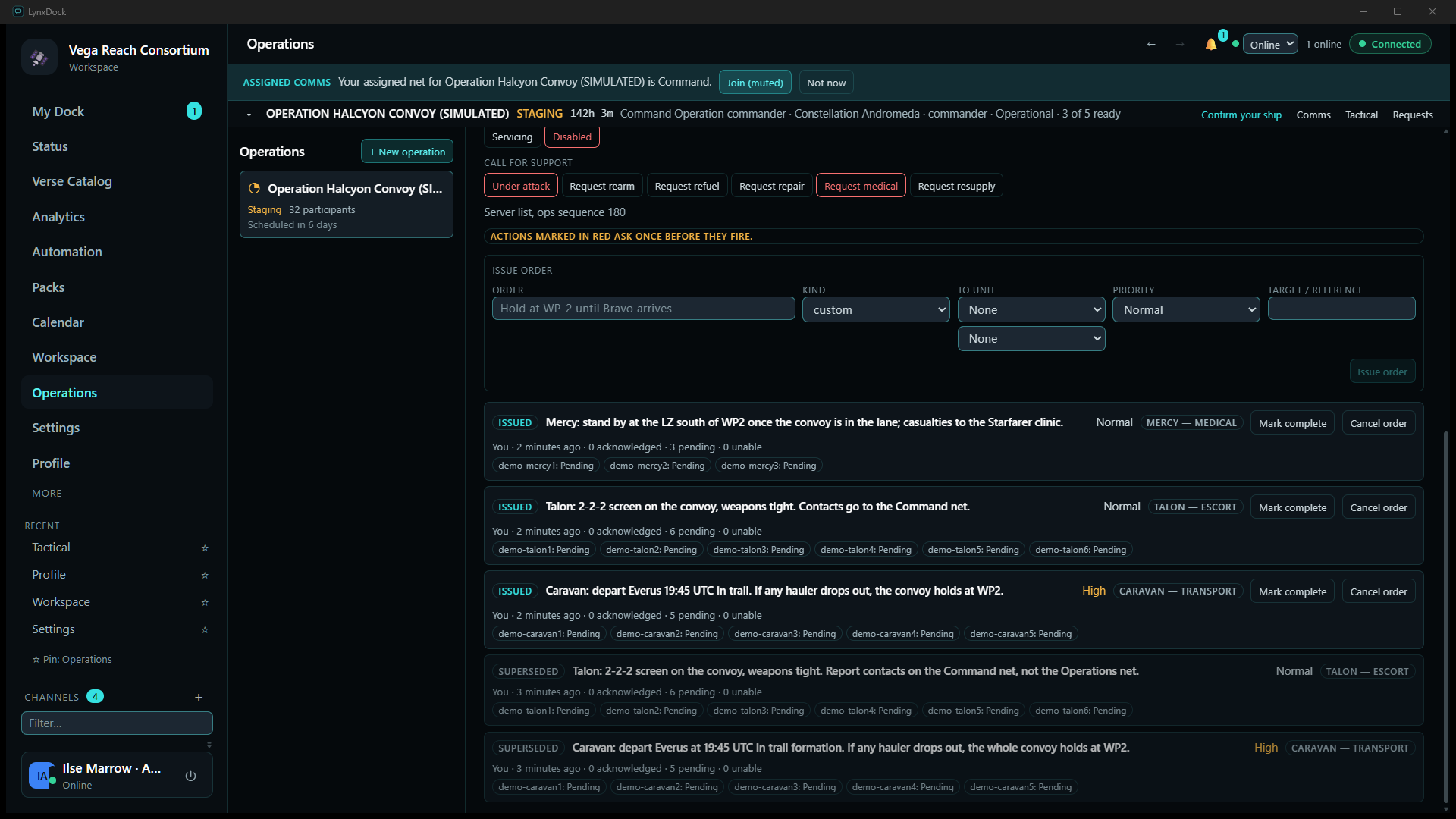
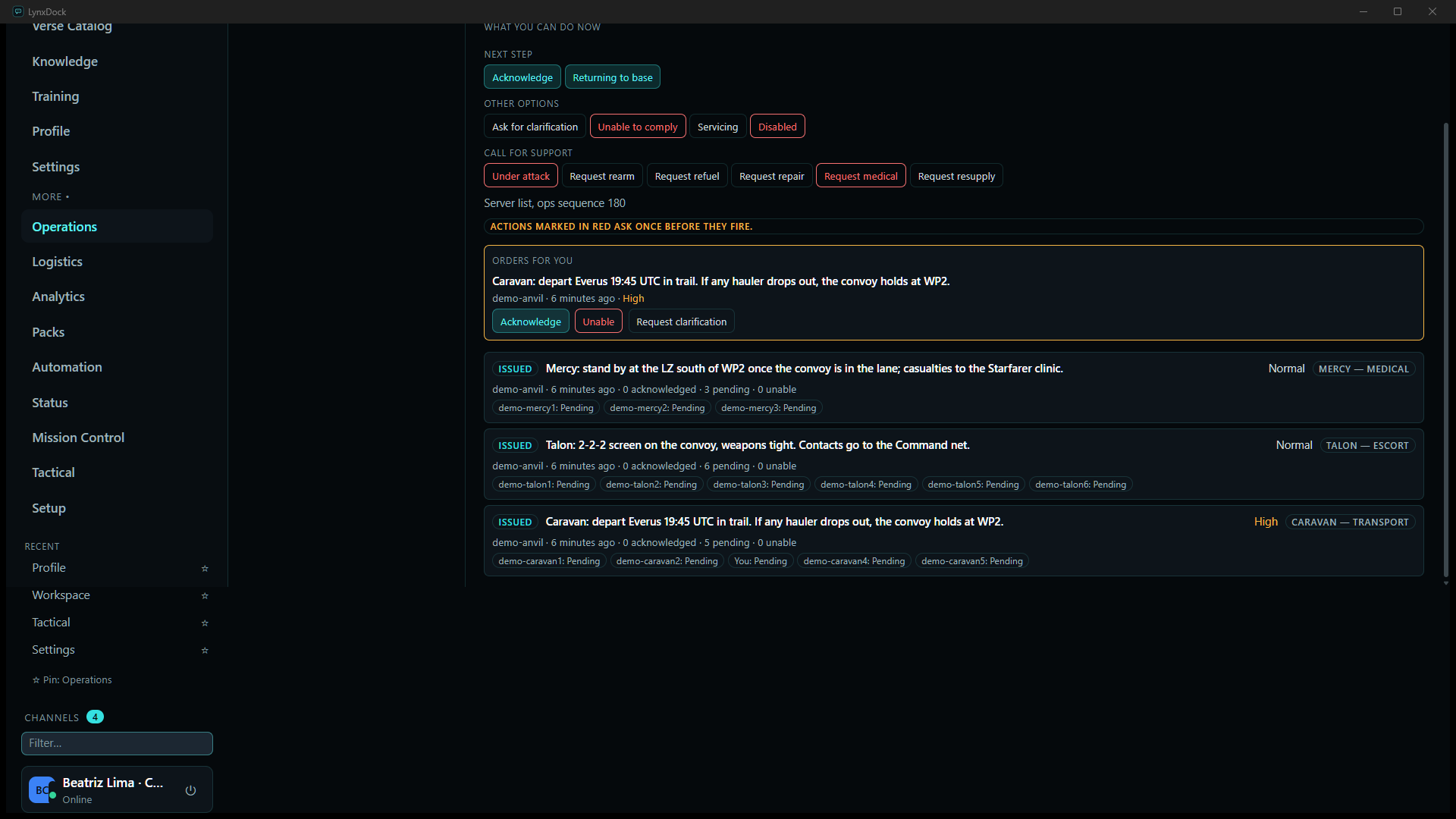
- CommanderOpen Orders. Below your own action deck is the Issue order form: type the Order (120 characters max), choose Kind, To unit, Priority and an optional Target / reference, then click Issue order. The convoy got three: Caravan’s departure order (High), Talon’s screen and Mercy’s standby.
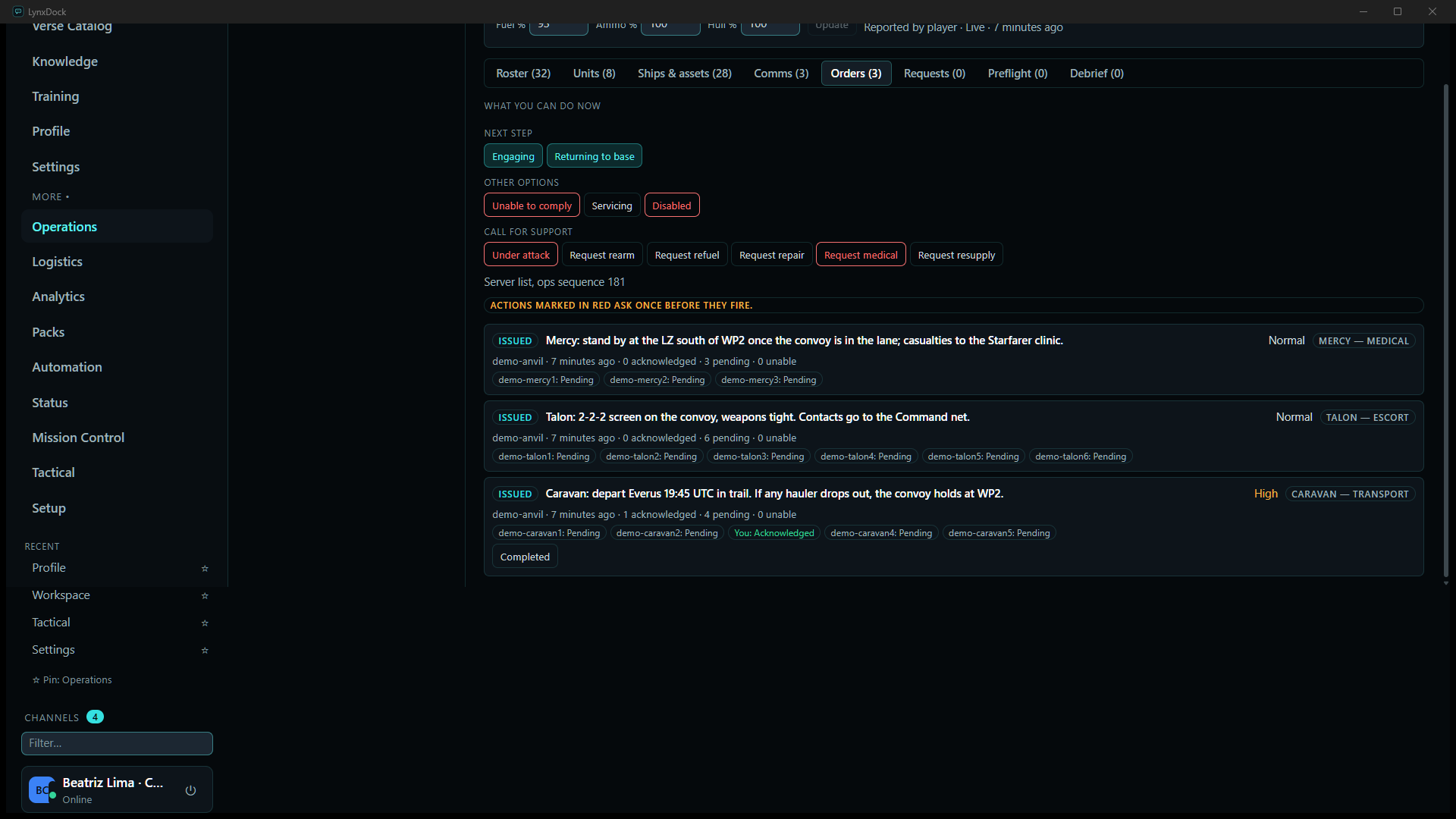
What you should seeEach order lists as ISSUED with its unit chip, 0 acknowledged · 5 pending · 0 unable, a receipt chip per recipient (demo-caravan1: Pending) and Mark complete / Cancel order. Cancelled and superseded orders stay in the list with their badge (the two SUPERSEDED rows below are earlier wordings).
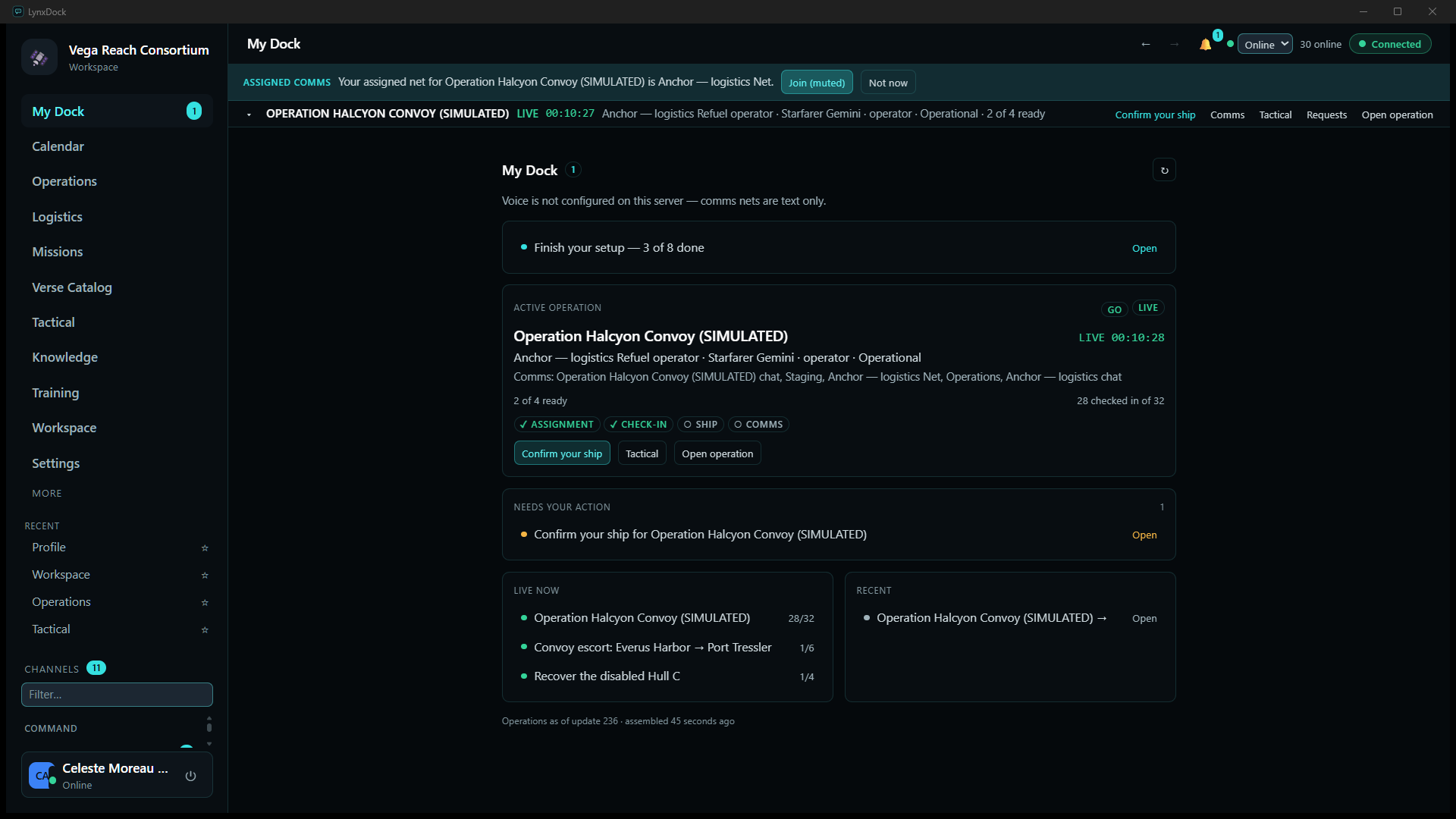
- MemberOn My Dock the active-operation card shows the readiness chips (RSVP · ASSIGNMENT · CHECK-IN · SHIP · ORDERS · COMMS), the line Order awaiting your acknowledgement: … and, under Needs your action, an Acknowledge link. On the operation’s Orders tab the order sits in an ORDERS FOR YOU box with Acknowledge, Unable and Request clarification; click Acknowledge.
What you should seeYour receipt chip reads You: Acknowledged, the order’s counter becomes 1 acknowledged · 4 pending, and your deck’s Next step moves on from Acknowledge to Engaging. A Completed button appears on the order for when you have carried it out.
- CommanderOpen Preflight and read the verdict. GO · No blockers (0 overridden) · 1 warning · 1 suggestion with the sources it was derived from; each finding has a badge and, for warnings, Override…. Snapshot this preflight keeps the verdict for the debrief.
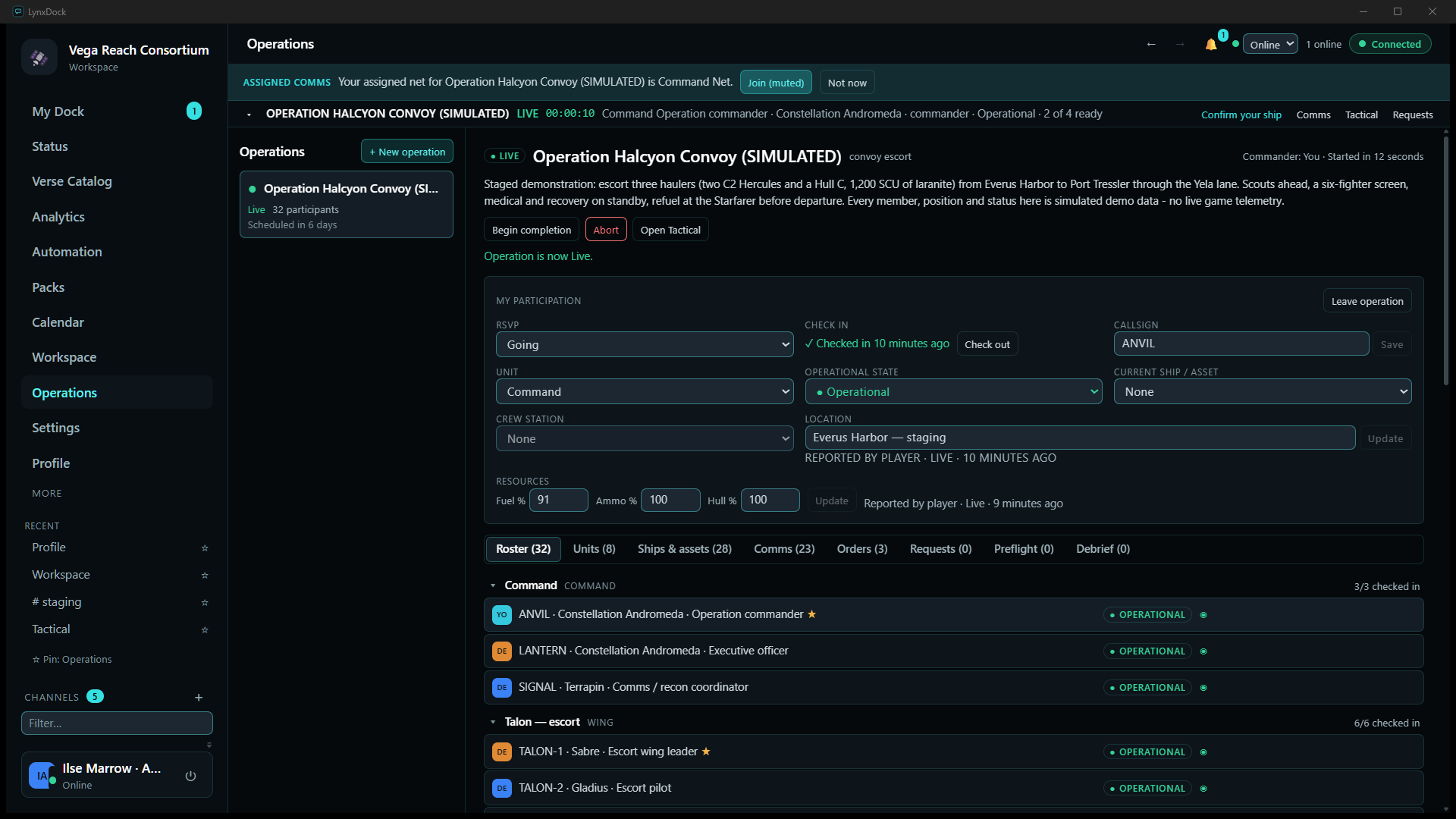
- CommanderClick Go live.
What you should seeLIVE with a running clock (LIVE 00:00:10), Operation is now Live., buttons Begin completion, Abort and Open Tactical; the per-unit chats are created (Comms (23)) and the assigned-comms banner switches to the Command net.



07Coordinate during the operation
While live there are two places to work from. The Tactical board in the main app is the full picture — phases, routes, alerts, orders, the log. The in-game overlay is the compact one: a small, click-through window with the current operation, your state and numbered quick actions, for pilots who are in the game rather than at the board.
The main-app Tactical board
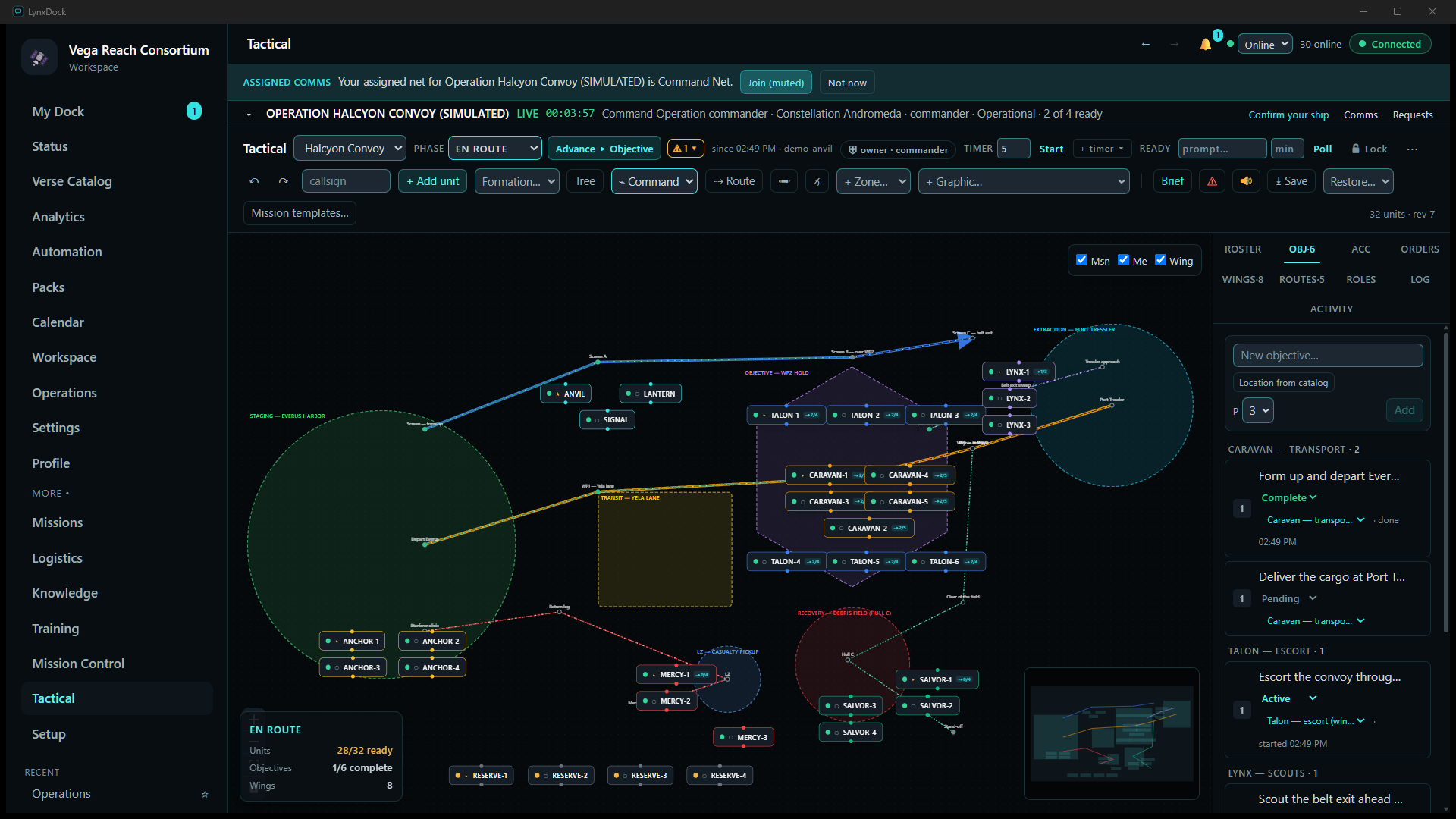
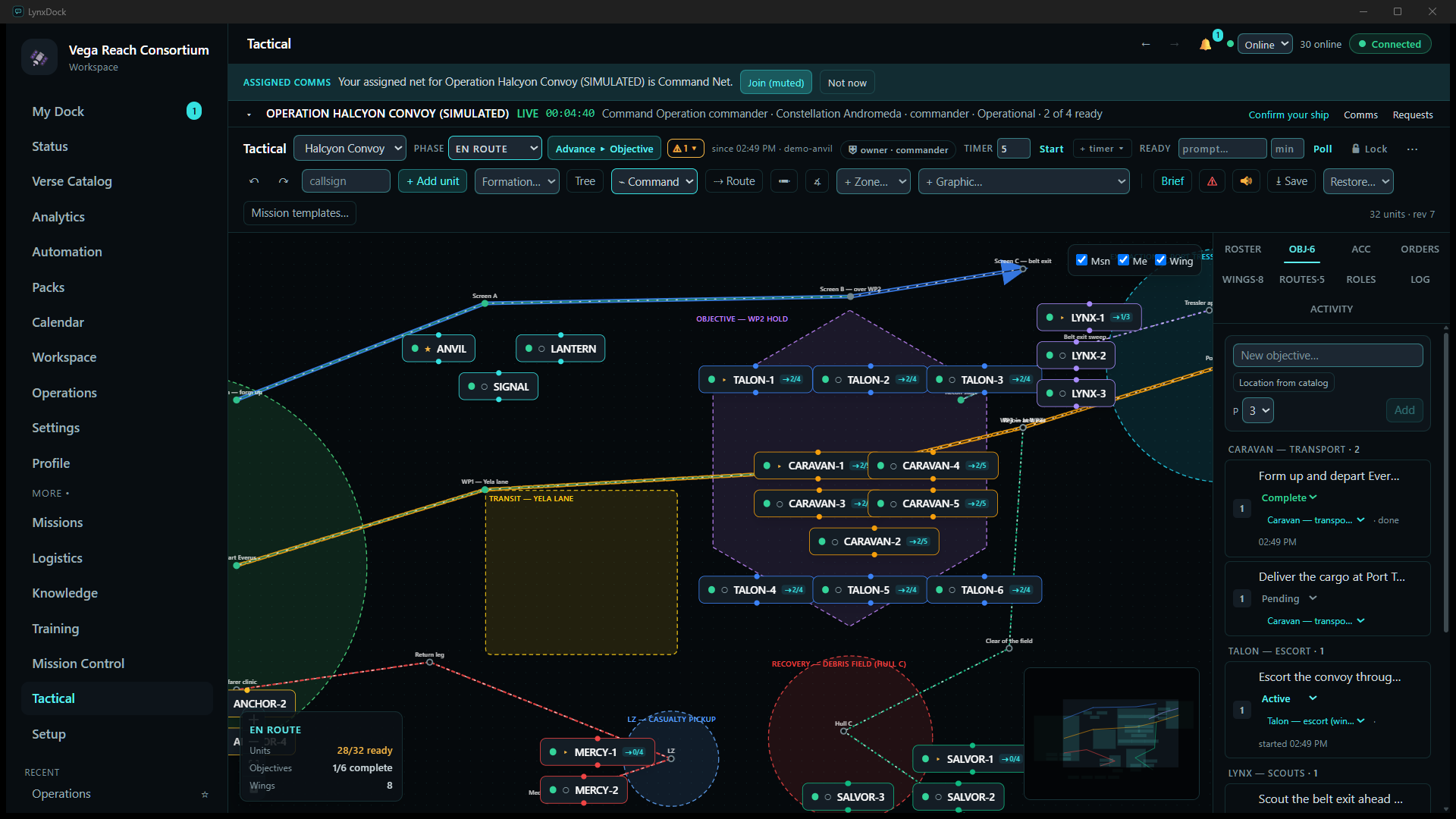
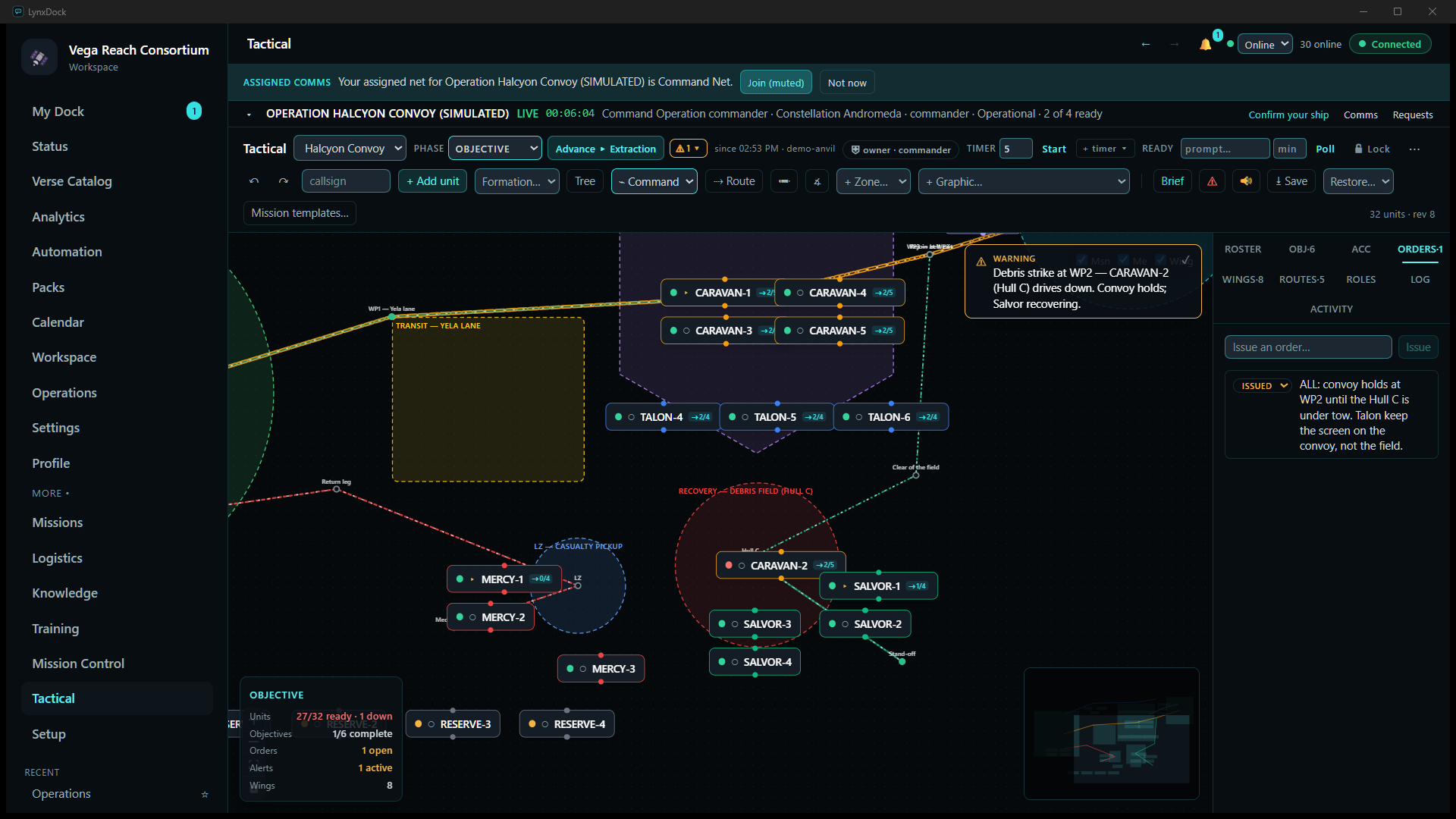
- CommanderAdvance the phase from the toolbar: the PHASE selector or the Advance ▸ Objective button move Briefing → Forming up → En route → Objective → Extraction → Debrief. This is a board-only value — going Live on the operation page does not set it. The summary card follows (EN ROUTE · 28/32 ready · 1/6 complete); its ready count is the board units’ own status, not the operation’s check-ins.
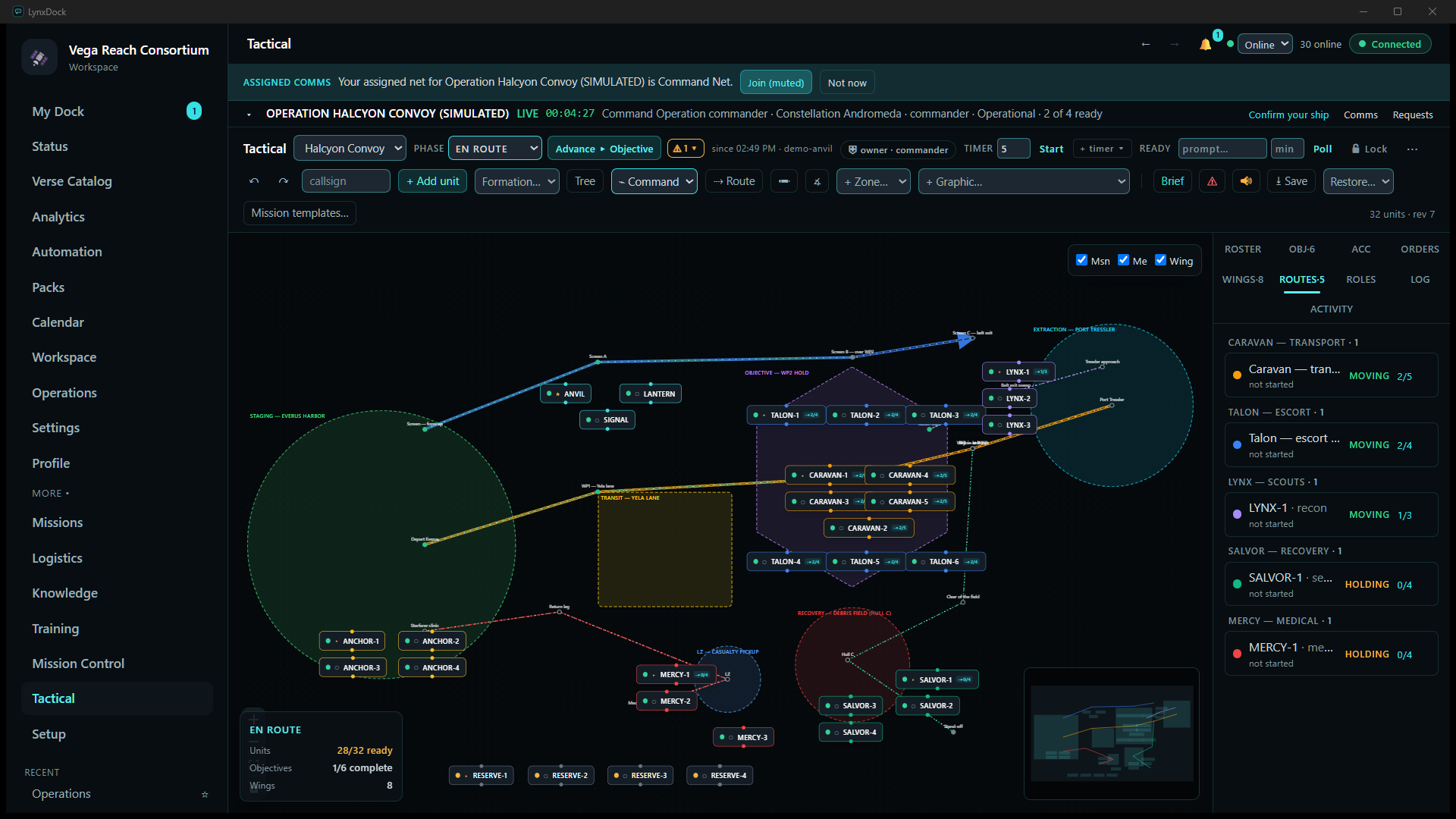
- Wing leaderOpen ROUTES to set each route’s status and tick off waypoints as the wing reaches them: Caravan — transport · MOVING · 2/5, SALVOR-1 · HOLDING · 0/4. Move your wing’s cards along the route as positions are reported on the net, and set a card’s status (ready / standby / down) yourself when a member reports a change — the board never guesses, and a member’s Operational state on the operation page does not change their card.
- CommanderMark objectives as they resolve in the OBJ panel (Pending → Active → Complete); the completion time is recorded on the card.
- EveryoneUse the mouse wheel to zoom and drag the canvas to pan; the Msn / Me / Wing toggles at the top right filter what is drawn, and the minimap in the corner shows where you are. Your viewport is saved per account, so the board reopens where you left it.
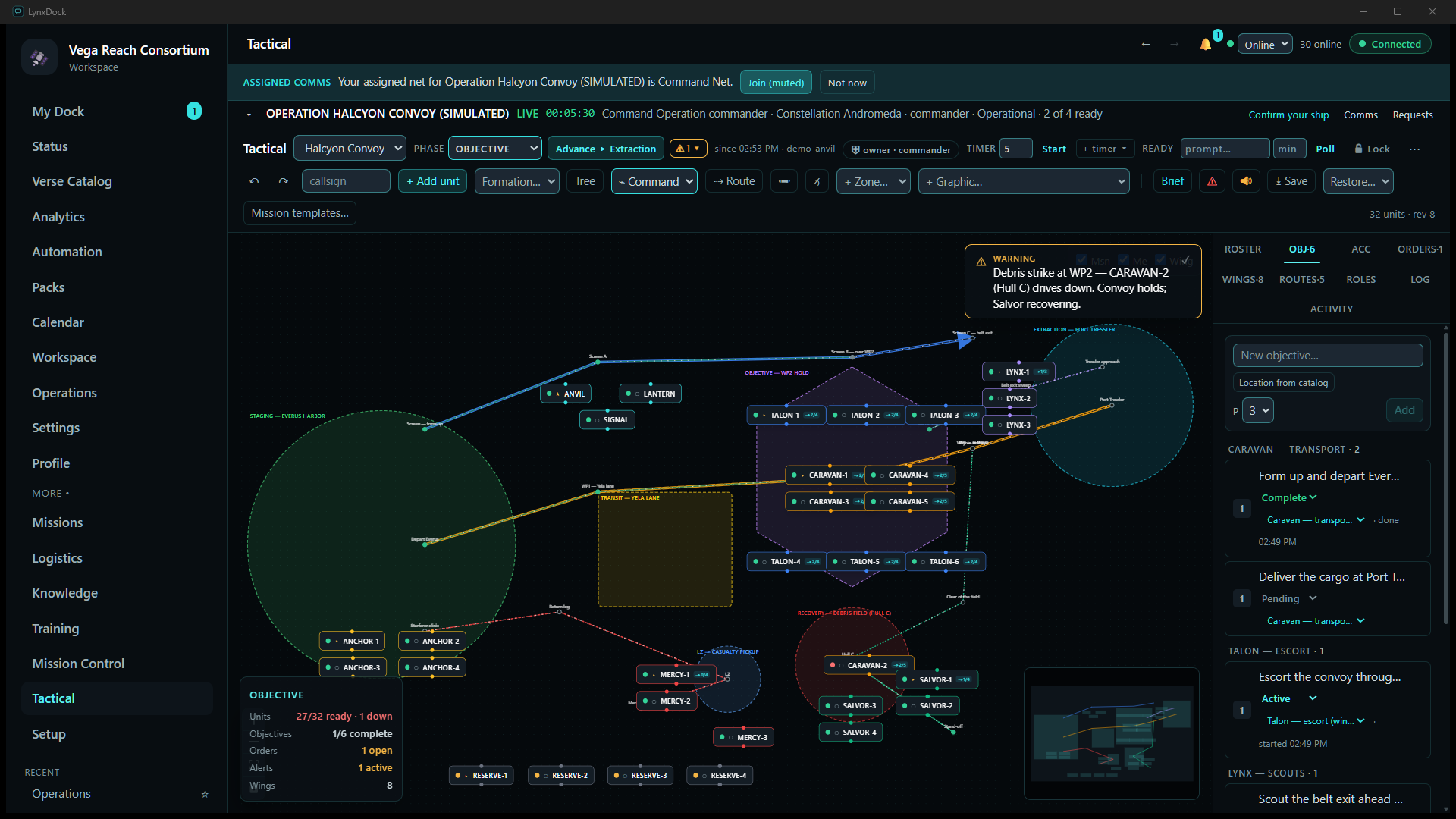
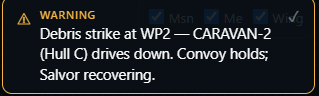
- CommanderWhen something changes the plan, raise an alert on the board — it appears as a card for everyone who has the board open — and put the decision in the ORDERS panel with Issue an order… → Issue. Board orders are short and situational; the operation’s Orders tab keeps the formal, receipted ones.
The compact in-game overlay and Quick Actions
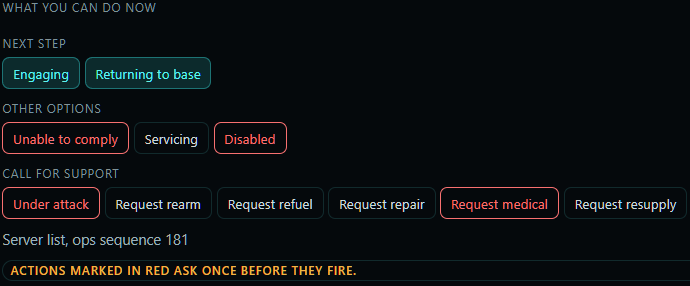
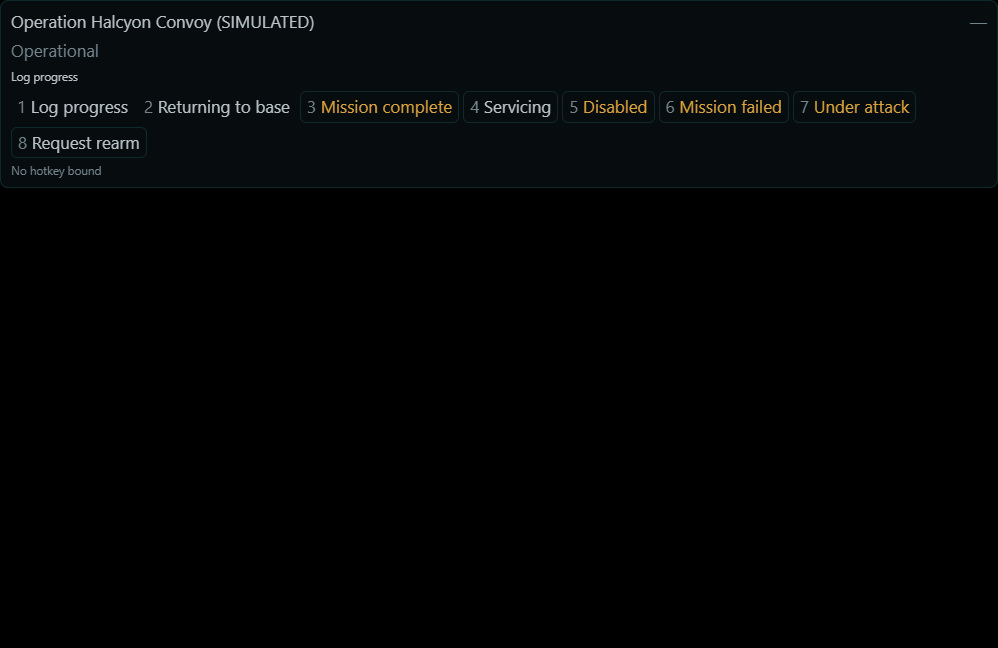
The overlay is a second window that stays click-through while passive, so the game keeps your keyboard and mouse. In its Compact layout it shows the operation name, your operational state, the current primary action and up to eight numbered quick actions; Micro is a single line. The actions are the same ones as the What you can do now deck in the app — Log progress, Returning to base, Mission complete, Servicing, Disabled, Mission failed, Under attack, Request rearm — derived on the server from your role and the operation’s state, so a repeated press replays instead of applying twice.
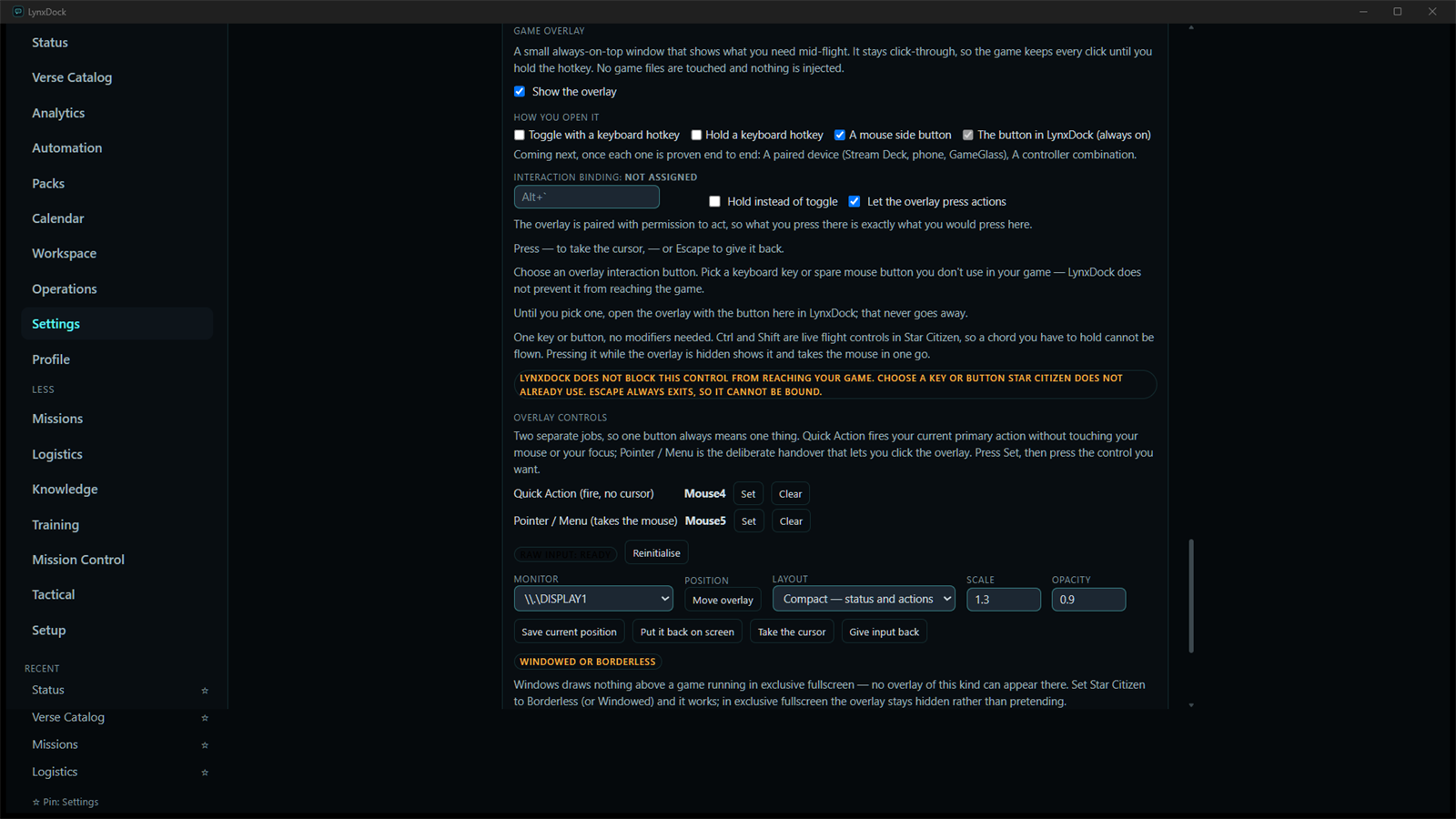
- MemberSet it up once under Settings → Game overlay: choose how it activates, bind the interaction key, and bind the two controls — Quick Action fires the highlighted action without taking the mouse, Pointer / Menu hands the cursor over deliberately; Escape hands input back. Pick the monitor, position, layout, scale and opacity.
- MemberIn the game, press the Quick Action binding to fire the primary action, or the number of any other. When the deck shows Request rearm and you fire it, the request is created for the operation exactly as from the Requests tab. The overlay also shows the open-request count for your operation.
Honest note on hotkeys. A fresh install has no hotkey bound, and the overlay says so in its footer (see below) until you bind one in Settings. The capture here is of the overlay window itself, with no game running on the demo machine, so it shows the deck exactly as rendered but not composited over a game.
08Handle a support incident
One concrete example, end to end: after the hold at WP2 the Freelancer MAX (CARAVAN-3) is down to 14 % fuel and will not make Port Tressler. The pilot raises a refuel request; the logistics operator ANCHOR-2 takes it, brings the Starfarer up the lane, resolves it, and the delivered fuel is booked against the stock that was staged for the operation.
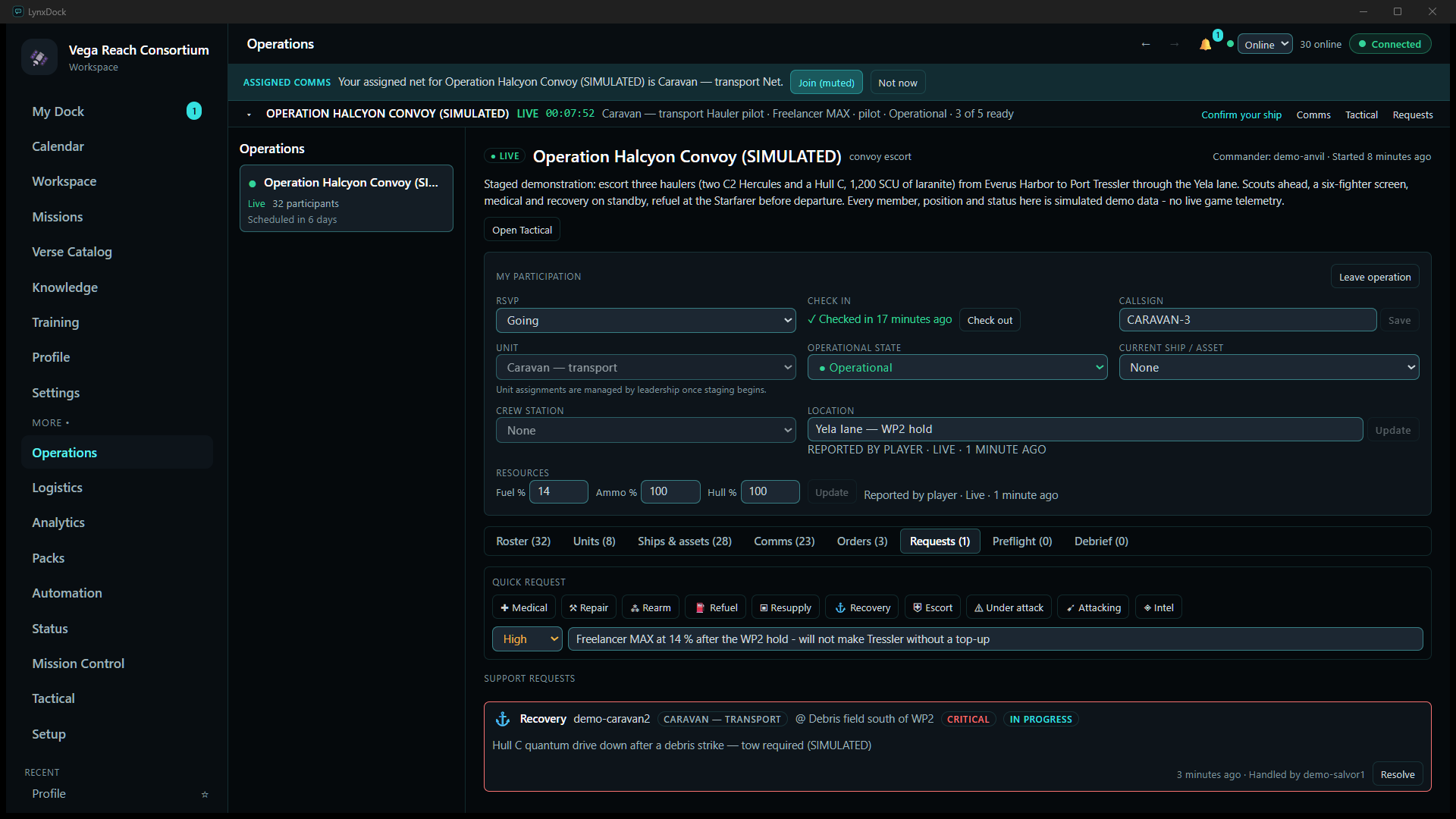
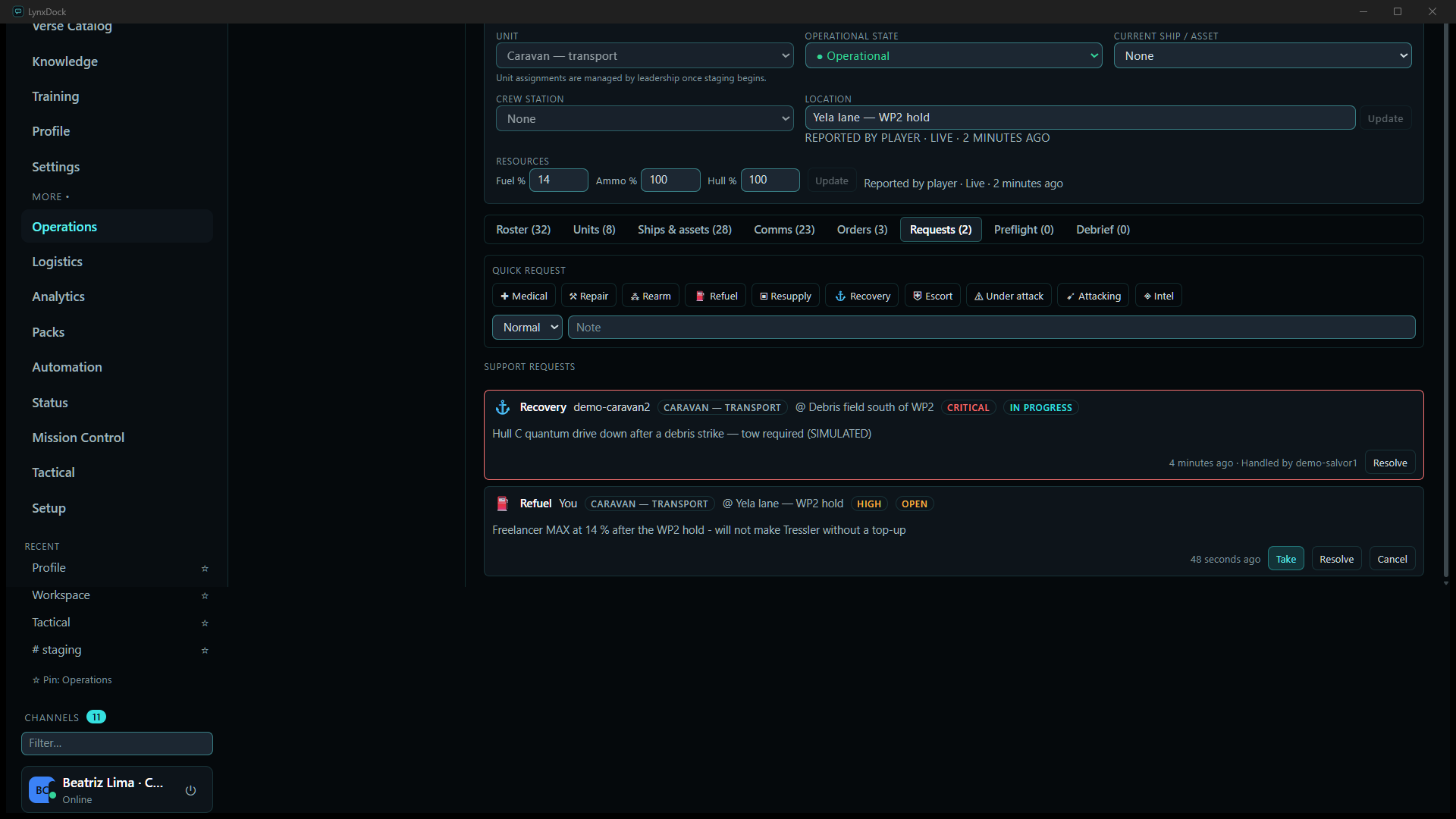
- Member (CARAVAN-3)Report the state first: on the operation page set Fuel % to
14, the Location toYela lane — WP2 hold, and click Update on each. - Member (CARAVAN-3)Open the Requests tab. Under Quick request choose the priority (
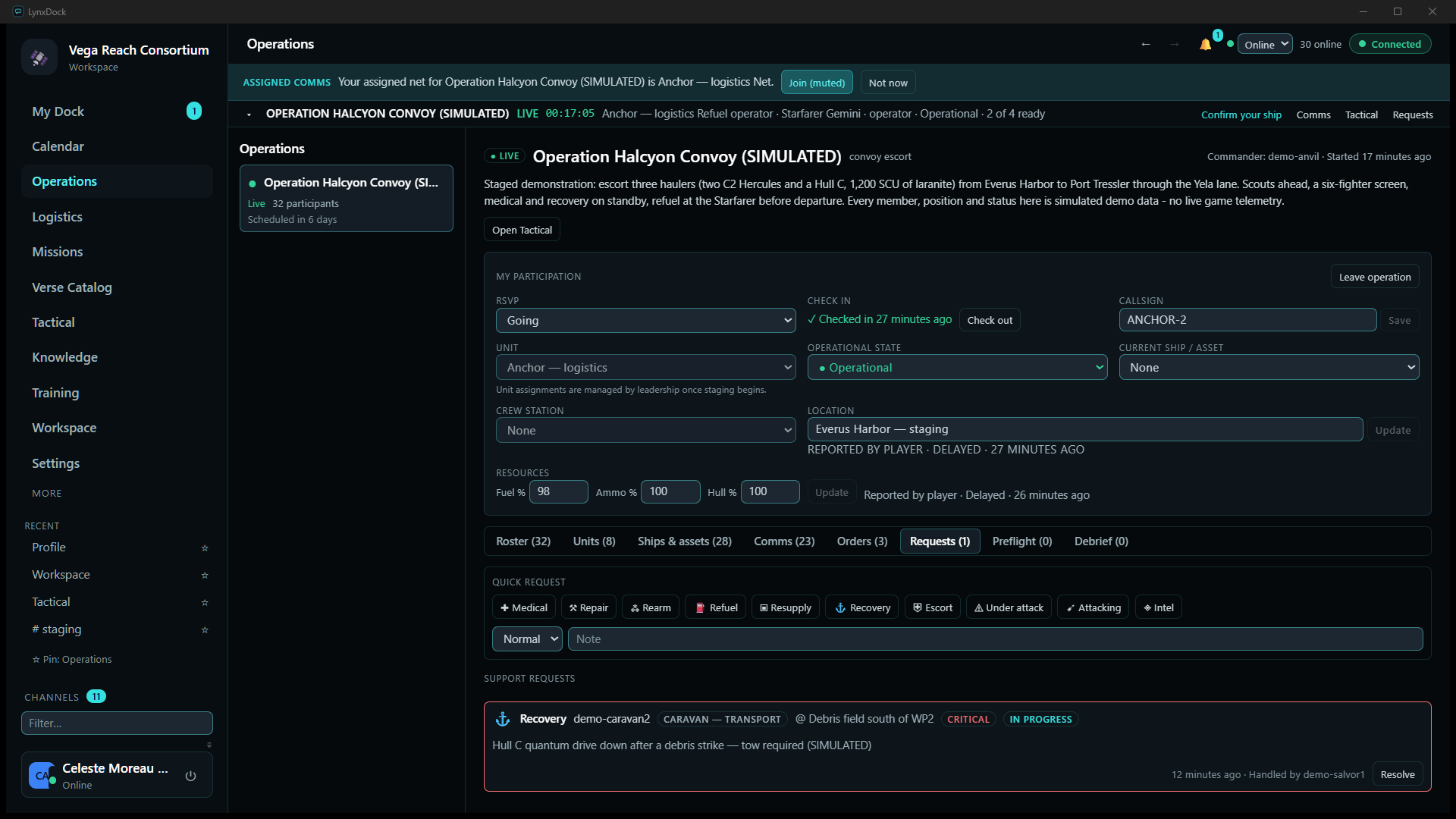
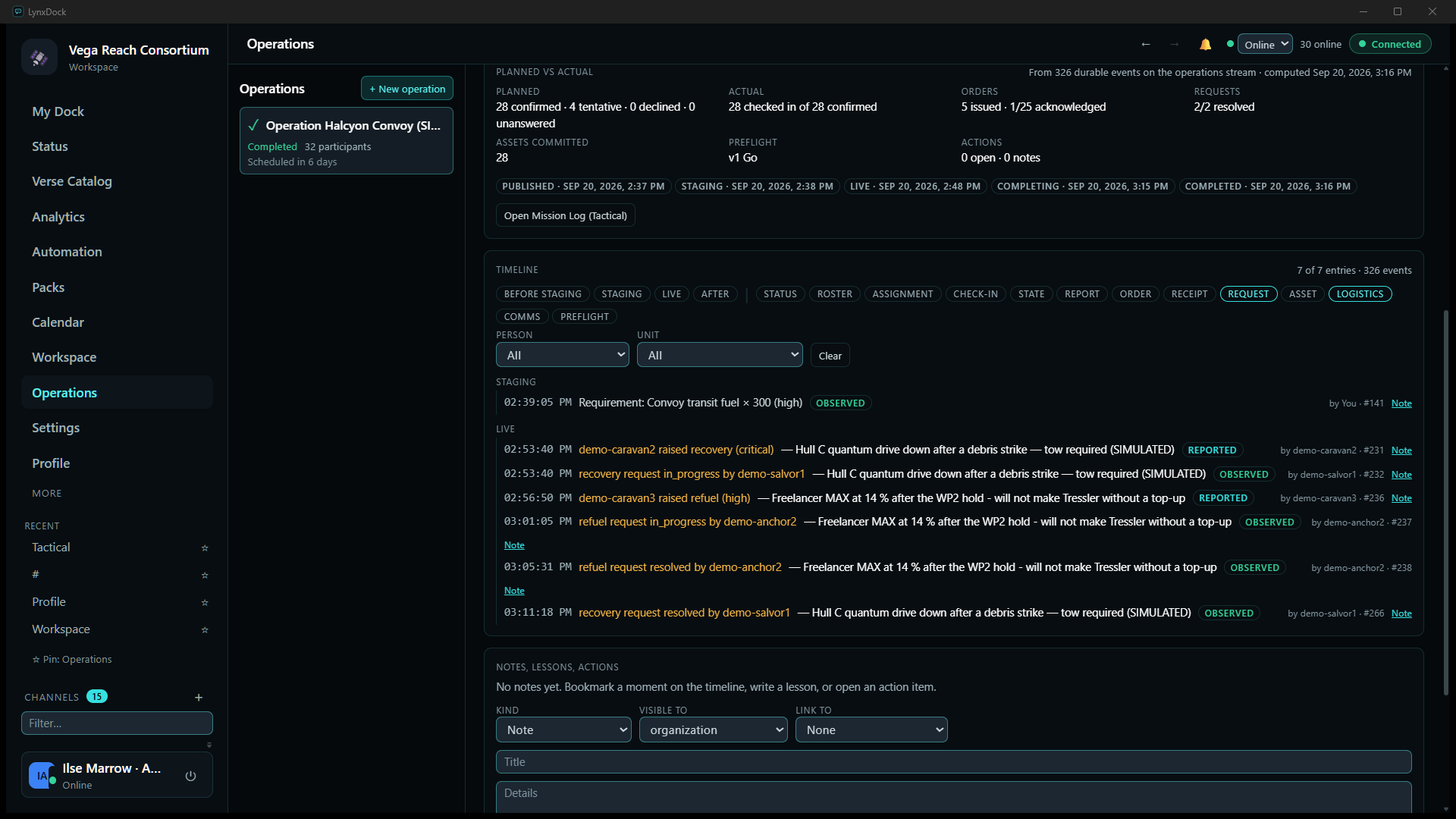
High), type the note —Freelancer MAX at 14 % after the WP2 hold - will not make Tressler without a top-up— and click Refuel. (The same request can be fired from the overlay deck or from the Call for support row of your Orders deck; those carry no note.)What you should seeA row appears under Support requests: Refuel · You · CARAVAN — TRANSPORT · @ Yela lane — WP2 hold · HIGH · OPEN, with the note and Take, Resolve and Cancel. The tab counter becomes Requests (2) — the recovery request for the Hull C is already in progress above it.
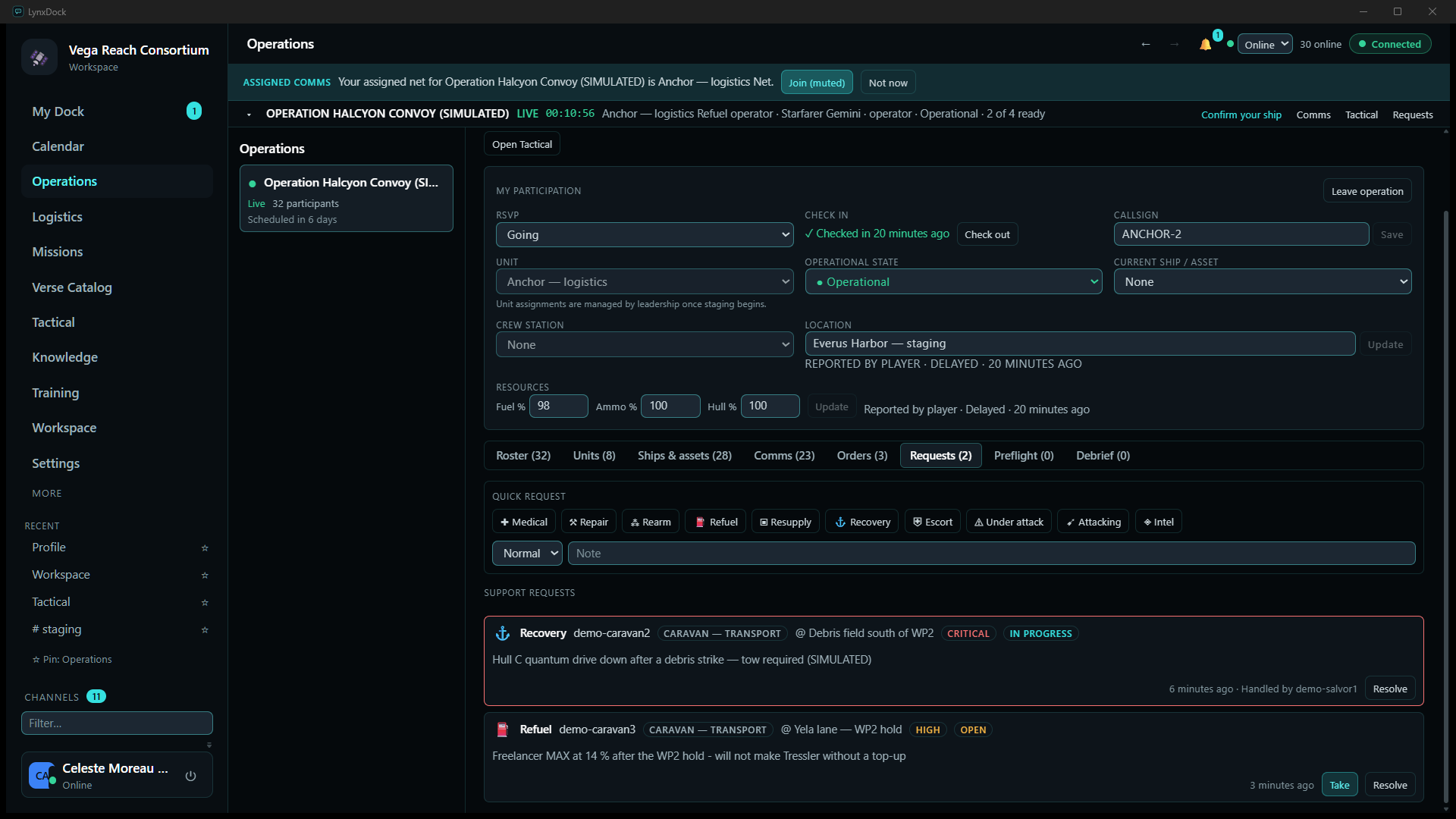
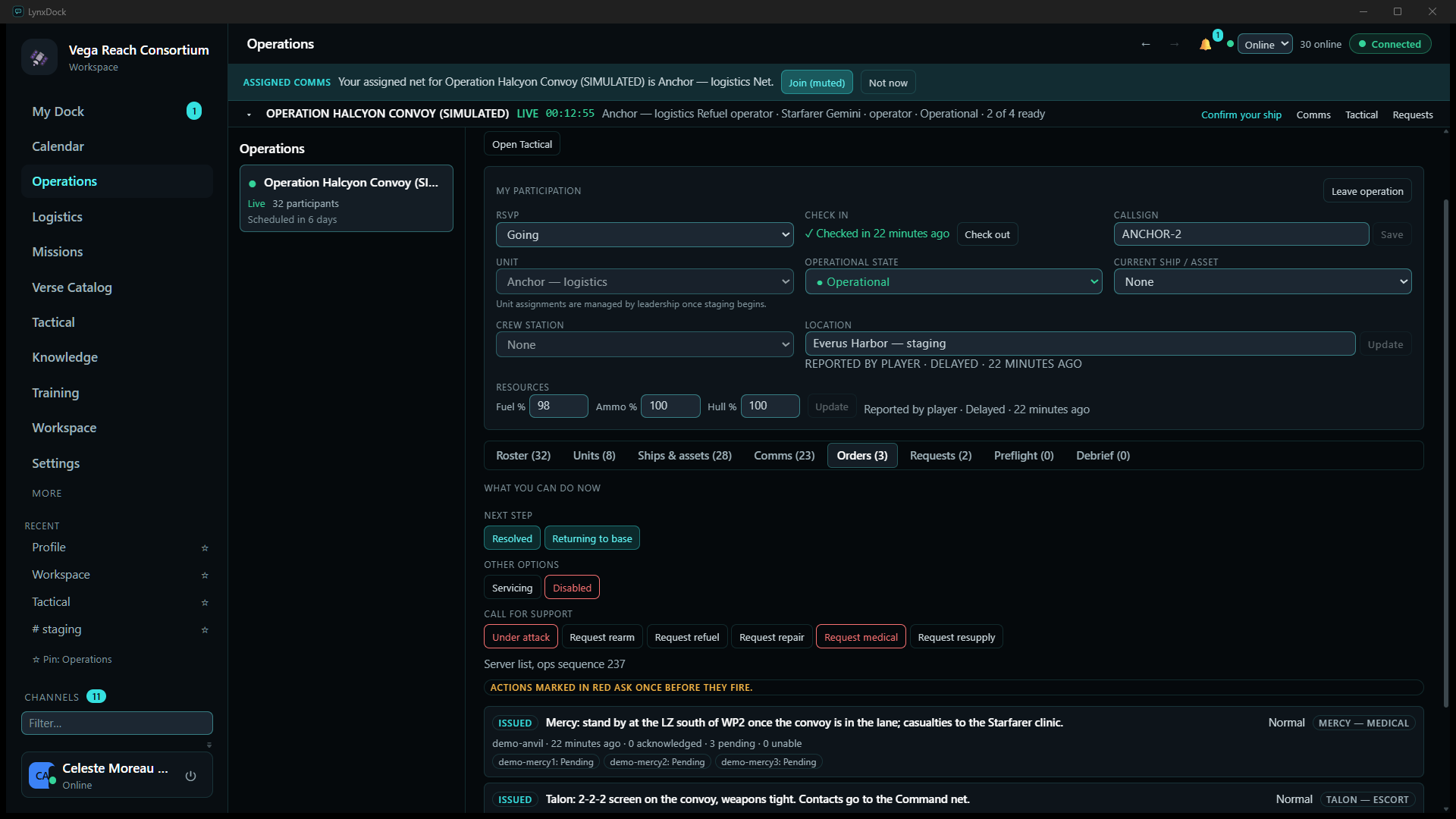
- Logistics (ANCHOR-2)Open Operations → Requests (the operation banner’s Requests link goes straight there) and click Take on the refuel row.
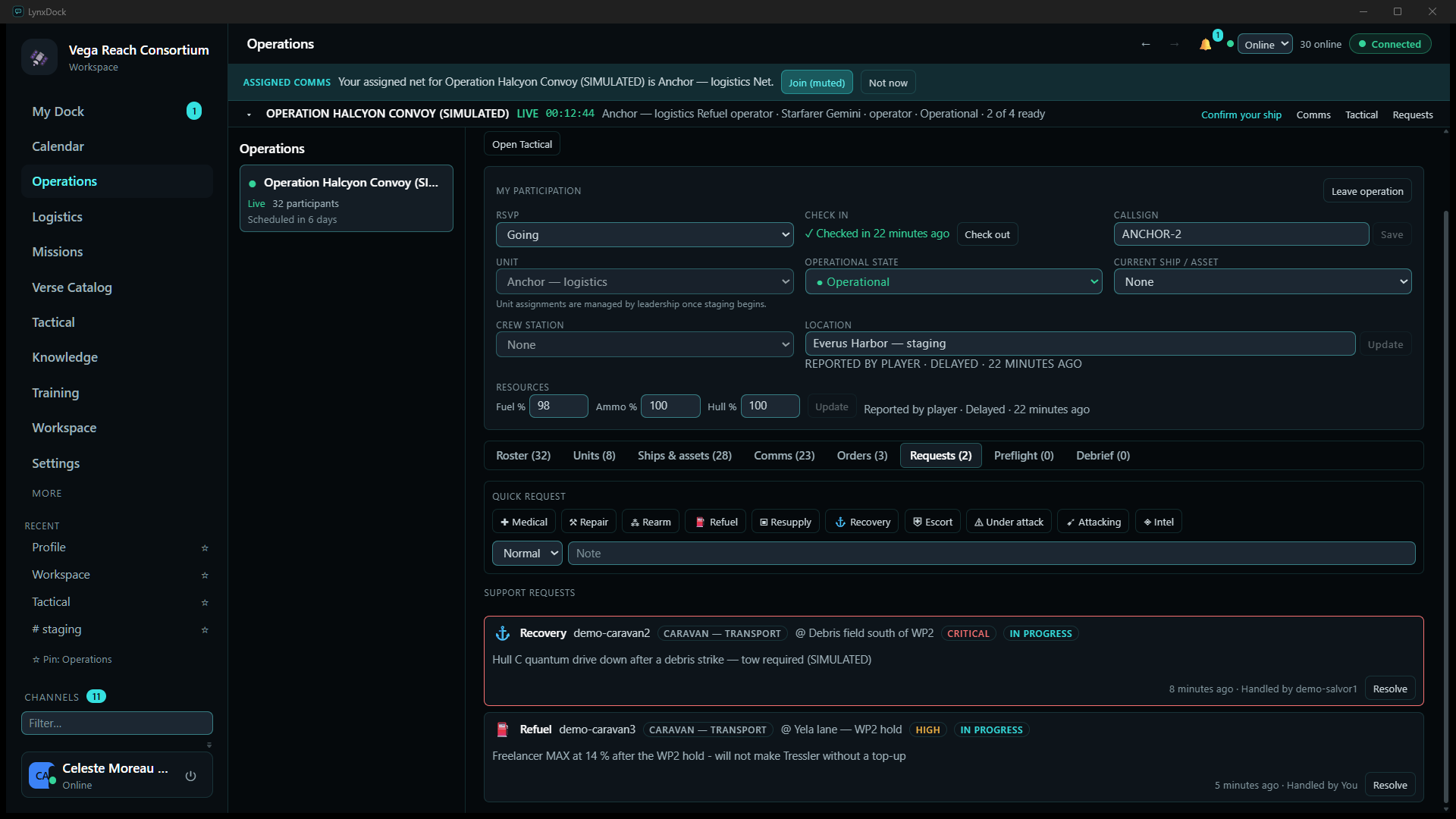
What you should seeThe row changes to IN PROGRESS · Handled by You and, for everyone else, Handled by demo-anchor2. Your own Orders deck now offers Resolved and Returning to base as next steps.
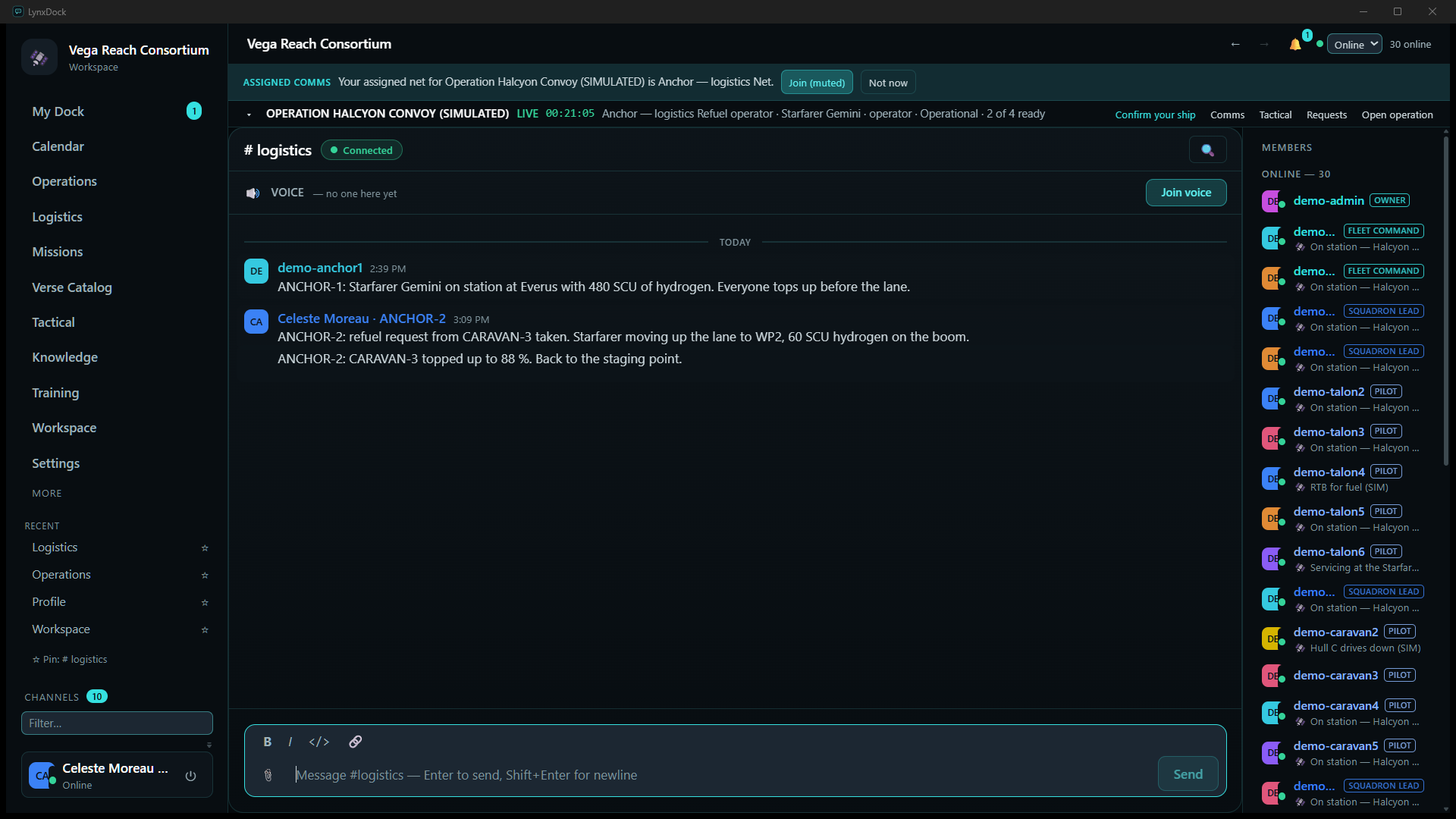
- Logistics (ANCHOR-2)Coordinate on your net: in #logistics post what you are doing (refuel request from CARAVAN-3 taken. Starfarer moving up the lane to WP2, 60 SCU hydrogen on the boom). The channel is where the earlier staging note (Starfarer Gemini on station at Everus with 480 SCU of hydrogen) already lives, so the thread reads as one record.
- Logistics (ANCHOR-2)When the top-up is done, click Resolve on the request row, and post the result on the net.
What you should seeThe row leaves the open list (Requests (1) — only the recovery remains). The fuel reading is updated afterwards by the pilot, or by the commander on their behalf (88 %) — resolving a request does not edit anyone’s participation record.
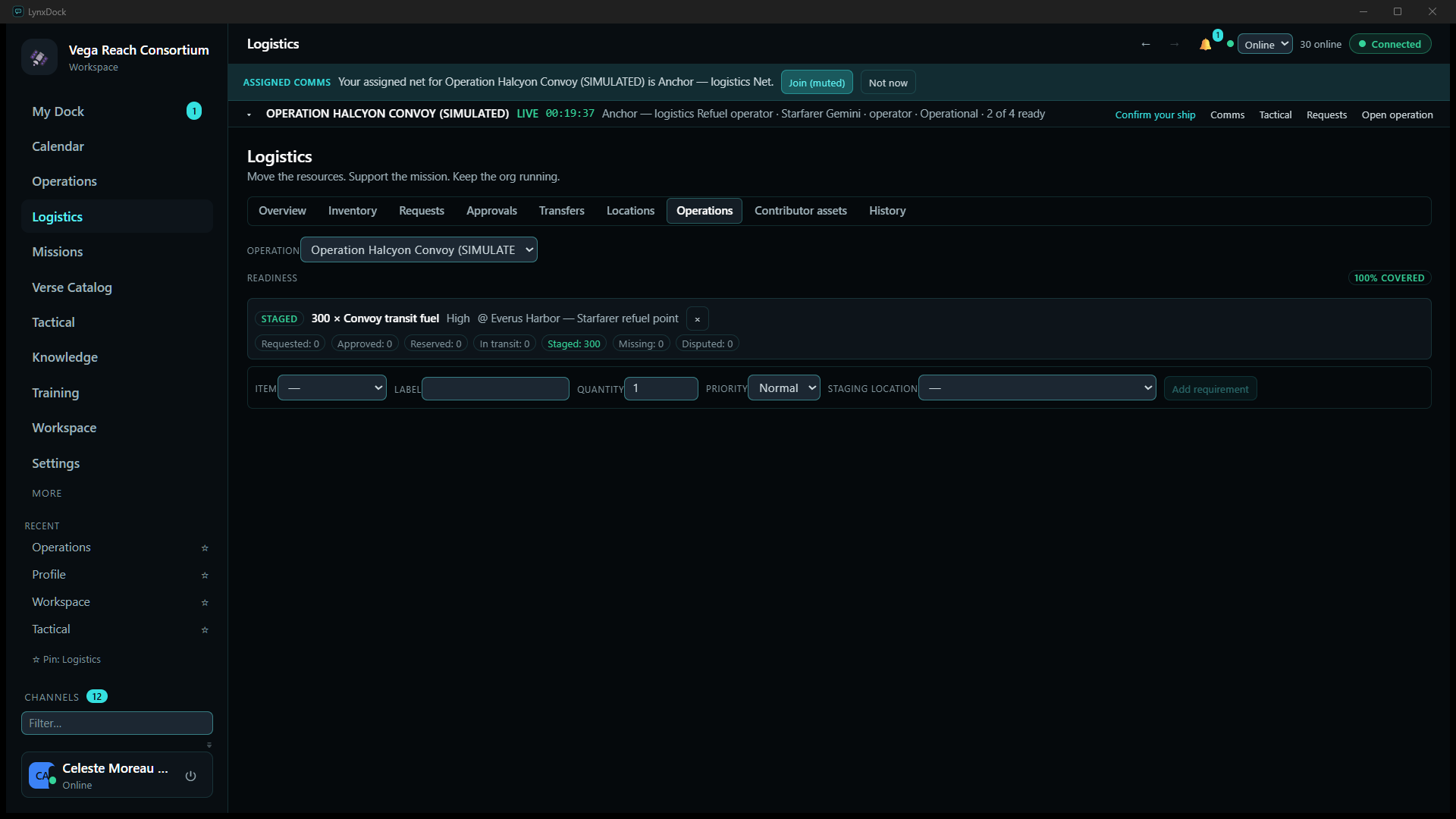
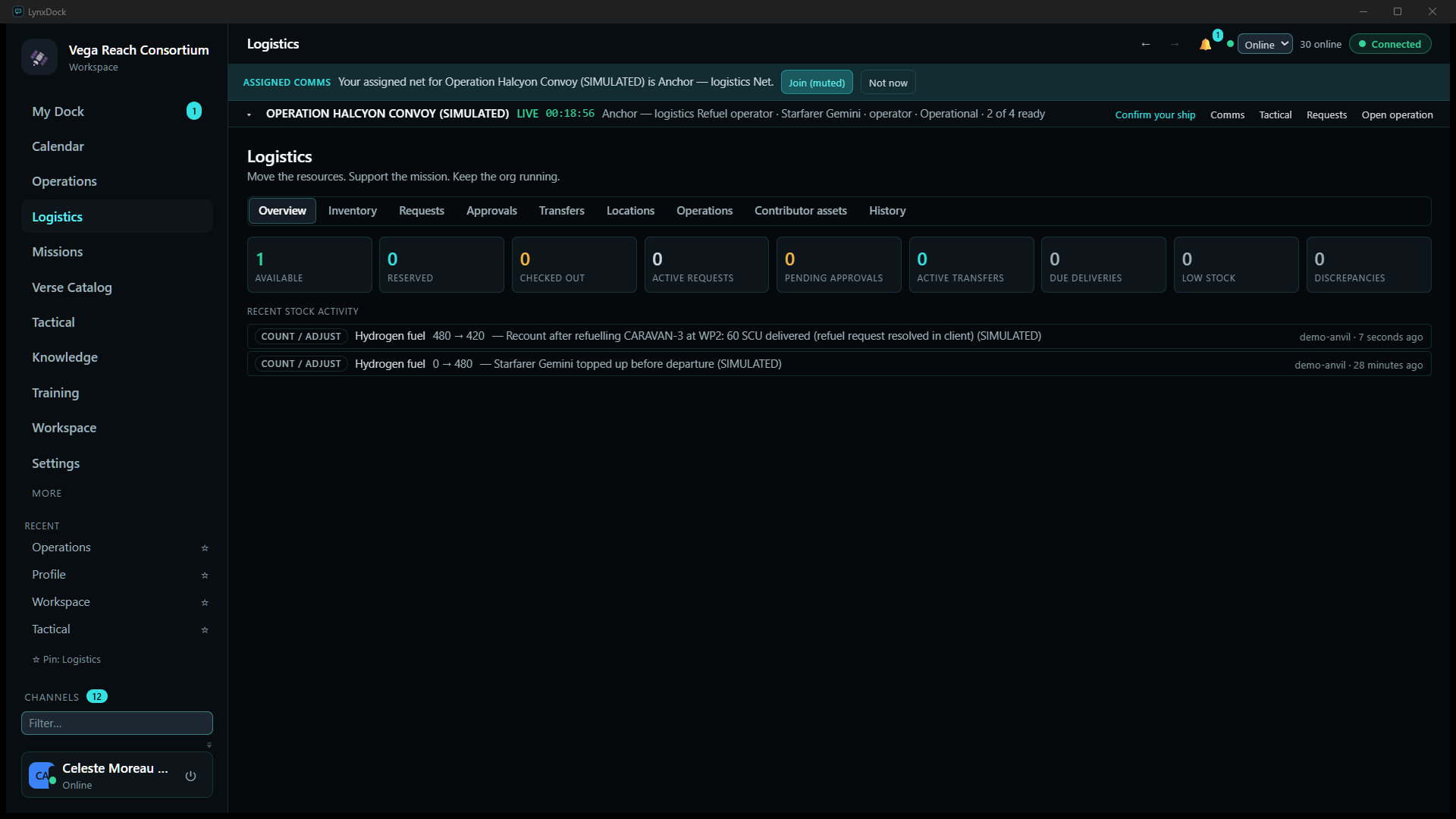
- Logistics (ANCHOR-2)Book the fuel on Logistics. The Operations tab of Logistics shows the requirement that was staged for the convoy — STAGED · 300 × Convoy transit fuel · High · @ Everus Harbor — Starfarer refuel point, readiness 100 % covered. On Overview, a stock recount records the delivery; it appears under Recent stock activity as COUNT / ADJUST · Hydrogen fuel · 480 → 420 — Recount after refuelling CARAVAN-3 at WP2: 60 SCU delivered with who booked it and when.




09Extract and close
Closing has two halves. On the board, finish the plan: routes complete, objectives complete, alerts cleared, the phase advanced to Extraction then Debrief. On the operation, run the lifecycle to its end: Live → Completing → Completed, then Archive. The debrief is computed from the durable event stream, so everything acknowledged, requested and booked during the run is still there.
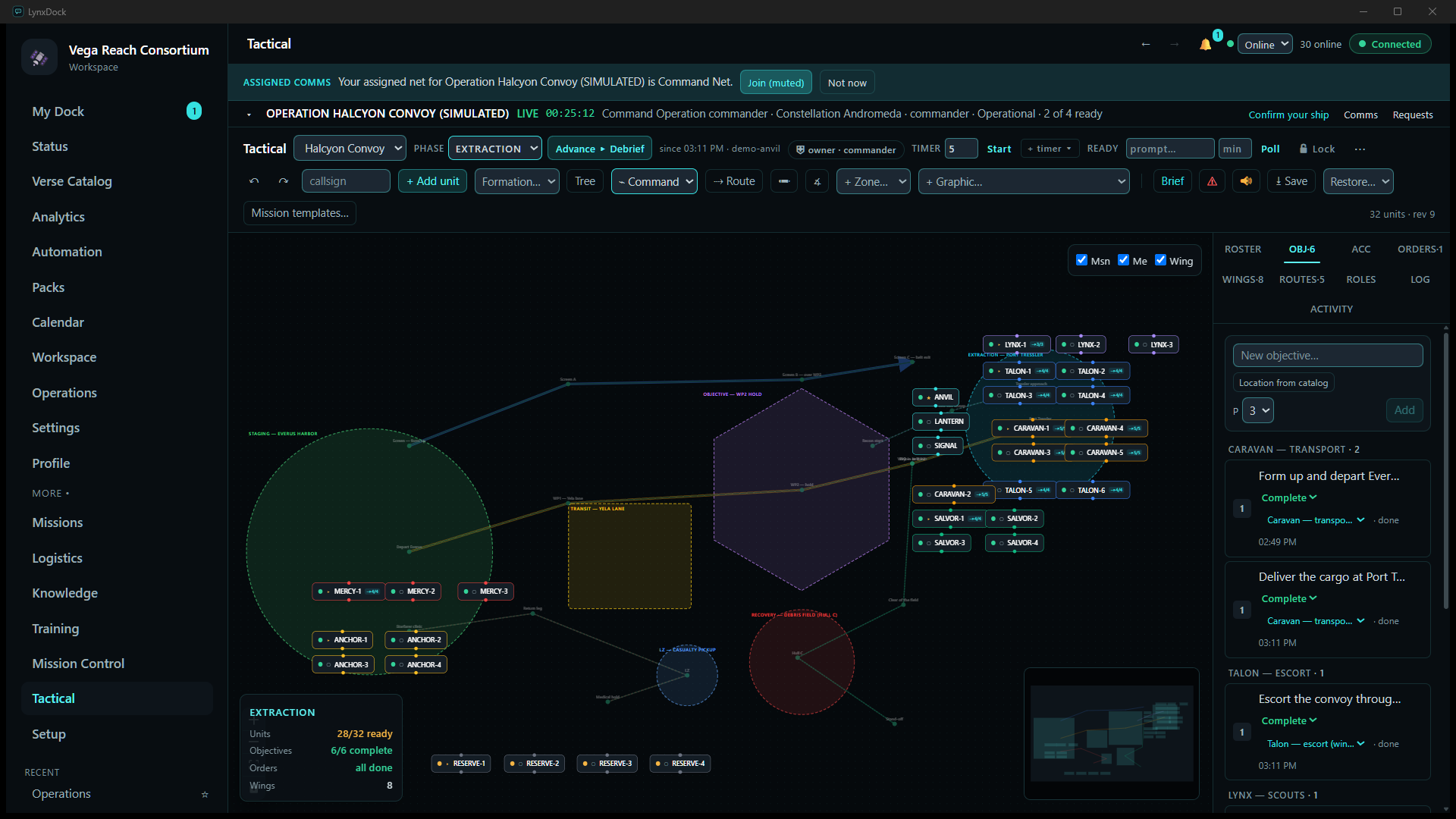
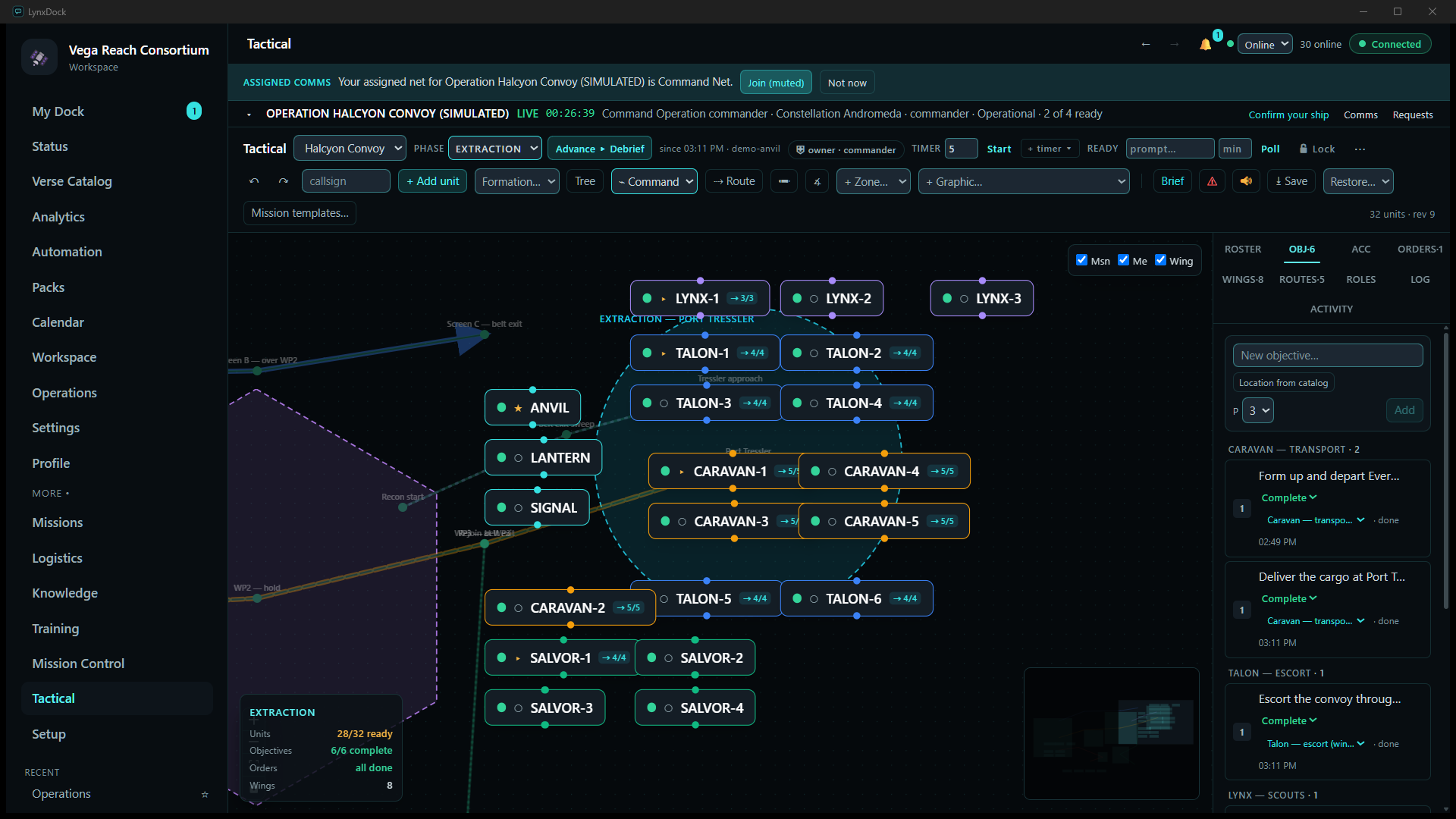
- CommanderOn Tactical, set PHASE to Extraction, move the wings to Port Tressler (Mercy back to the clinic, Anchor still at the Starfarer), set every route to complete in ROUTES, mark the remaining objectives Complete in OBJ, clear the alert and mark the board order done.
What you should seeThe summary card reads EXTRACTION · 28/32 ready · 6/6 complete · Orders all done. Once the Hull C is under tow, CARAVAN-2 turns green again.
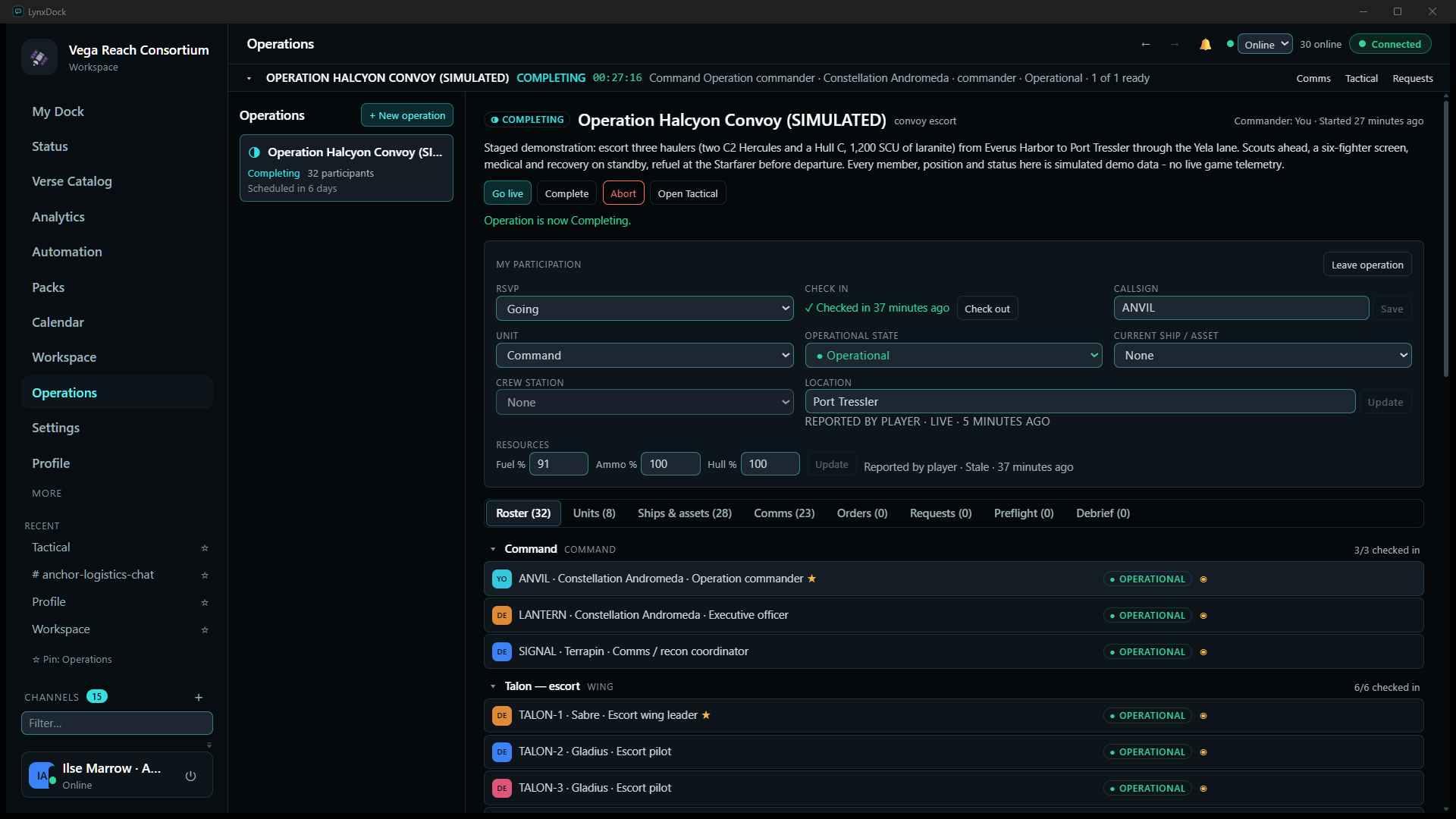
- CommanderOn Operations, click Begin completion.
What you should seeCOMPLETING, Operation is now Completing., buttons Go live (to reopen), Complete, Abort, Open Tactical. The open orders and requests tabs read (0).
- CommanderClick Complete.
What you should see✓ COMPLETED, Operation is now Completed., buttons Archive, Open Tactical, Delete operation. Comms (0): the nets are no longer listed for the operation; rooms marked KEEP in the room plan stay in the sidebar.
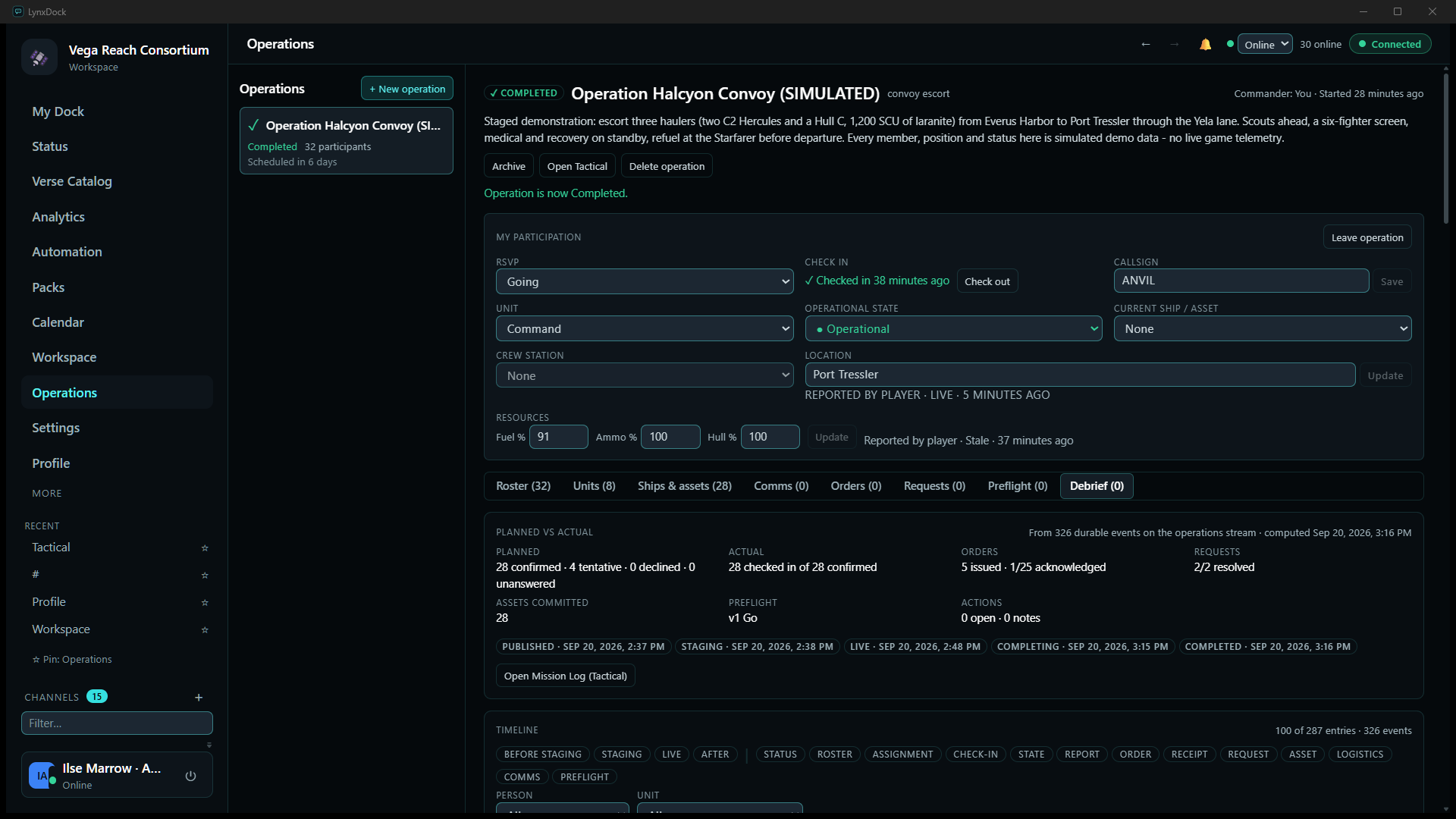
- CommanderOpen Debrief. Planned vs actual summarises the run from the durable events — confirmed vs checked in, orders issued and acknowledged, requests resolved, assets committed, the preflight verdict — with a chip per lifecycle transition and its time, and Open Mission Log (Tactical) for the board’s own log. The Timeline below can be filtered by stage (Before staging · Staging · Live · After) and kind (Status, Roster, Assignment, Check-in, State, Report, Order, Receipt, Request, Asset, Logistics, Comms, Preflight) and by person or unit; every entry has a Note link. Under Notes, lessons, actions, write the after-action items and choose who they are visible to.
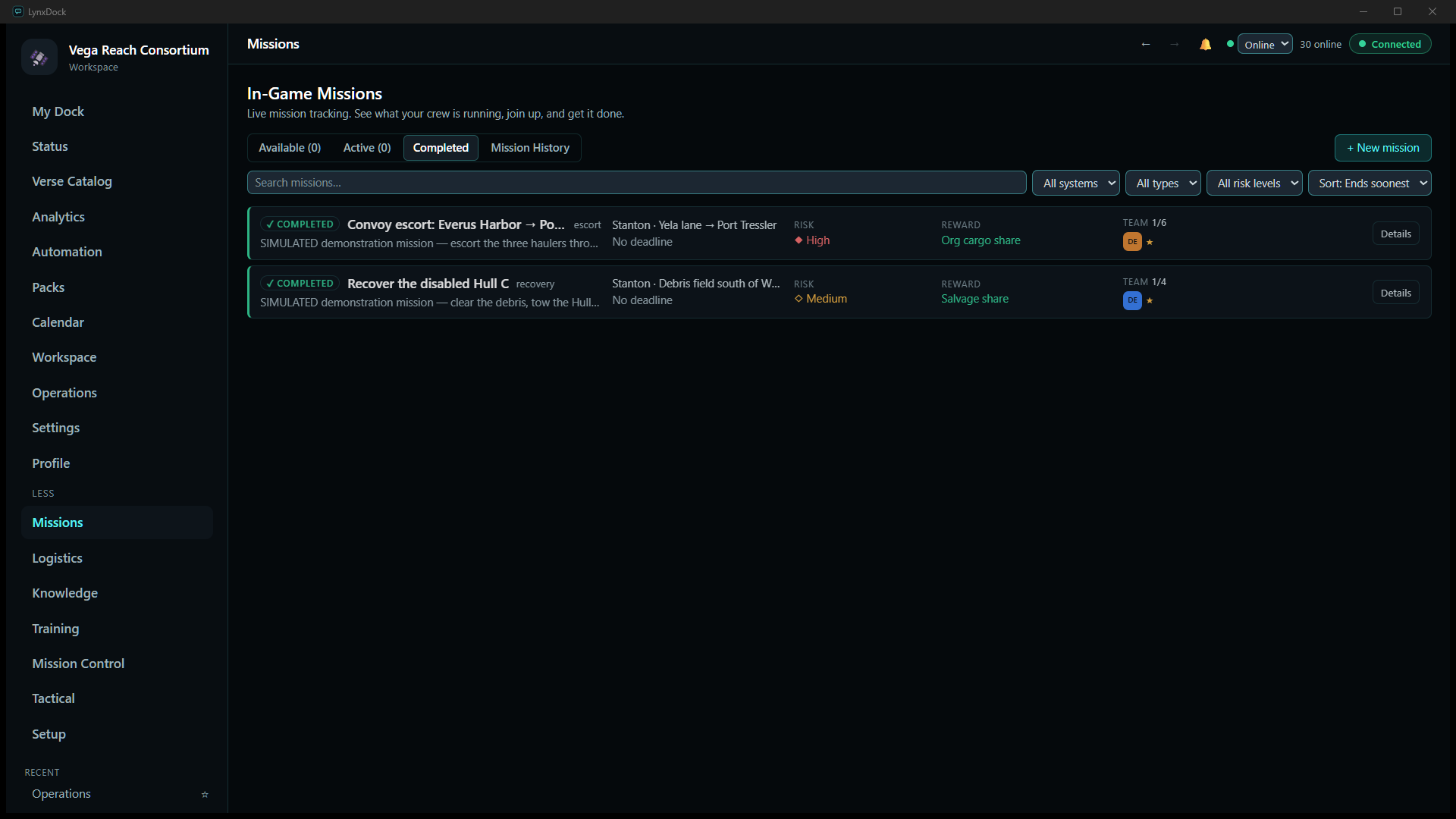
- CommanderCheck Missions → Completed: the escort and the recovery missions are listed as COMPLETED with their location, risk and reward.
- CommanderClick Archive when the debrief is done.
What you should seeThe operation leaves the Operations list. The debrief, timeline, logistics ledger and mission history remain on the server; the board remains under Tactical.


10Troubleshooting and limits
What to check when something in the flow above does not appear, and what this closed-beta build does not do. Everything here was observed on the demo server while capturing this guide.
Missing permissions
- No + New operation, Publish or Issue order: your role does not carry the leadership permission. The Tactical toolbar chip shows your effective role; ask the server owner to adjust it under Workspace.
- A net shows Join net greyed out: you are not in its audience (the Command net is LEADERSHIP). That is by design, not a fault.
- Unit cannot be changed on your participation once staging began — the page says so: Unit assignments are managed by leadership once staging begins. Ask your commander to move you on the Units tab.
Disconnected or stale members
- A member’s location or resources read REPORTED BY PLAYER · DELAYED or Stale with an age: the last report is old. Nothing on the board or the roster is inferred; it stays until the member reports again or the commander sets it (REPORTED BY COMMAND).
- My Dock shows a STALE chip when the assembled view is behind the server; the refresh control next to it re-assembles it, and the footer says which update it was assembled from.
- Presence goes Away automatically when a member is idle; the roster dot and the member list reflect it. Orders and requests are unaffected.
Empty catalog
- Location from catalog on an objective, and catalog-backed ship definitions, need a catalog import on the server. Without one the Verse Catalog page is empty and the coverage dashboard says so; objectives can still be typed by hand. The import is run by the server owner from the client: open Verse Catalog, expand Catalog administration (Show; it appears only for an account with the server-management capability), and under Providers click Enable on Star Citizen Wiki API (the row shows its terms: CC BY-SA 4.0, attribution required). Enabling fetches nothing by itself. Leave the patch field blank for the provider’s default version, click Dry run to fetch and validate without writing, then Sync now; the run appears under Sync runs with its request and record counts and a Log. When it reads Succeeded with a candidate snapshot, go to Snapshots and click Promote — only then does the catalog change for members. Coverage for <patch> then lists every kind as covered with its count. If the panel says This server build has no network provider adapters, the server was built without the provider feature; the beta server build has it. Observed on the demo server on 2026-09-20 (same RPCs the panel uses, provider default patch 4.10.0-LIVE at the time): 132 requests fetched all 24,058 records the Wiki listed, of which 688 were skipped by the normaliser and 286 rejected as kind mismatches, leaving 17,029 entities — the patch and the totals move with the game, so treat these as that day’s result, not a constant. The full accounting is in the coverage report that accompanies the beta package notes.
Unavailable controls
- Voice. If the server has no media plane, Preflight warns Voice rooms are planned but this server has no media plane (derived, overridable), My Dock says Voice is not configured on this server — comms nets are text only, and a joined net shows Voice unavailable with a Retry. Voice is enabled by the host in LynxDock Host; the nets work as text rooms meanwhile.
- Overlay hotkeys. The overlay shows No hotkey bound until you bind the controls in Settings → Game overlay. The overlay cannot draw over a game in exclusive fullscreen; use borderless or windowed.
- Red actions on the deck (Under attack, Disabled, Unable to comply, Request medical) confirm once before they fire — the amber line under the deck says so. A stale press is refused with a reason; a repeated press replays.
- Confirm your ship stays open in the readiness chips until the member picks a Current ship / asset on their participation, even when a ship is committed under Ships & assets — the two are separate records.
Beta limitations seen in this run
- Board positions, routes and statuses are entered by people. There is no game telemetry, no automatic movement and no position sync from Star Citizen.
- The deck’s next-step labels are generic (Resolved, Returning to base) and do not name the request or order they refer to; the context is on the Requests and Orders tabs.
- Superseded orders remain in the Orders list (as SUPERSEDED); there is no filter to hide them.
- The Units tab shows leaders by username (demo-talon1) rather than callsign; the Roster and the board use callsigns.
- After Archive the operation is not listed under Operations and this build has no archived view; the records stay on the server (debrief, timeline, logistics history, mission history).
- The debrief timeline shows the first 100 of its entries (100 of 287 entries); use the stage, kind, person and unit filters to narrow it.
- Orders are limited to 120 characters; longer text is refused by the server.
About these capturesTaken with the application’s own window capture from the qualified V5 build against an isolated demo server on 2026-09-20, in the order shown. No control was added, no element was hidden and nothing was drawn in; where the interface has a limitation it is described above rather than worked around. Detail images are 1:1 crops of the originals. The Verse Catalog contents come from the Star Citizen Wiki API (CC BY-SA 4.0).
See the V5 gallery for the feature overview, or go back to Documentation.