
LynxDock Host
Run your community's server, with a companion that helps.
Host is the Windows app for whoever looks after the community server. Members never need it: they use the LynxDock app and connect to the server directly.
Two roles, two apps
Members use App. Administrators use Host.
Members
The LynxDock app
Everyone in the community installs the Windows desktop app and joins the server with an invitation.
Your community server
Runs on infrastructure you control
The application server keeps permissions, operations and records. Voice and screen sharing run on their own media services beside it.
Administrator
LynxDock Host
A Windows companion for whoever runs the server: setup, start and stop, diagnostics, access and backups.
What Host helps with
The routine parts of running a server, in one place.
Guided setup
A step-by-step first run: the server's purpose, its name and administrator, who may register, the call and screen-share relay, then save and start.
Start, stop and restart
One place to run the server and the voice services Host set up, and to restart them after a change.
Diagnostics
Health checks, live logs, the addresses to share, and connection help for the network problems home hosting runs into.
Readiness
A startup checklist that says what is configured and what still needs attention before members join.
Access
Invitations, member and role administration, and registration that can stay invite-only.
Backups
Backup and recovery surfaces for the server's data, so the administrator has a way back after a problem.
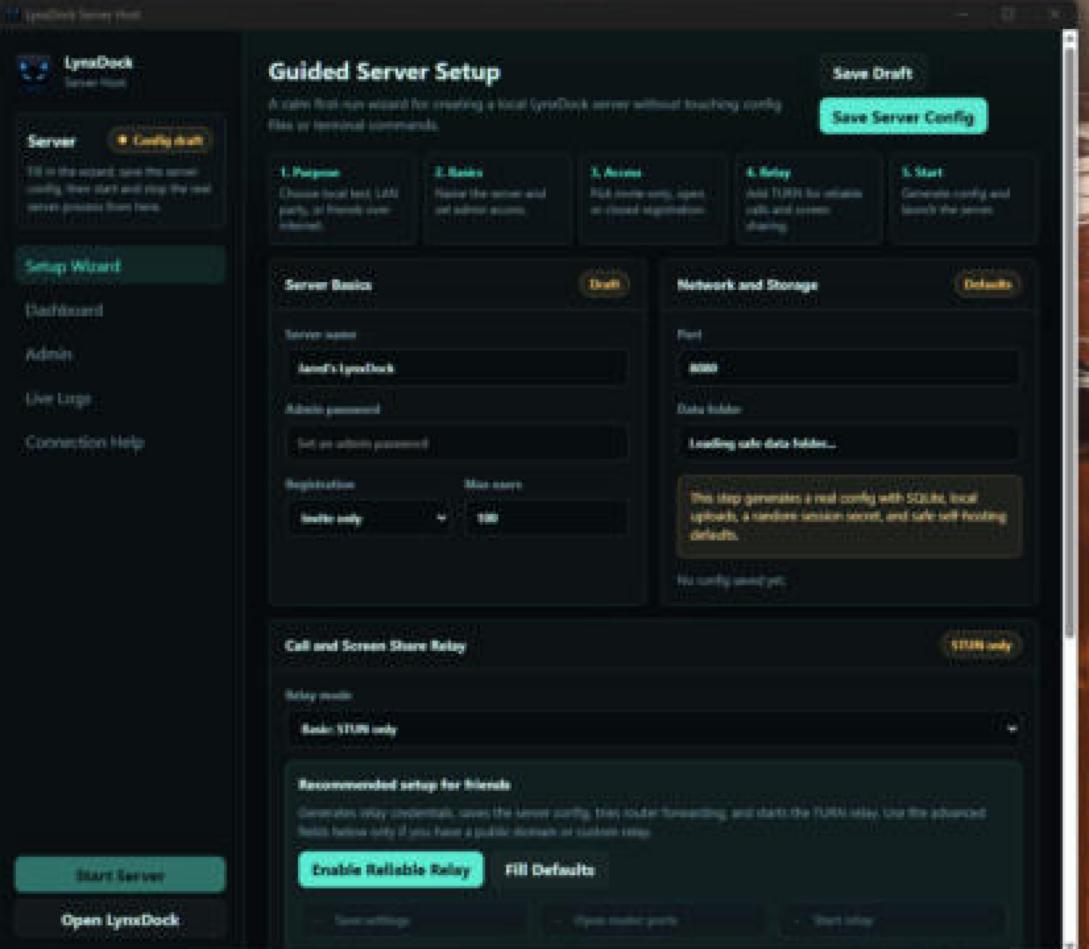 Interface example · July 2026
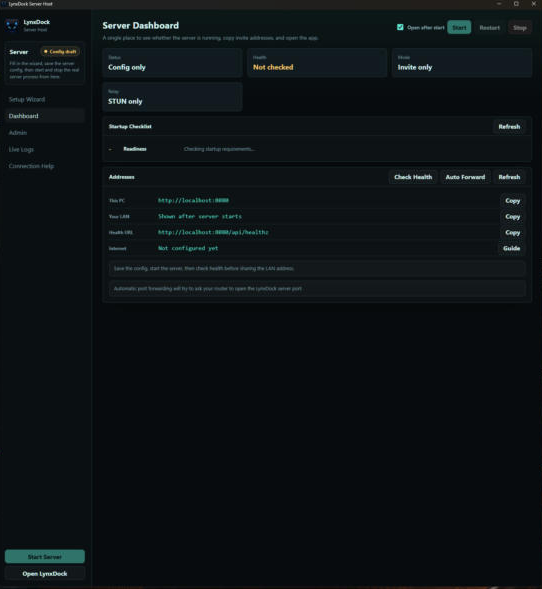 Interface example · July 2026
What stays with the administrator
Host helps. It doesn’t take over the job.
Running a community server is still administration. Host makes the routine steps clearer; the person running the server remains responsible for it.
- Keeping the PC or server running, and deciding how it is exposed to the internet
- Service credentials, including the voice service's keys
- Installing updates, and testing a restore now and then
- Capacity: bandwidth and hardware for the community's voice and screen sharing
- Moderation and who is given access
- A certificate for the server's name when other devices join, and getting its authority trusted on every member device
In Server Profile the Host asks one question - Only this PC, or other devices on your network or the internet - and for the network answer it can create the certificate itself and shows each device's trust steps with the real thumbprint and address.
Platform
LynxDock Host is a Windows (x64) app in this beta, and it runs the community server on the same PC. That Windows requirement belongs to Host. The application server it manages is a separate Rust service, which this beta packages inside Host.
What Host connects to
When the administrator turns voice on, Host downloads LiveKit from LiveKit’s own GitHub releases and, if TURN is on, coturn from LynxDock’s download storage, and checks each against a signed manifest before using it. To learn the PC’s public address, Host asks Google’s public STUN server (and Cloudflare’s only if Google’s does not answer) when the administrator uses “Make reachable”, and each time voice starts with TURN on, including an automatic start. “Make reachable” also asks the router to open a port (UPnP).
The LiveKit server Host runs (version 1.8.4) is set to discover its public address itself when it starts; the configuration Host writes for it names no STUN servers. According to LiveKit’s documentation, LiveKit then uses STUN for this. Which servers it contacts has not been verified.
Members’ apps connect to their community’s server and voice service and, to find a route for voice, to the connection helpers that server gives them: by default Google’s public STUN server, which sees the member’s IP address, and the community’s TURN relay if it is on. Neither Host nor the app checks for or downloads application updates.
For invited administrators
Installers, checksums and first steps are in the tester hub. How the server, voice and relay fit together is on the technology page.
Thinking about running LynxDock for your community?
We can walk you through setup and what the administrator's role involves, using demonstration data.